

Sign in to SAP BTP step by step
How to open your ManbiTech lab desktop at web.manbitech.in, find your login details and sign in to the SAP BTP Cockpit with two-factor authentication – with a picture for every step.
Personalise this guide with your own login names online: www.manbitech.com/en/blog/sap-btp-login-guide
Before you start
You sign in to the SAP BTP Cockpit from your ManbiTech lab desktop, which you open in your browser at web.manbitech.in. This works the same on Windows, Mac and Linux – you only need Chrome or Edge. It takes about 5 minutes.
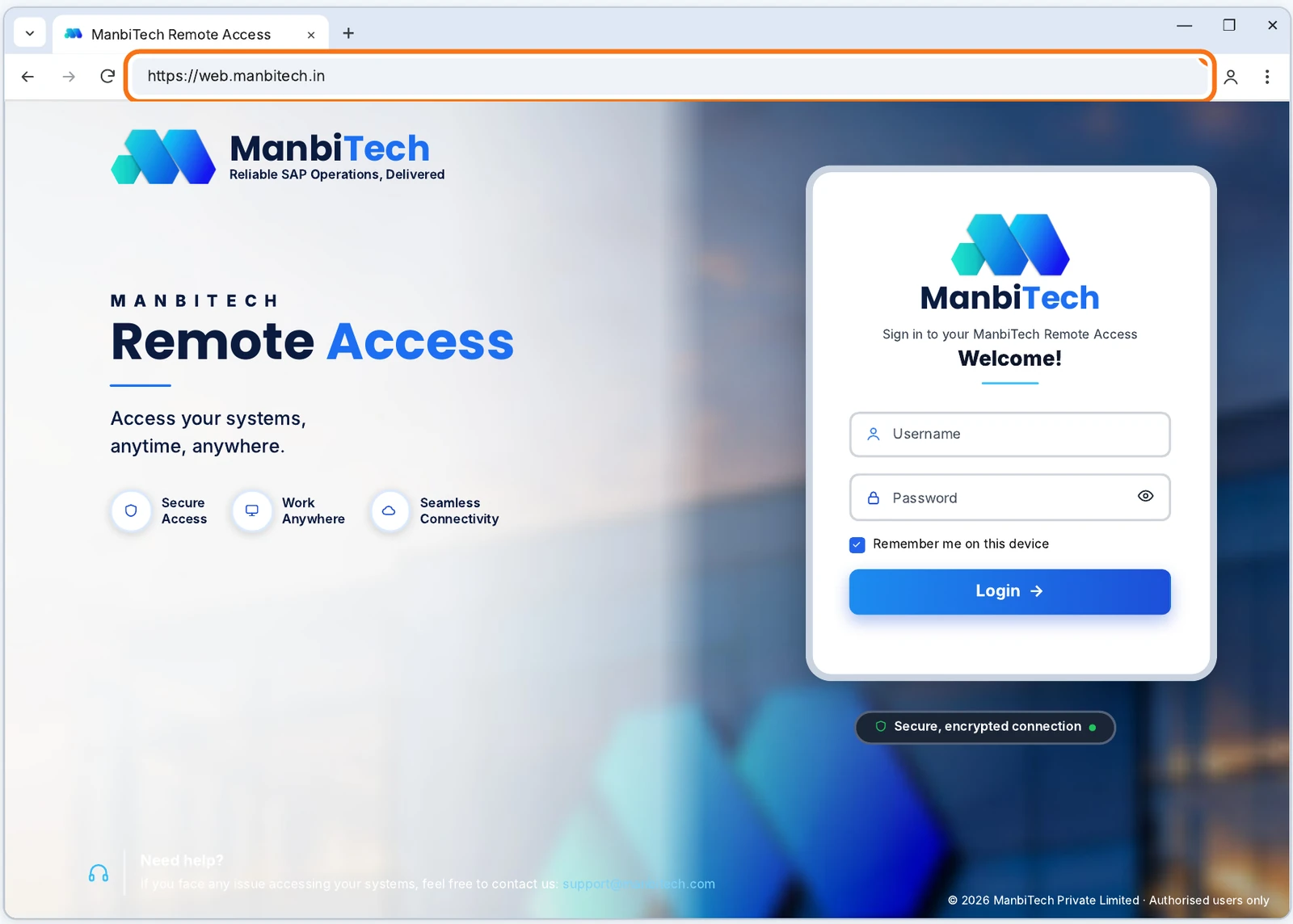
Remote Access
Open your ManbiTech lab desktop in the browser.
2Sign in
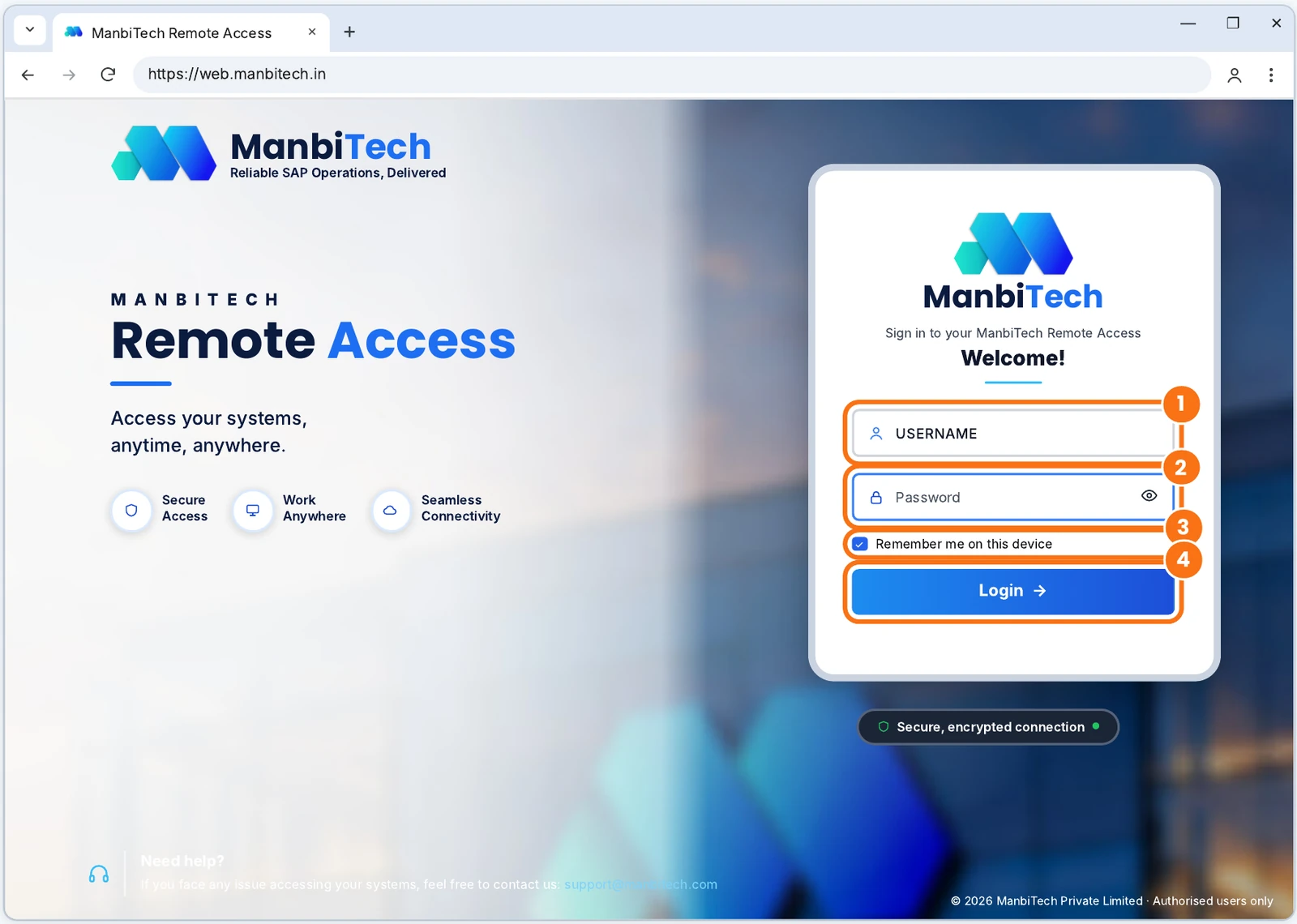
Enter your username (1) and your password (2), tick Remember me (3) and click Login (4).
3Check your lab desktop
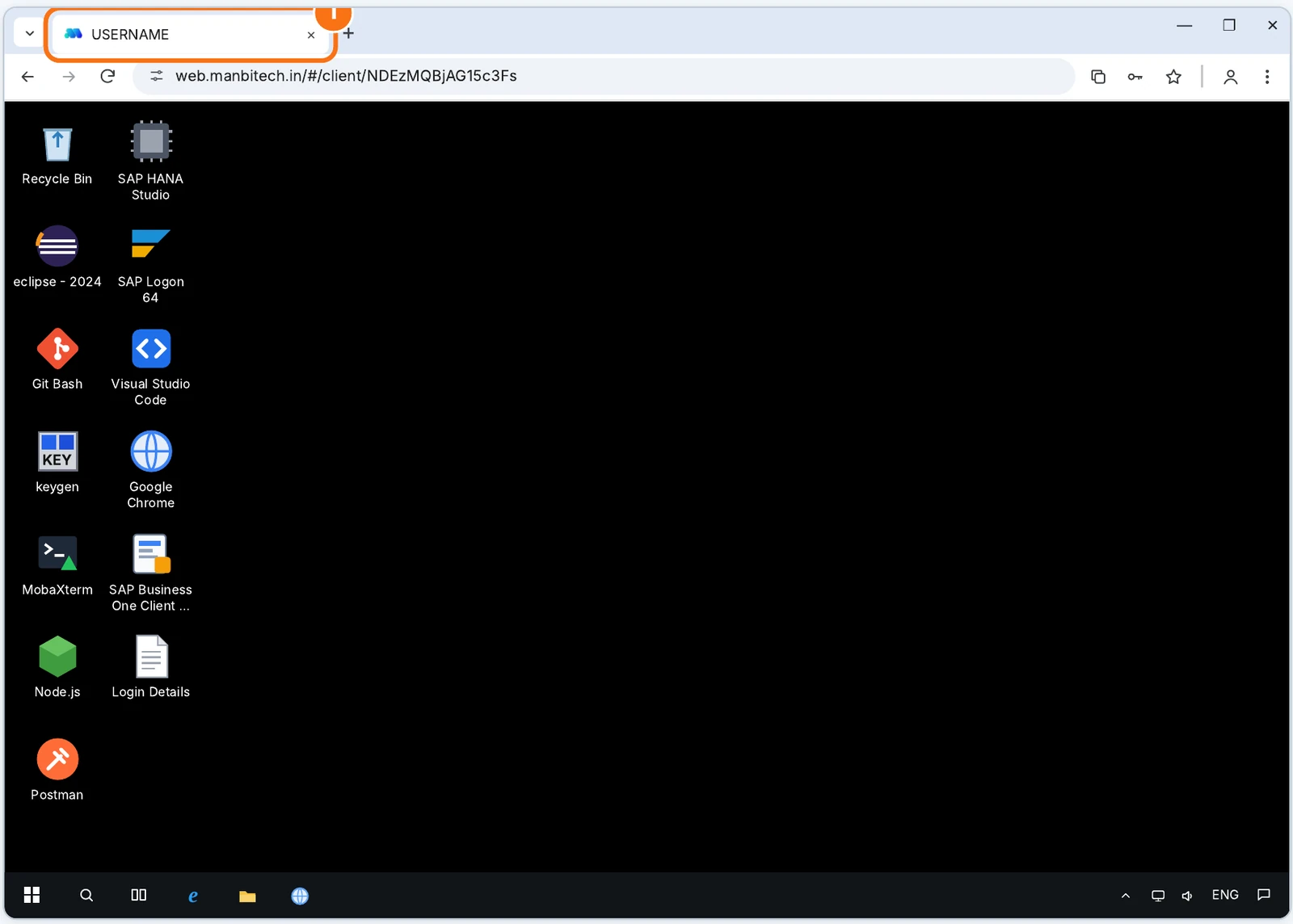
Check that the browser tab shows your username (1).
4Allow copy and paste
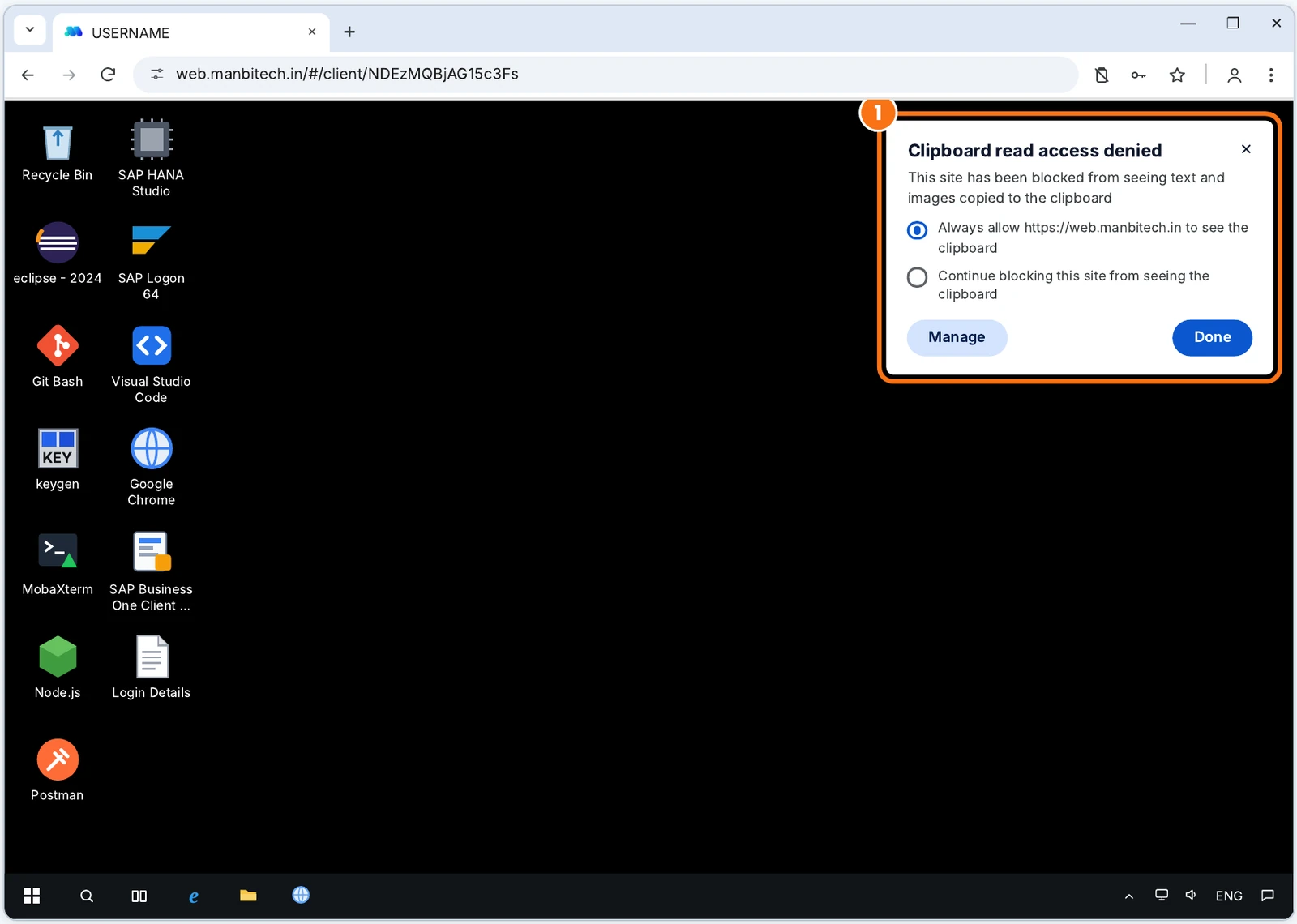
Select Always allow https://web.manbitech.in to see the clipboard and click Done (1).
Your login details
Find your SAP BTP, Bitwarden and S/4HANA details.
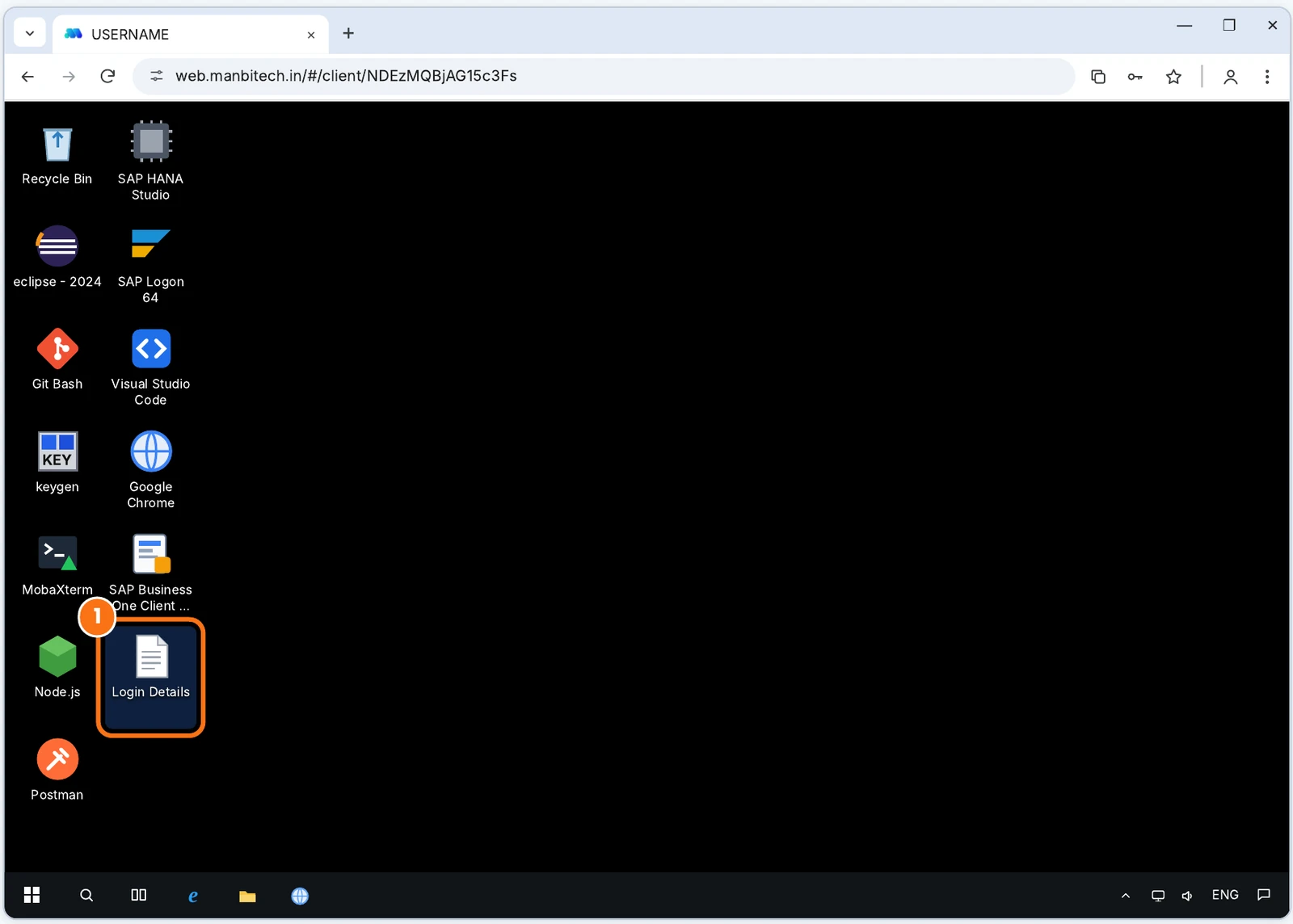
5Open Login Details
Double-click Login Details (1) on the desktop.
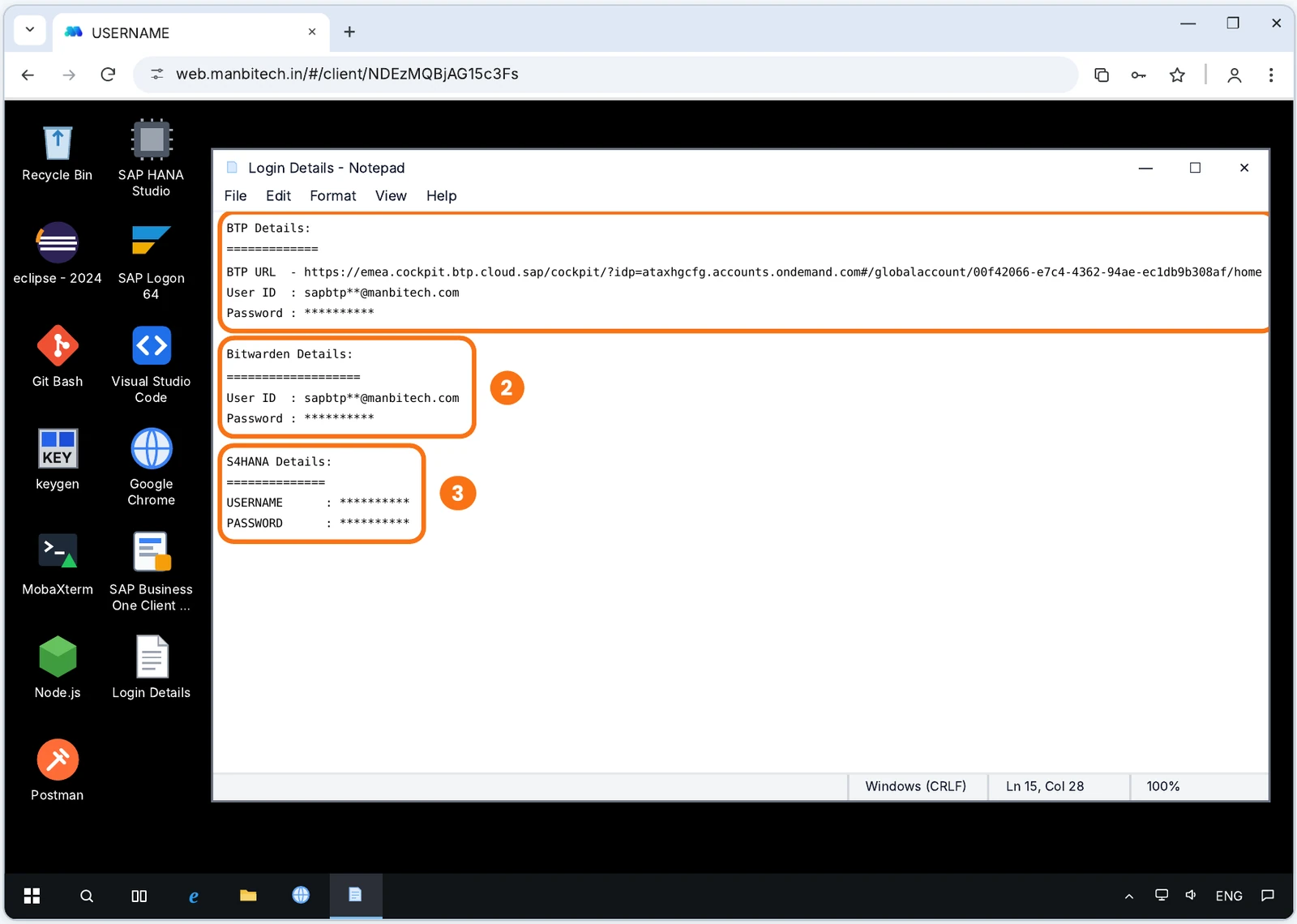
6Note your login details
Use BTP Details (1) for SAP BTP, Bitwarden Details (2) for Bitwarden and S4HANA Details (3) for S/4HANA.
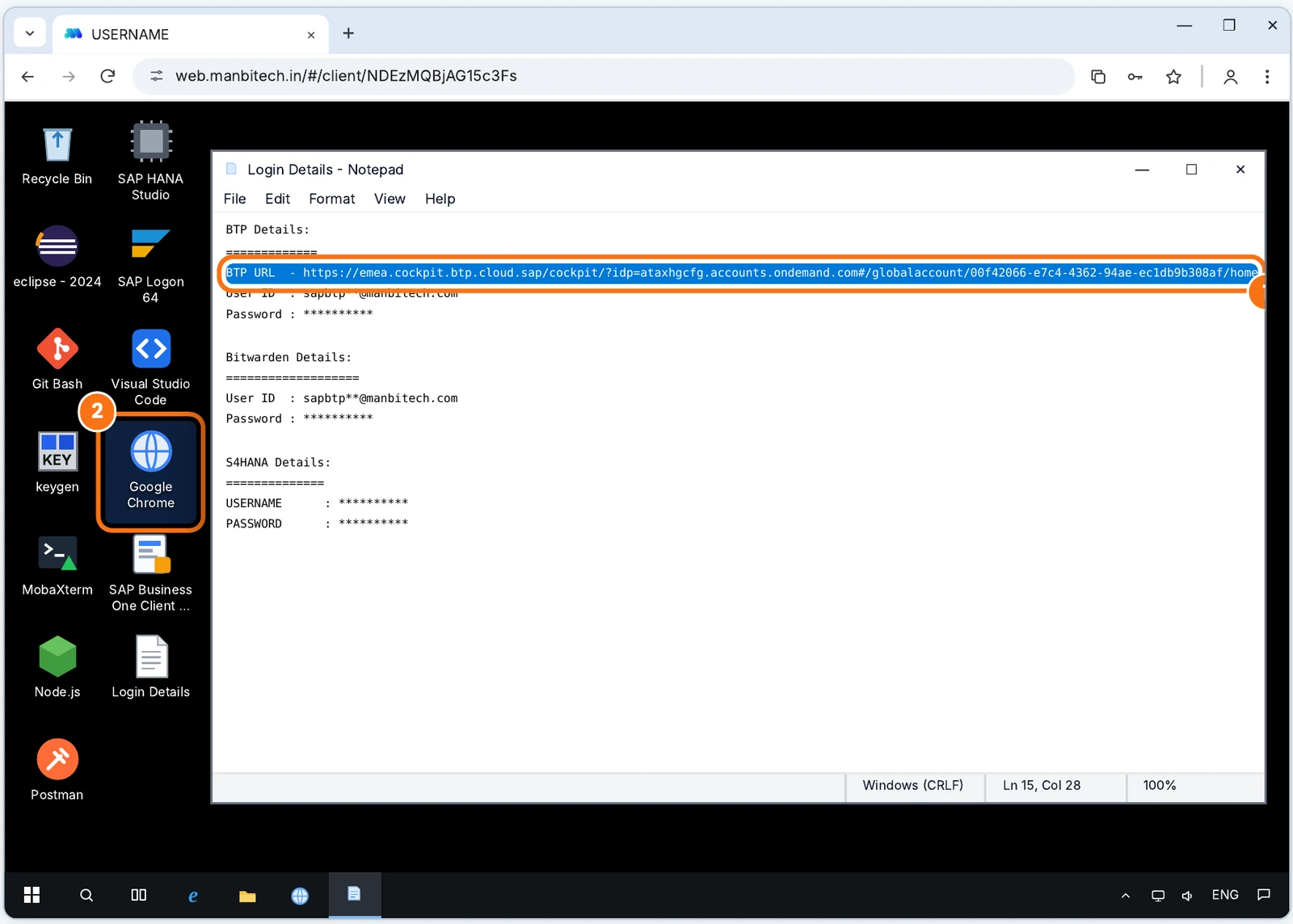
7Open BTP in Chrome
Copy the BTP URL (1), open Google Chrome (2) on the lab desktop, paste the URL and press Enter.
SAP BTP sign-in
Sign in and confirm with the passkey in Bitwarden.
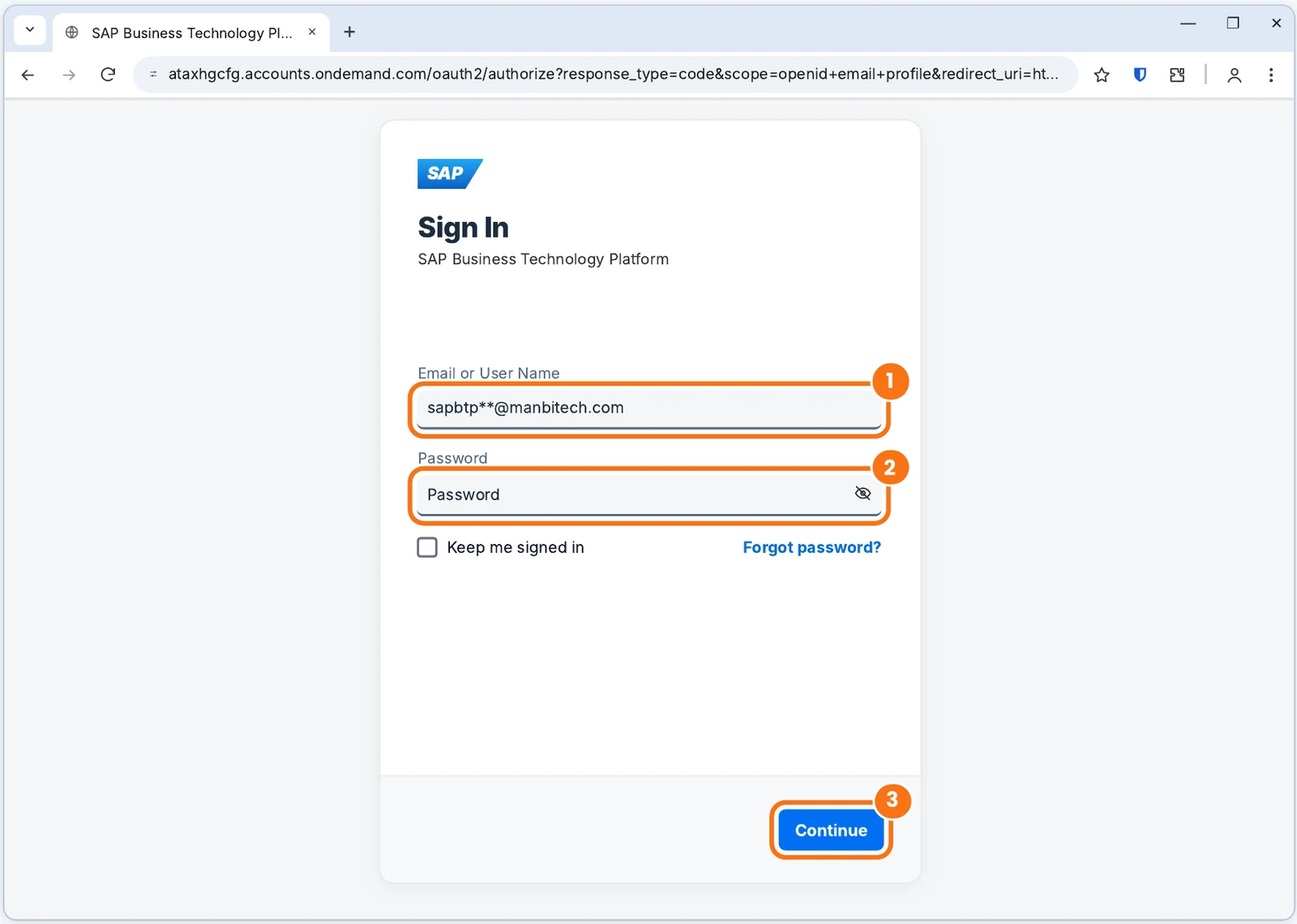
8Sign in to SAP BTP
Enter your BTP user ID (1) and the BTP password from Login Details (2), then click Continue (3).
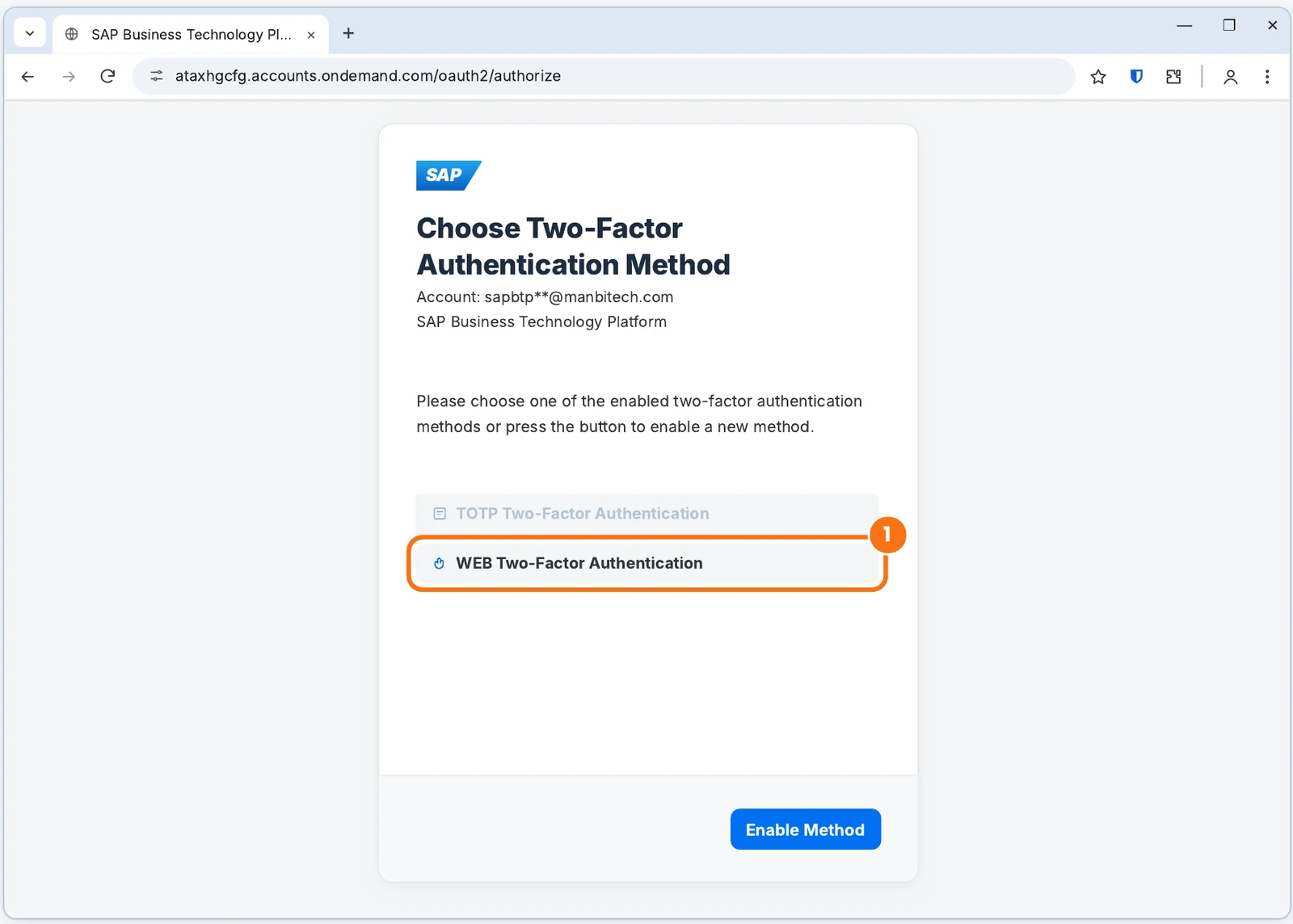
9Choose the method
Click WEB Two-Factor Authentication (1).
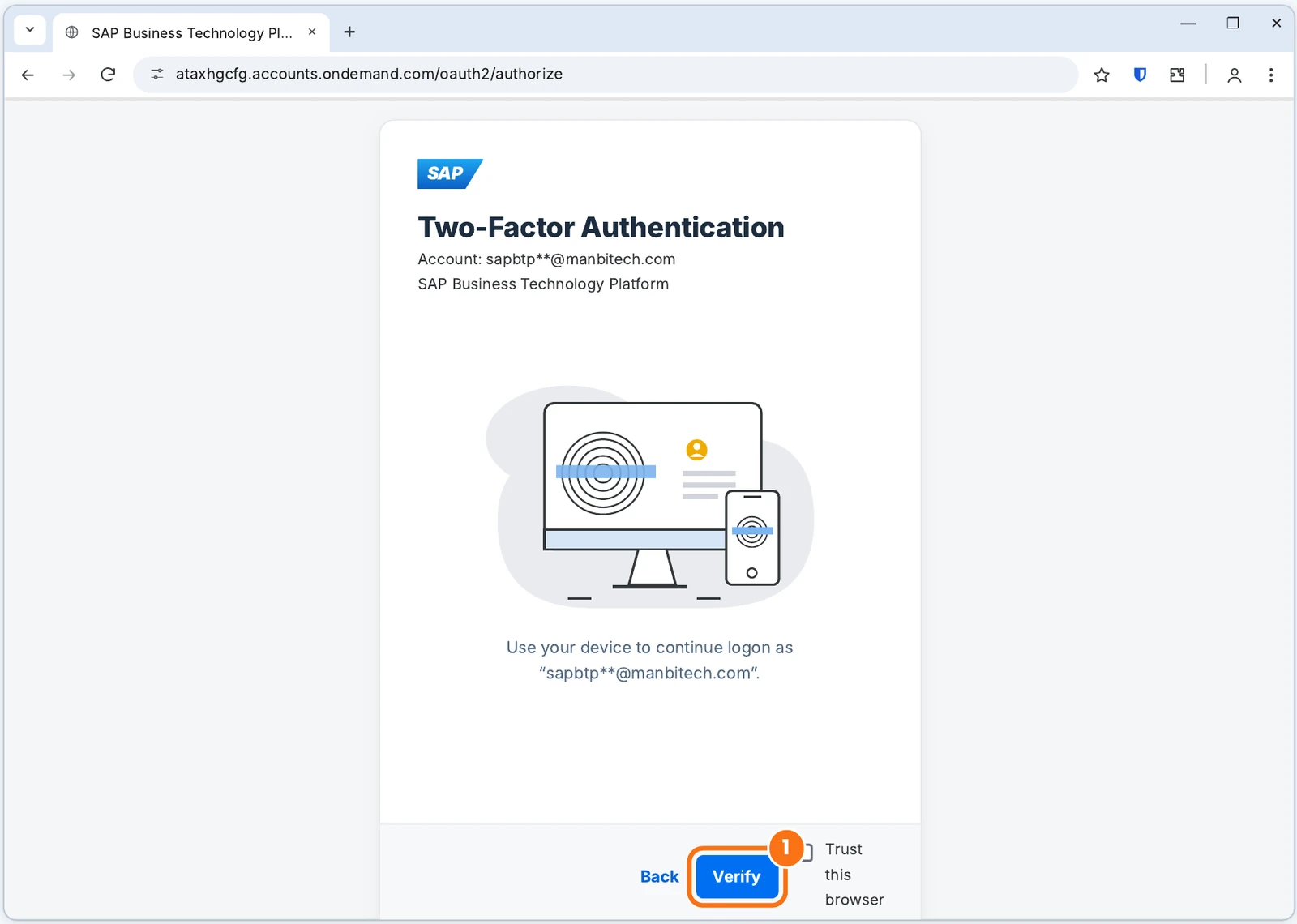
10Click Verify
Click Verify (1). Leave Trust this browser unticked.
 “”.
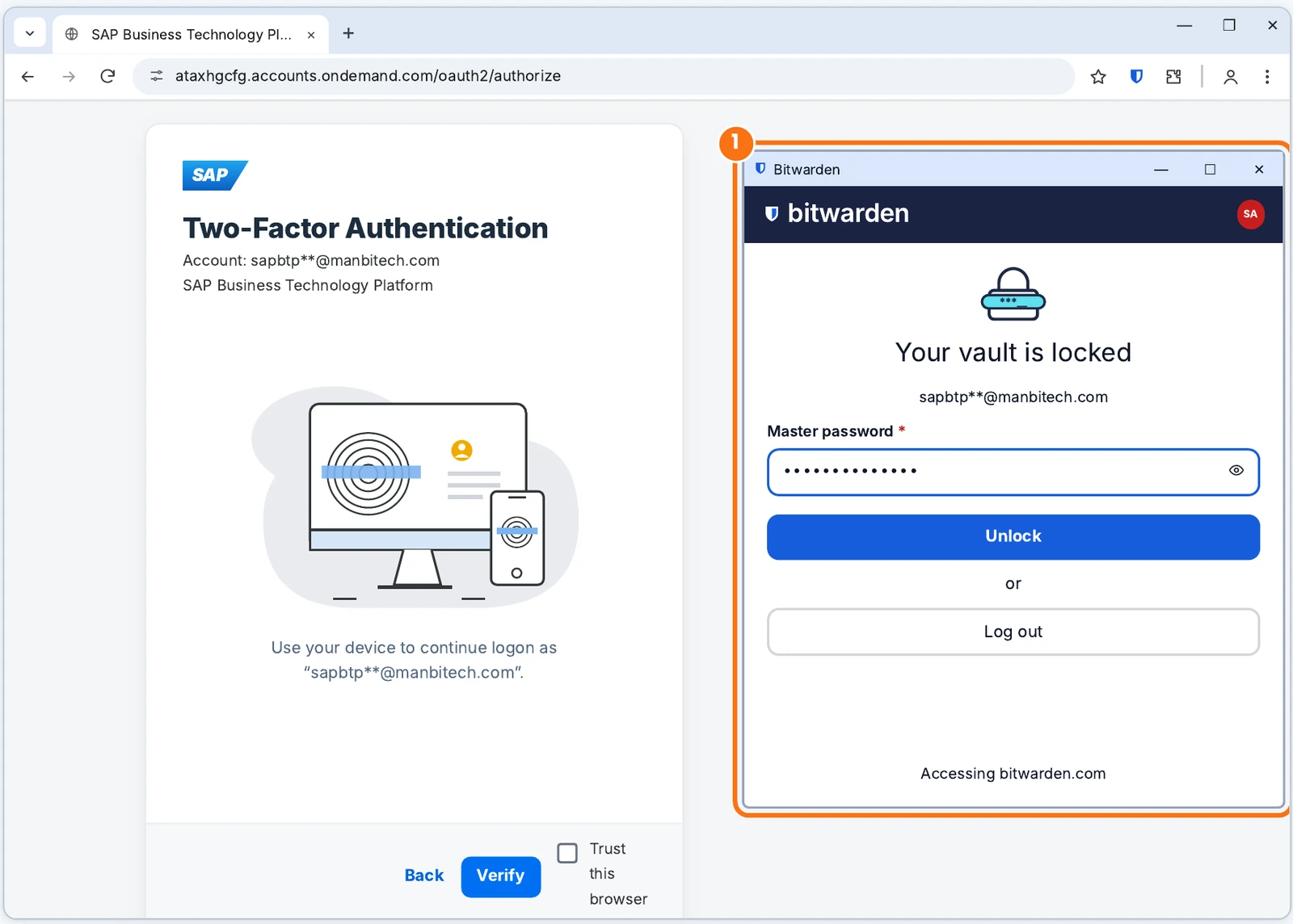
11Unlock Bitwarden
Bitwarden opens for . Enter the Bitwarden Details password as Master password and click Unlock (1).
 “”.
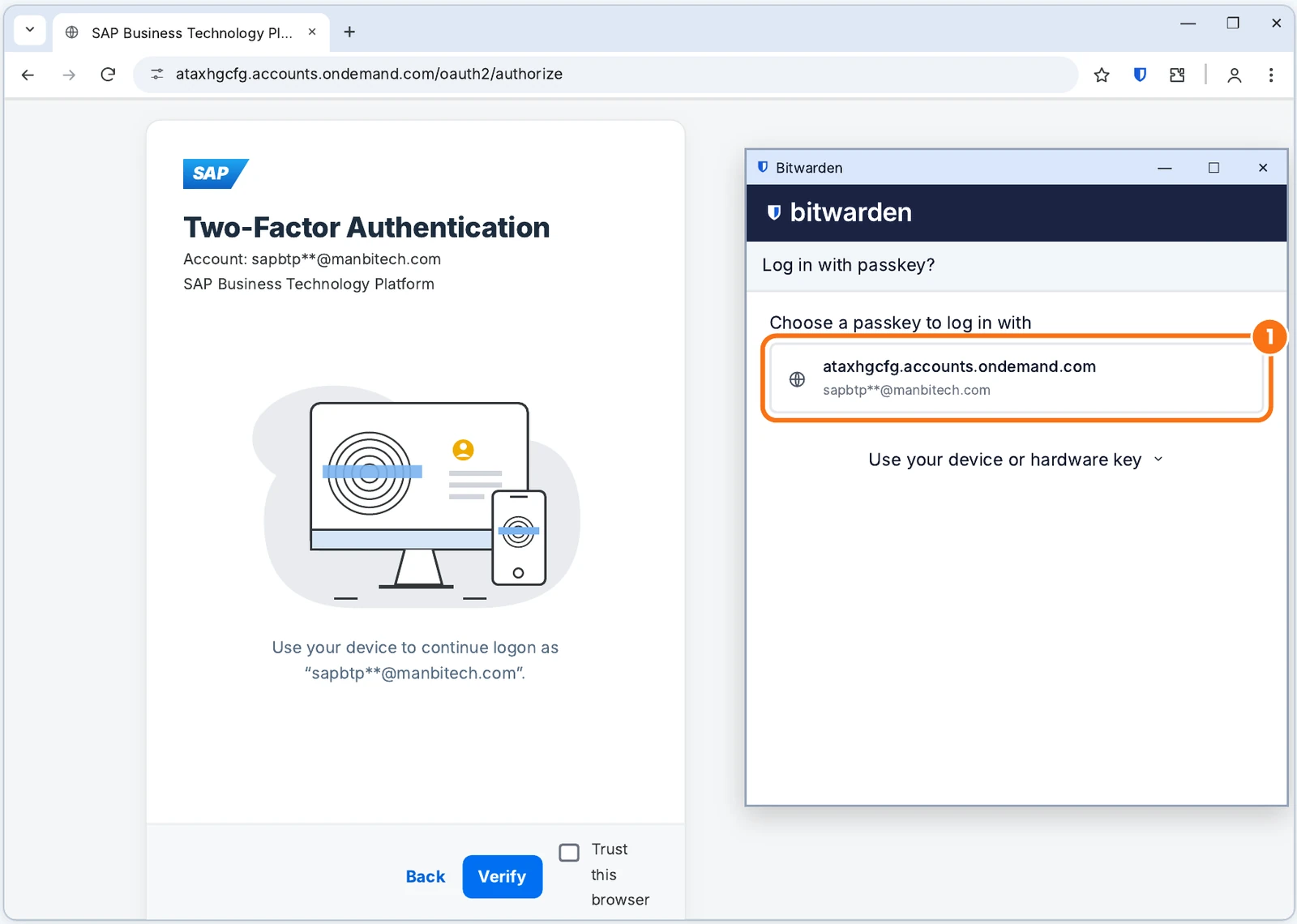
12Pick the passkey
Click the passkey ataxhgcfg.accounts.ondemand.com (1). You are now signed in.
 “”.
SAP BTP Cockpit
Find your subaccounts.
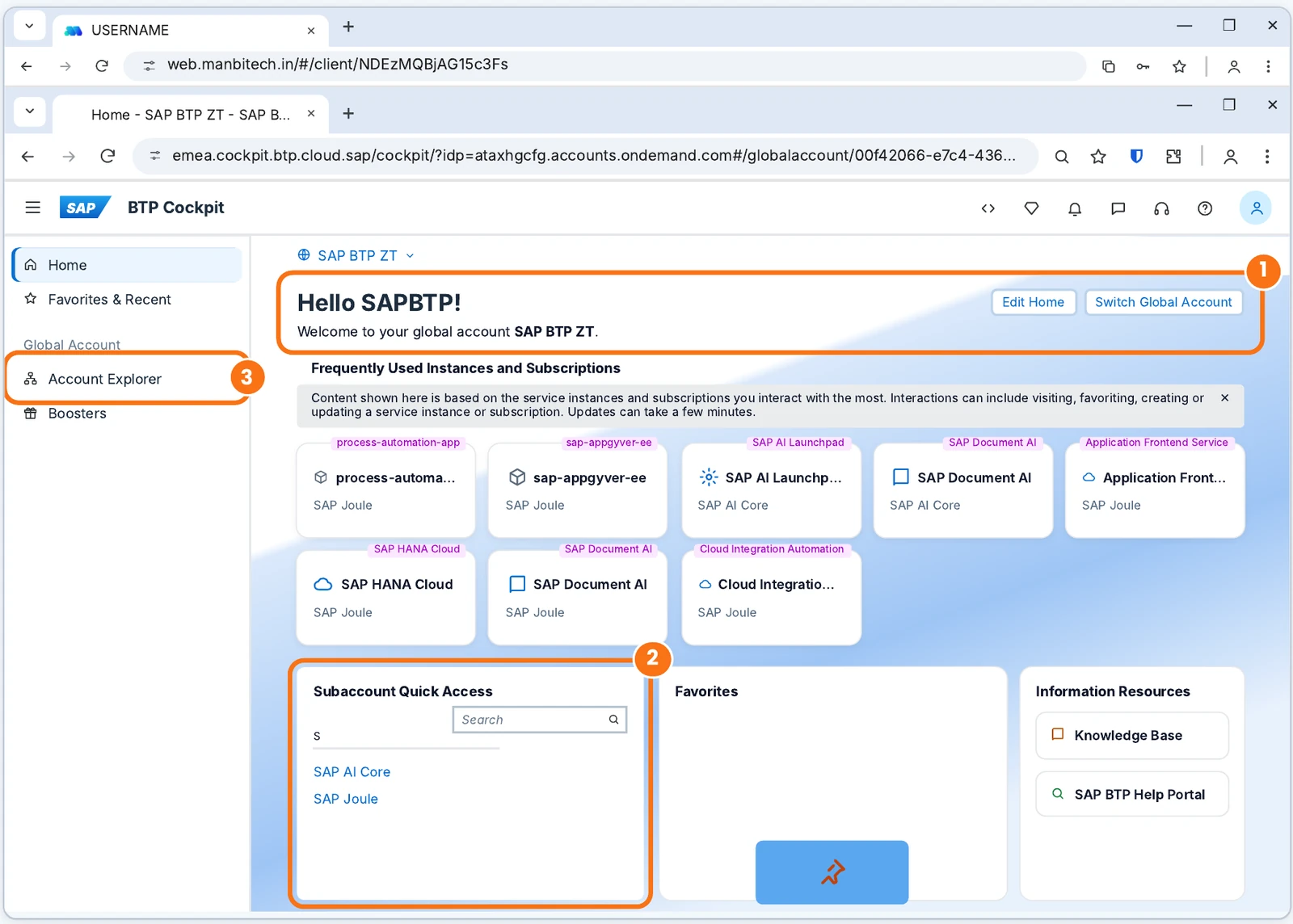
13Open Account Explorer
Check Hello SAPBTP! (1) and Subaccount Quick Access (2), then click Account Explorer (3).
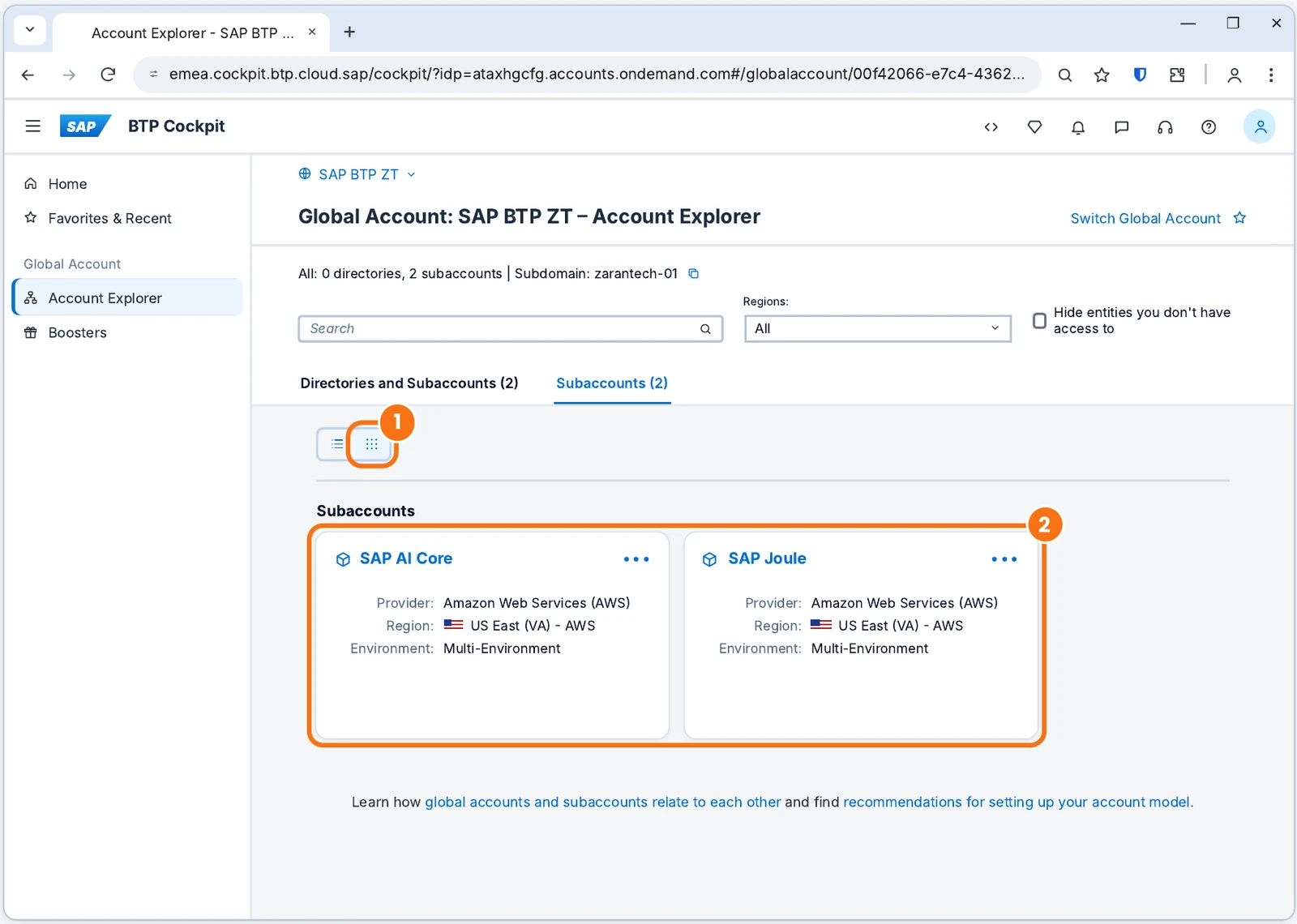
14Tiles view
Click Tiles view (1) and check the subaccount cards (2).
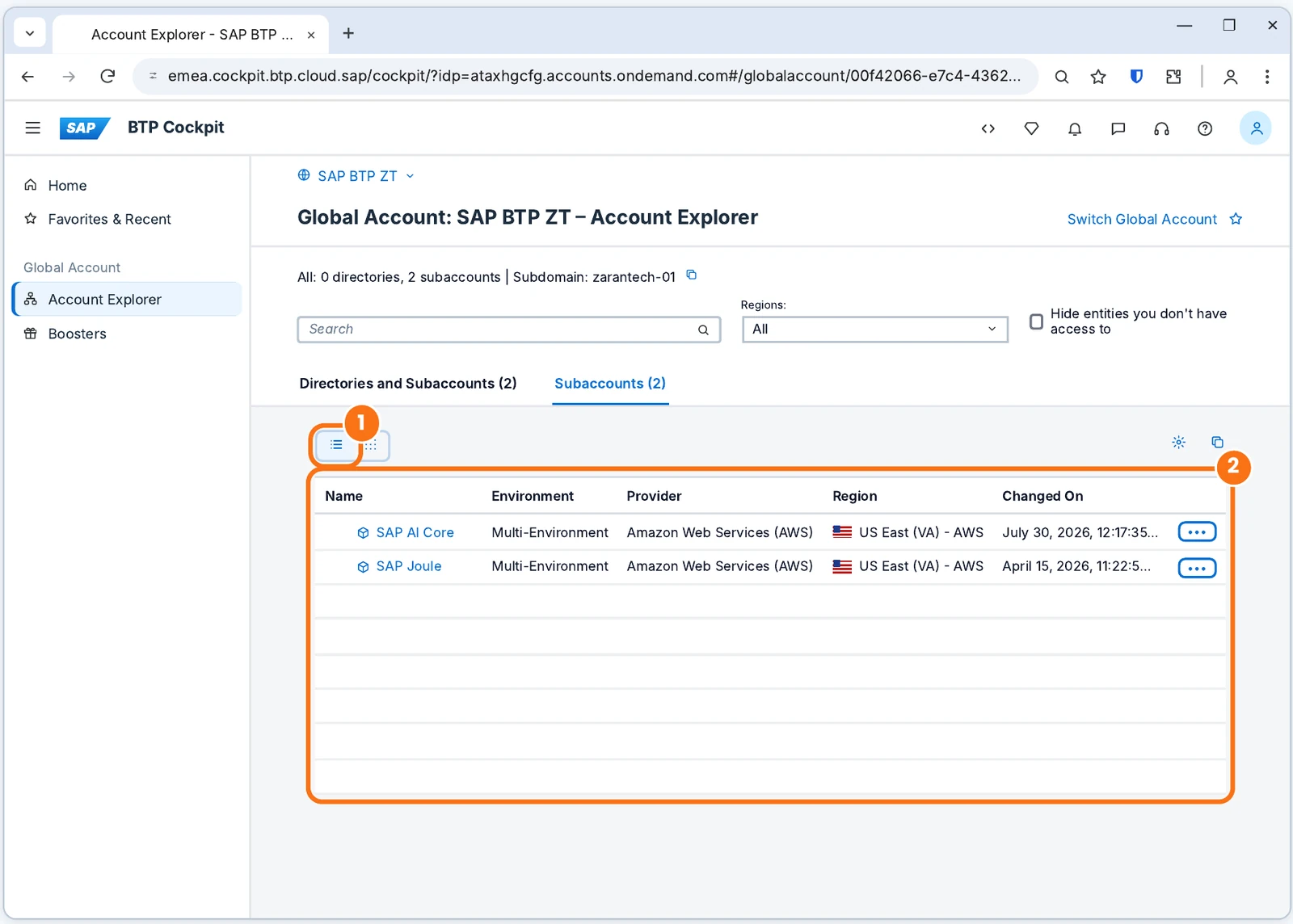
15List view
Click List view (1) and check the subaccount table (2).
Good to know
Quick answers to common questions.
Copy and paste does not work
I only see a black screen after login
My Remote Access login fails
SAP does not accept the BTP password
Nothing happens after I click Verify
Which master password unlocks Bitwarden?
Where do I use the S4HANA details?
Can I use a Mac?
✓ Do
- Open BTP only inside the lab desktop
- Keep the Login Details file where it is
- Sign out of BTP when you finish
- Close the remote tab at the end
✕ Don’t
- Share your login details with anyone
- Use Forgot password? on the SAP page
- Click Log out in Bitwarden
- Tick Trust this browser on the lab machine
Write to support@manbitech.com with your USERNAME (shown in the browser tab), the step number and a screenshot of the message you see.