

Install Eclipse + ABAP Development Tools on Windows and Mac
Download Eclipse IDE, add SAP’s ABAP Development Tools (ADT), open the ABAP perspective and connect to your ManbiTech SAP system. Enter your system details once and every step below shows your values.
Personalise this guide with your own System ID, server and user online: www.manbitech.com/en/blog/eclipse-adt-installation-guide
Before you start
Eclipse with ABAP Development Tools (ADT) is the program you use to write and change ABAP code in your SAP system. Installing it takes about 25 minutes and you only do it once on each computer.
Download and run Eclipse
Get the Eclipse package, unzip it and start it for the first time.
1Open the Eclipse download page
Click the button (or copy the link into Chrome or Edge). Under Eclipse IDE for Java Developers, click Windows x86_64. If a newer version is listed, use the newest one.
https://www.eclipse.org/downloads/packages/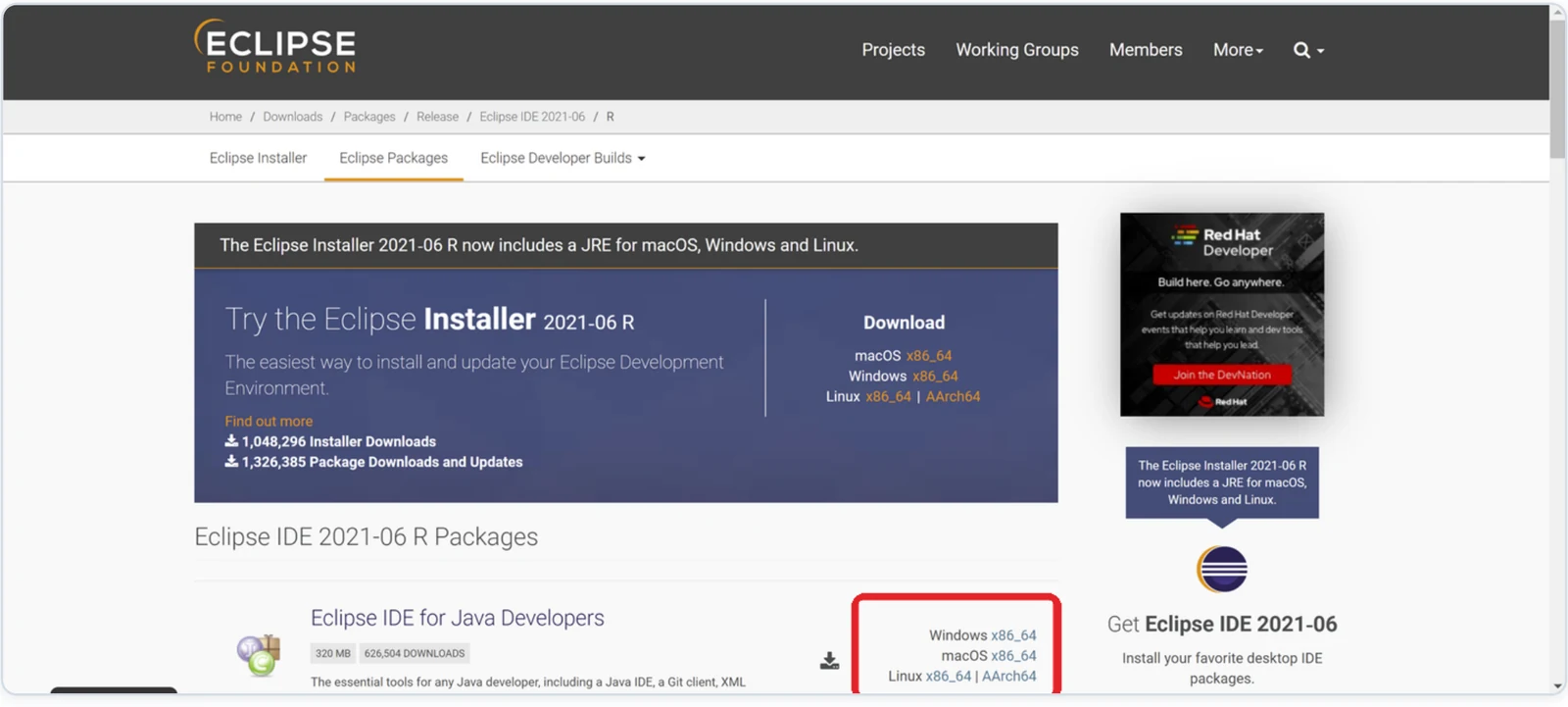
2Download the file
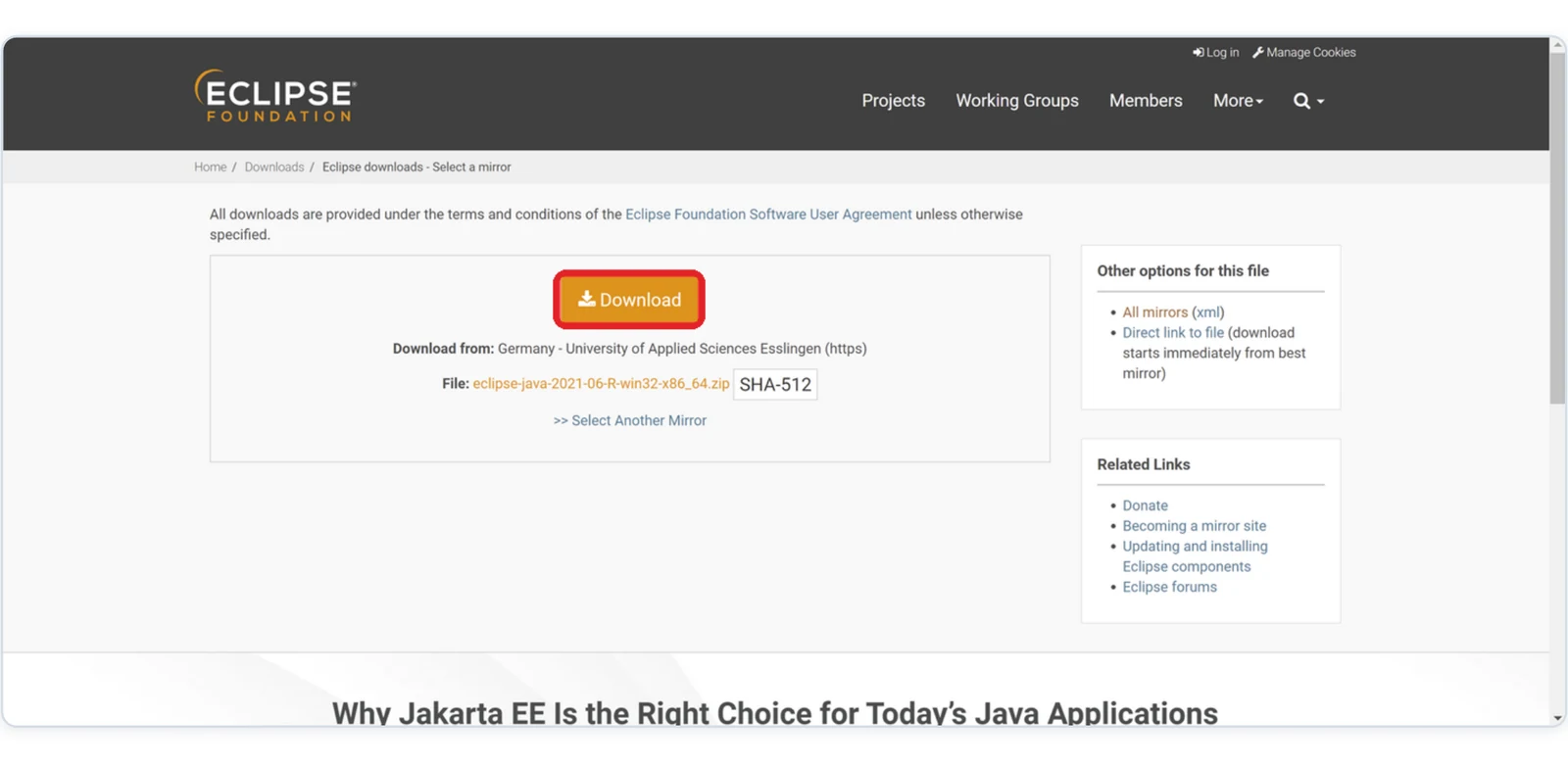
Click Download. The file eclipse-java-…-win32-x86_64.zip (about 320 MB) is saved in your Downloads folder. Wait until the download has finished.
3Open the downloaded file
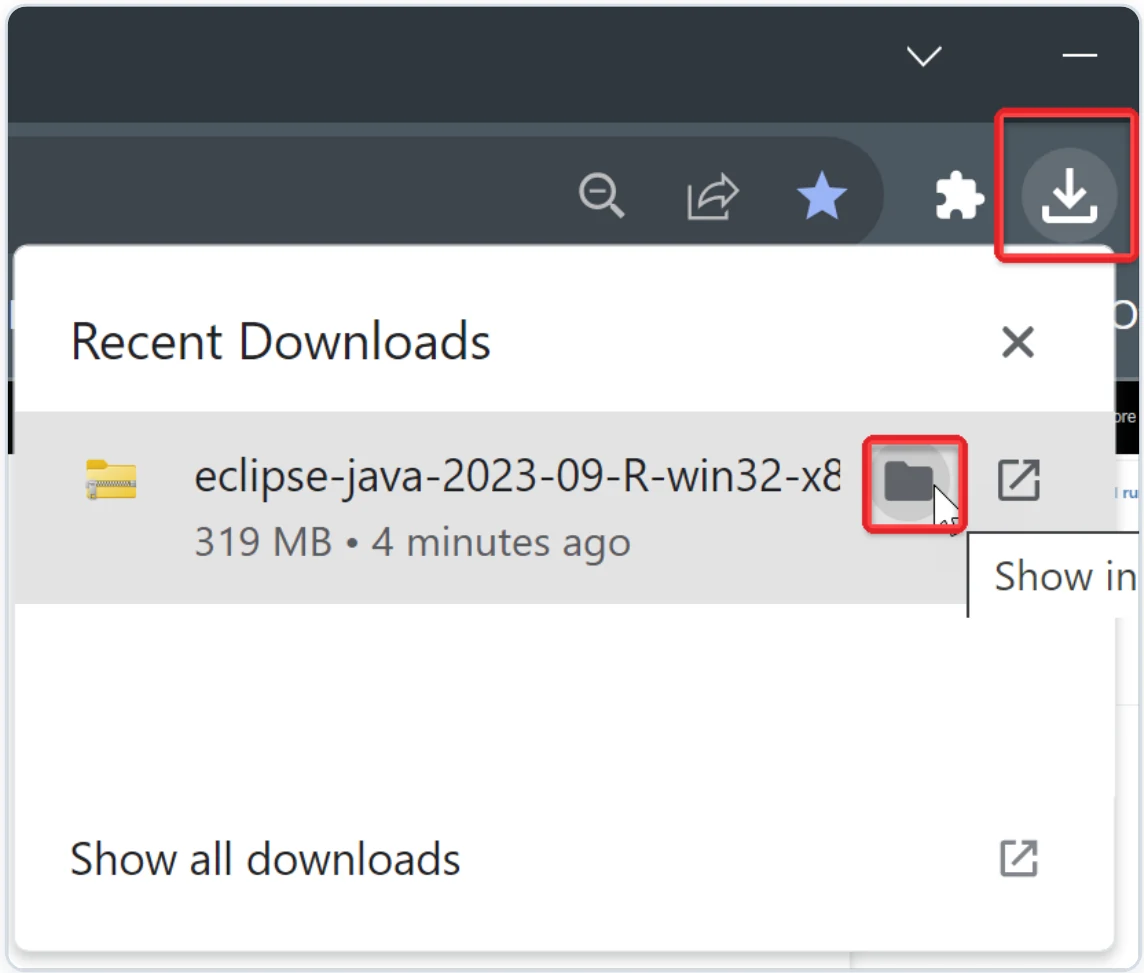
When the download has finished, click the Downloads icon at the top-right of your browser, then click the folder icon next to the file. Your Downloads folder opens.
4Unzip the file
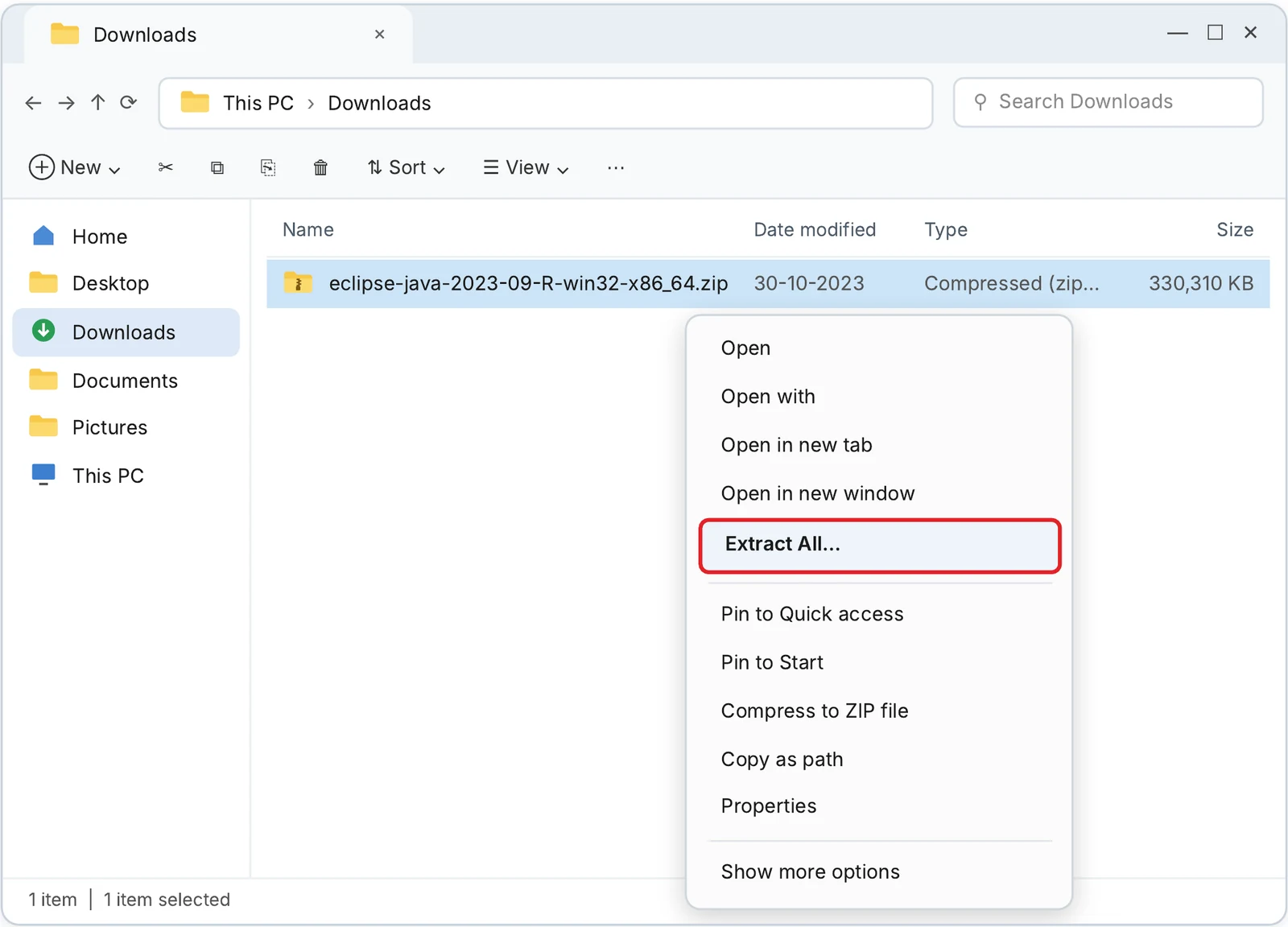
Right-click eclipse-java-…-win32-x86_64.zip and choose Extract All…
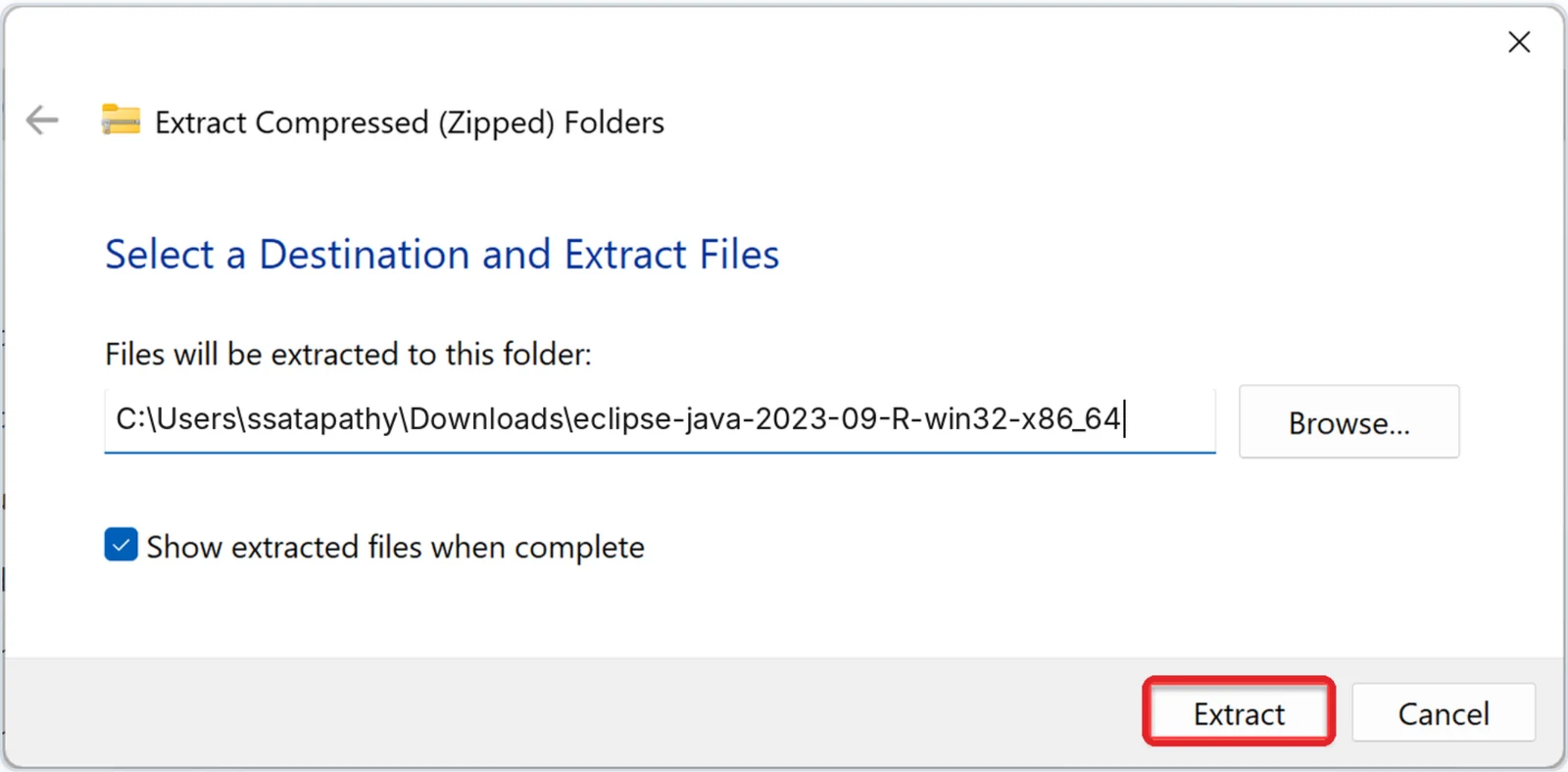
5Click Extract
Don’t change the folder shown (for example C:\Users\ssatapathy\Downloads\eclipse-java-…) and click Extract.
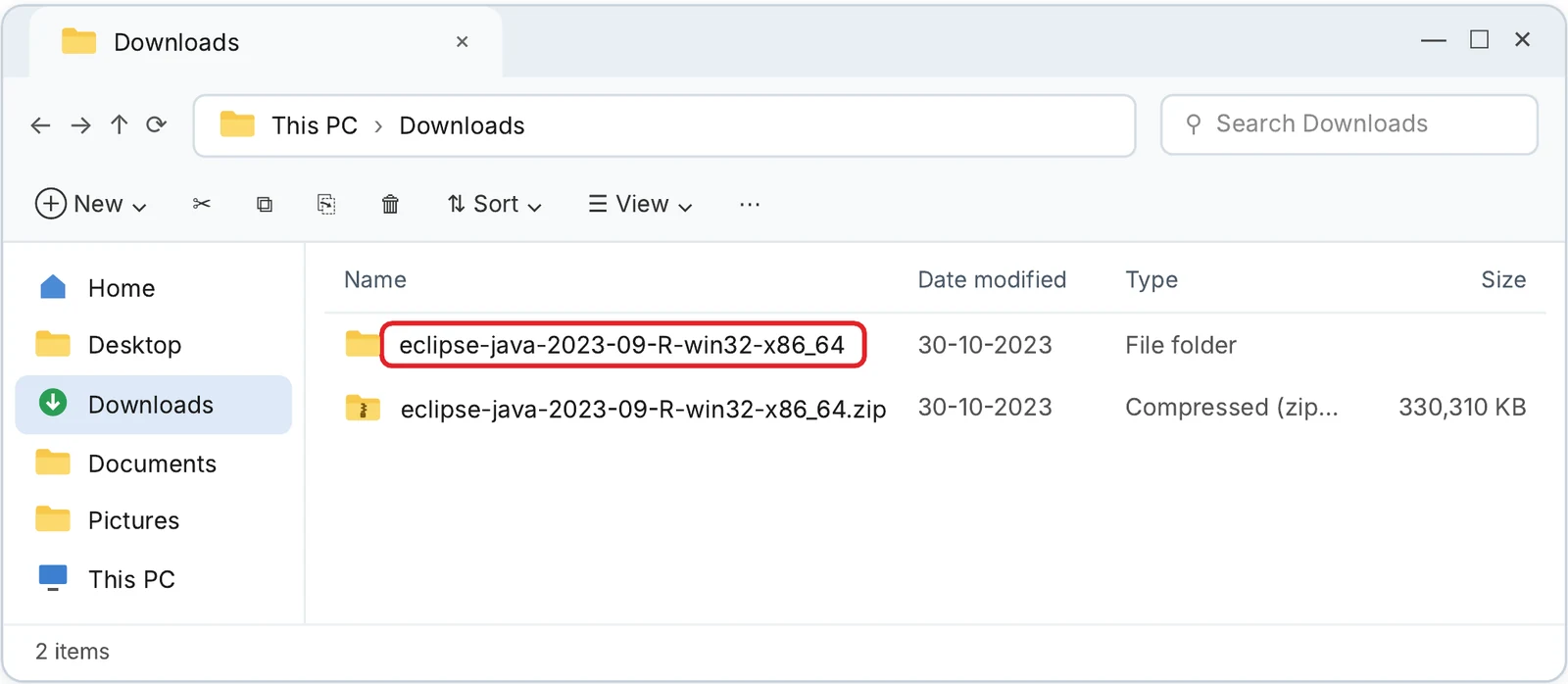
6Open the new folder
A new folder with the same name as the ZIP file is now in Downloads. Double-click the folder, not the ZIP file.
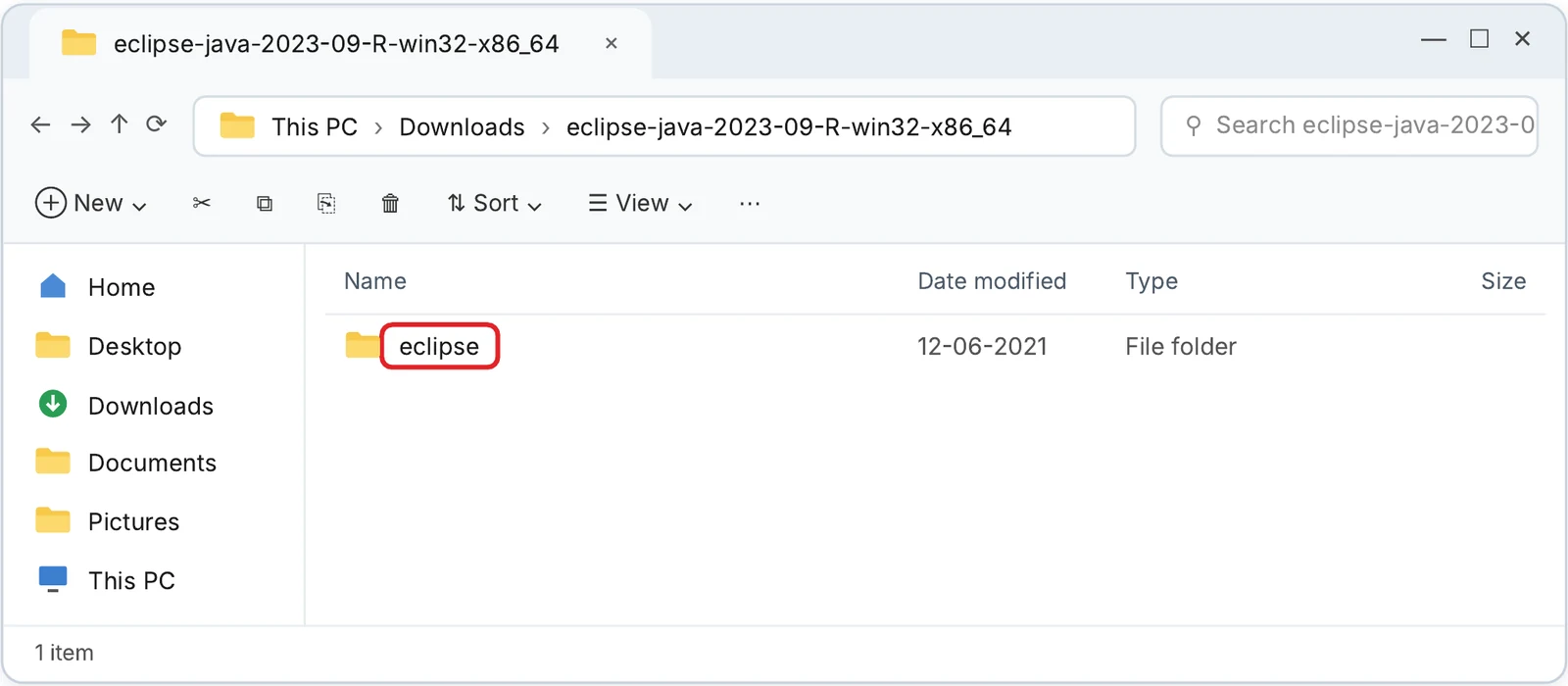
7Open the eclipse folder
Inside you see one folder named eclipse. Double-click it.
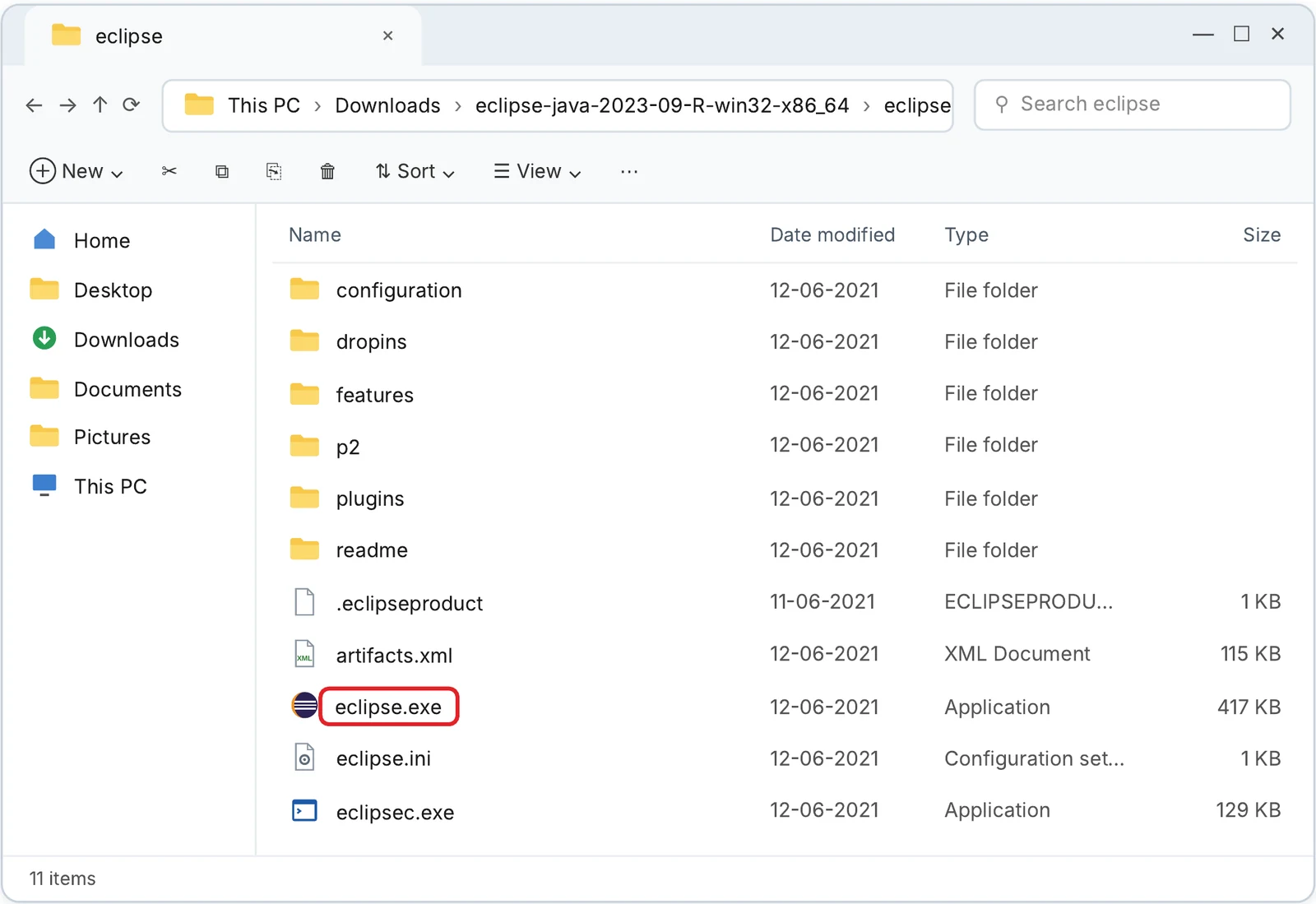
8Start Eclipse
Double-click eclipse.exe (the round purple icon). The first start can take up to a minute. If Windows asks whether to run it, click Run.
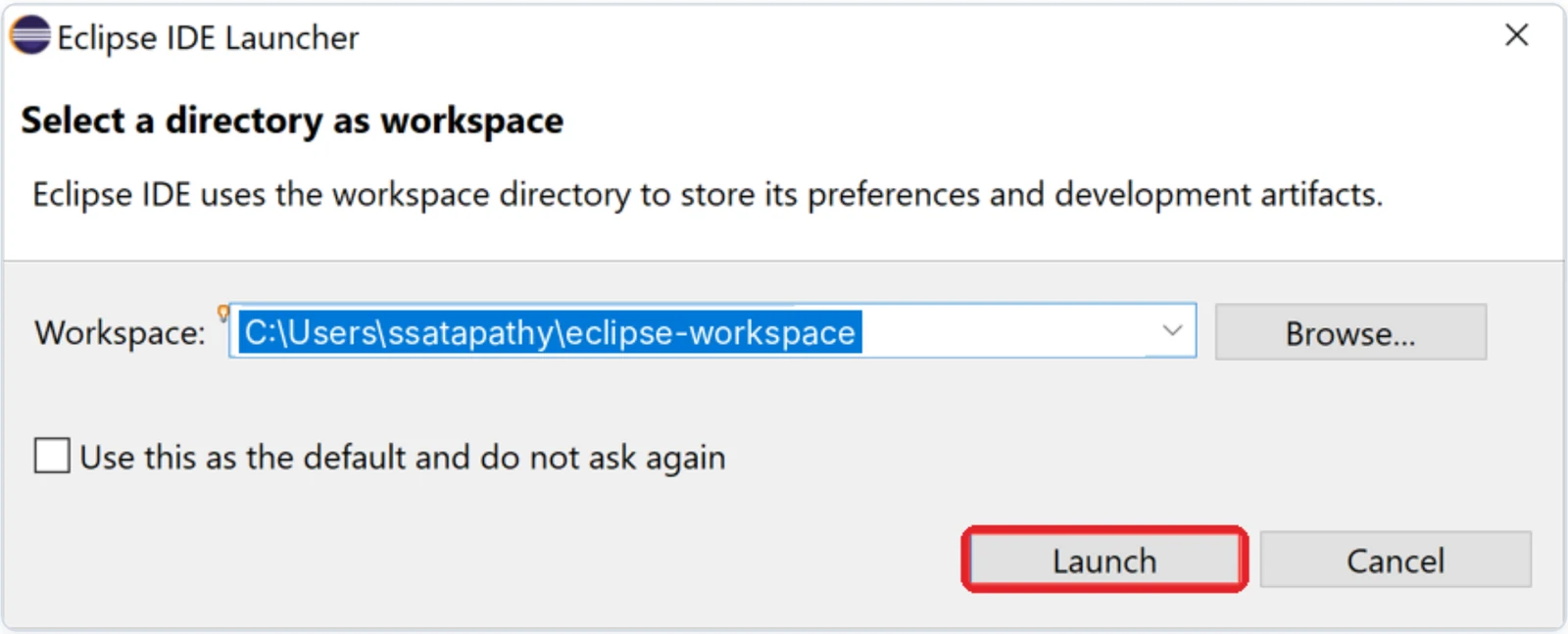
9Launch your workspace
Eclipse asks where to save your work. Keep the suggested folder (for example C:\Users\ssatapathy\eclipse-workspace) and click Launch.
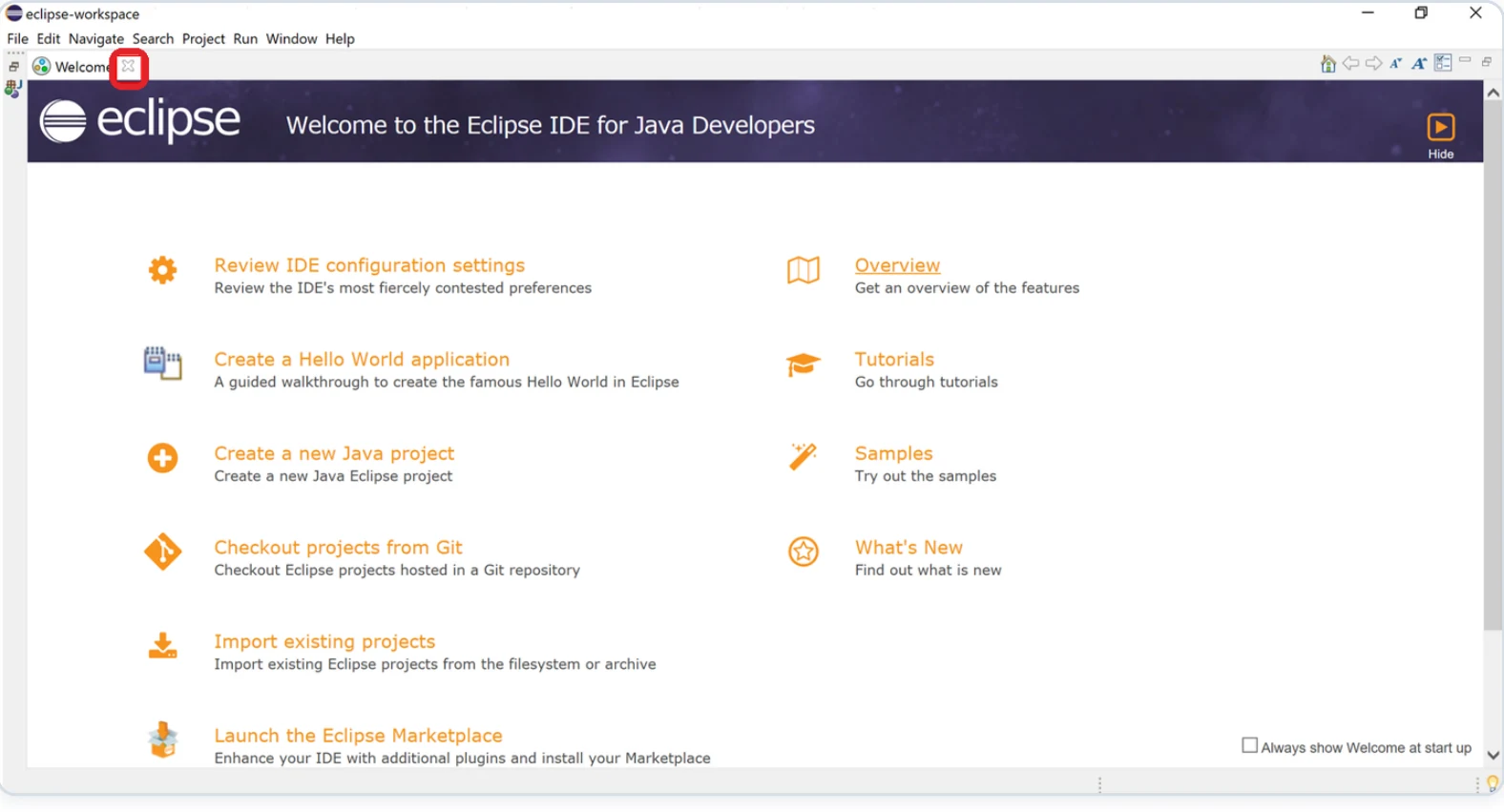
10Close both start pages
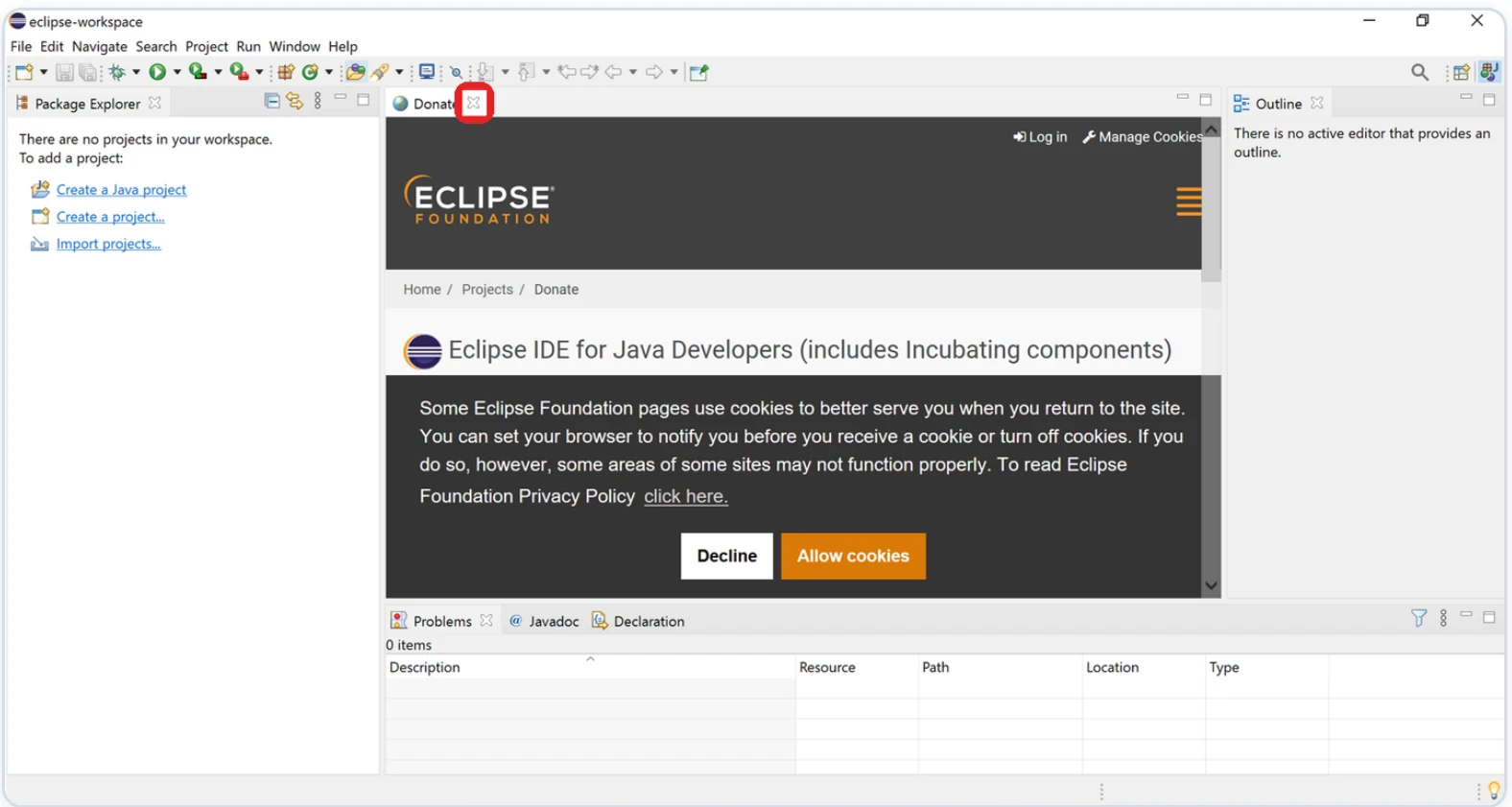
Click the small × on the Welcome tab. If a Donate page opens, close it the same way. Eclipse is now running.
Add the ADT plugin
Install ABAP Development Tools into Eclipse from the SAP update site.
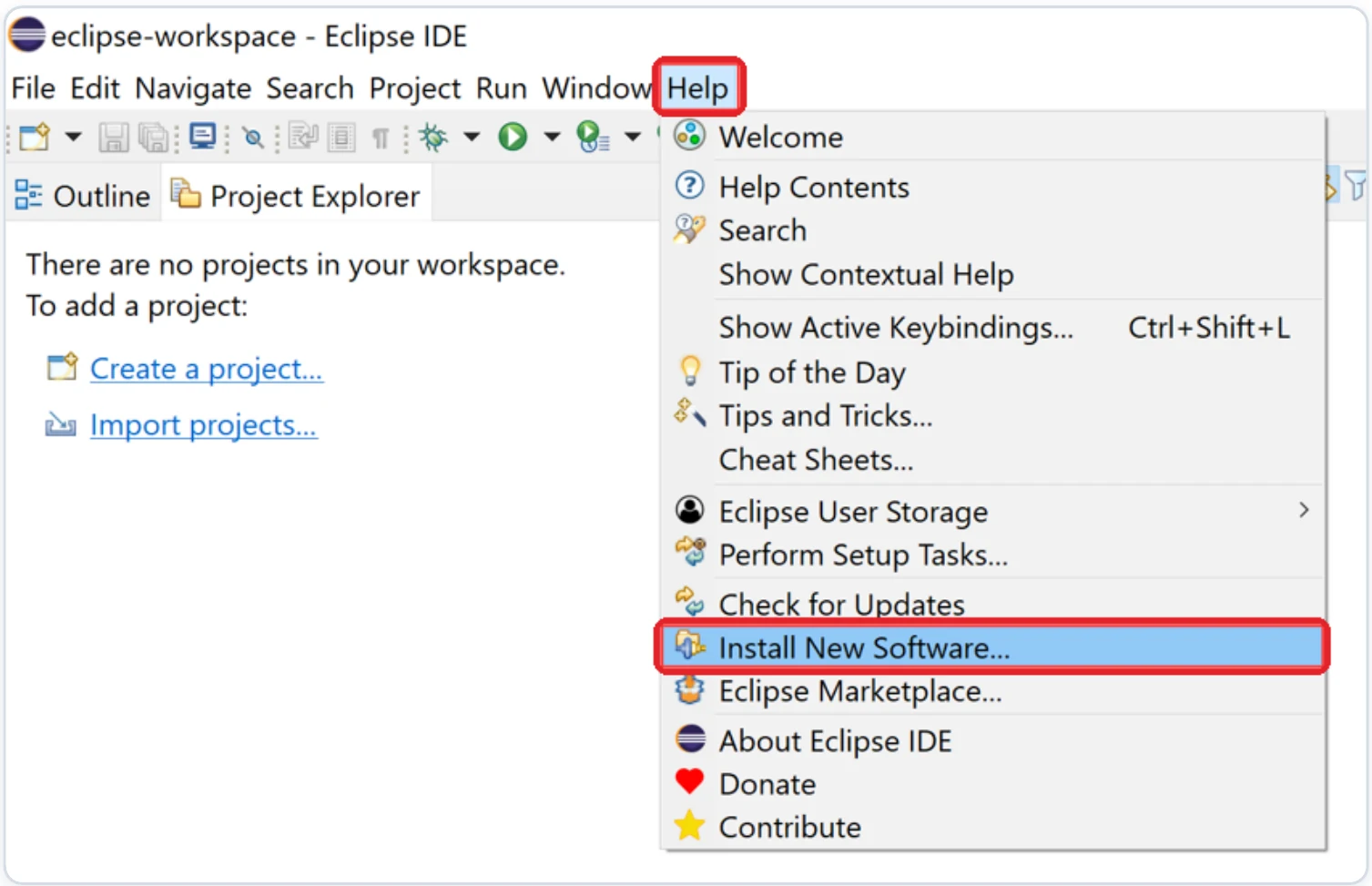
11Open Install New Software
In the menu bar select Help → Install New Software…
12Enter the ADT address
Paste this address in the Work with field and press Enter. Tick ABAP Development Tools and click Next >.
https://tools.hana.ondemand.com/latest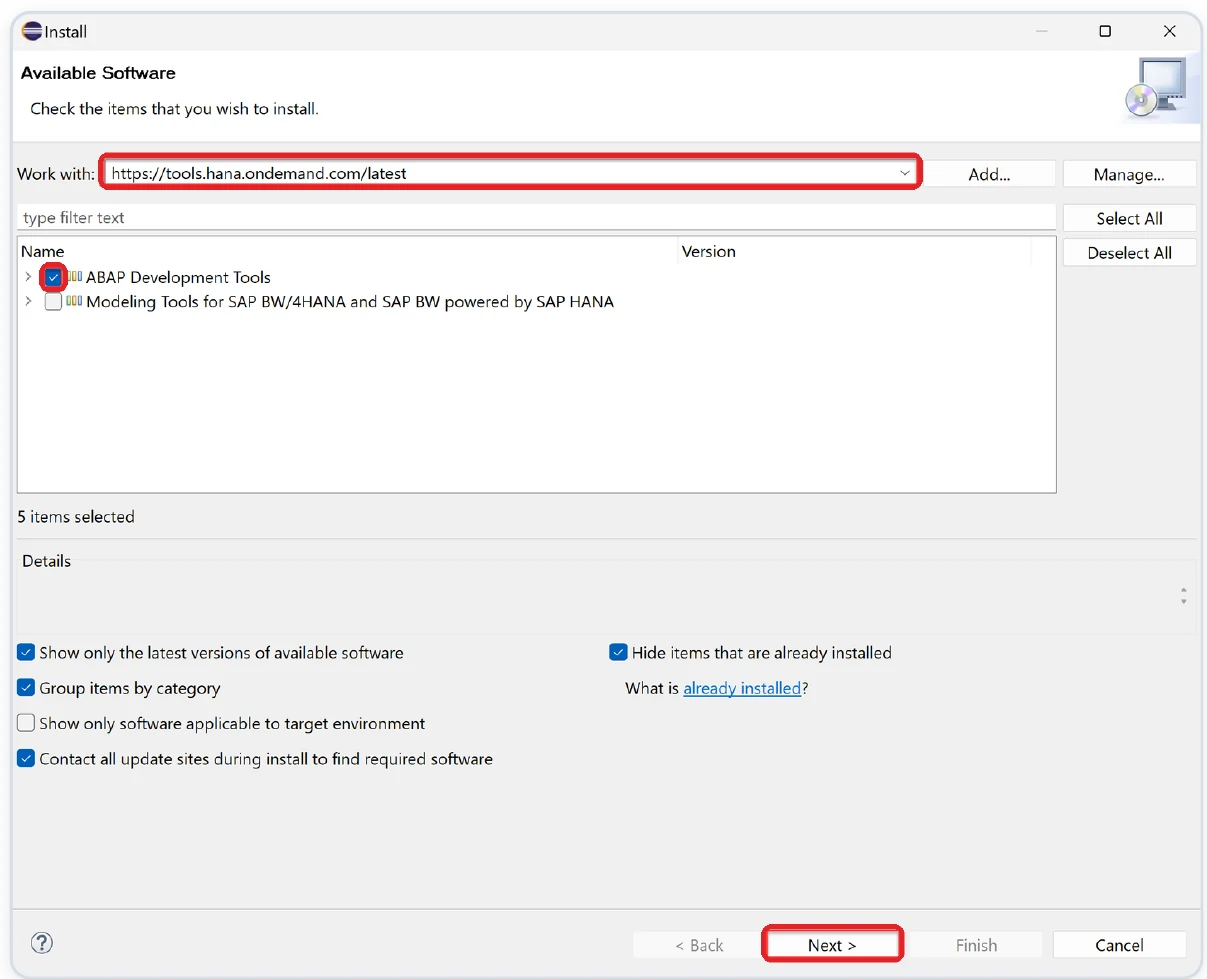
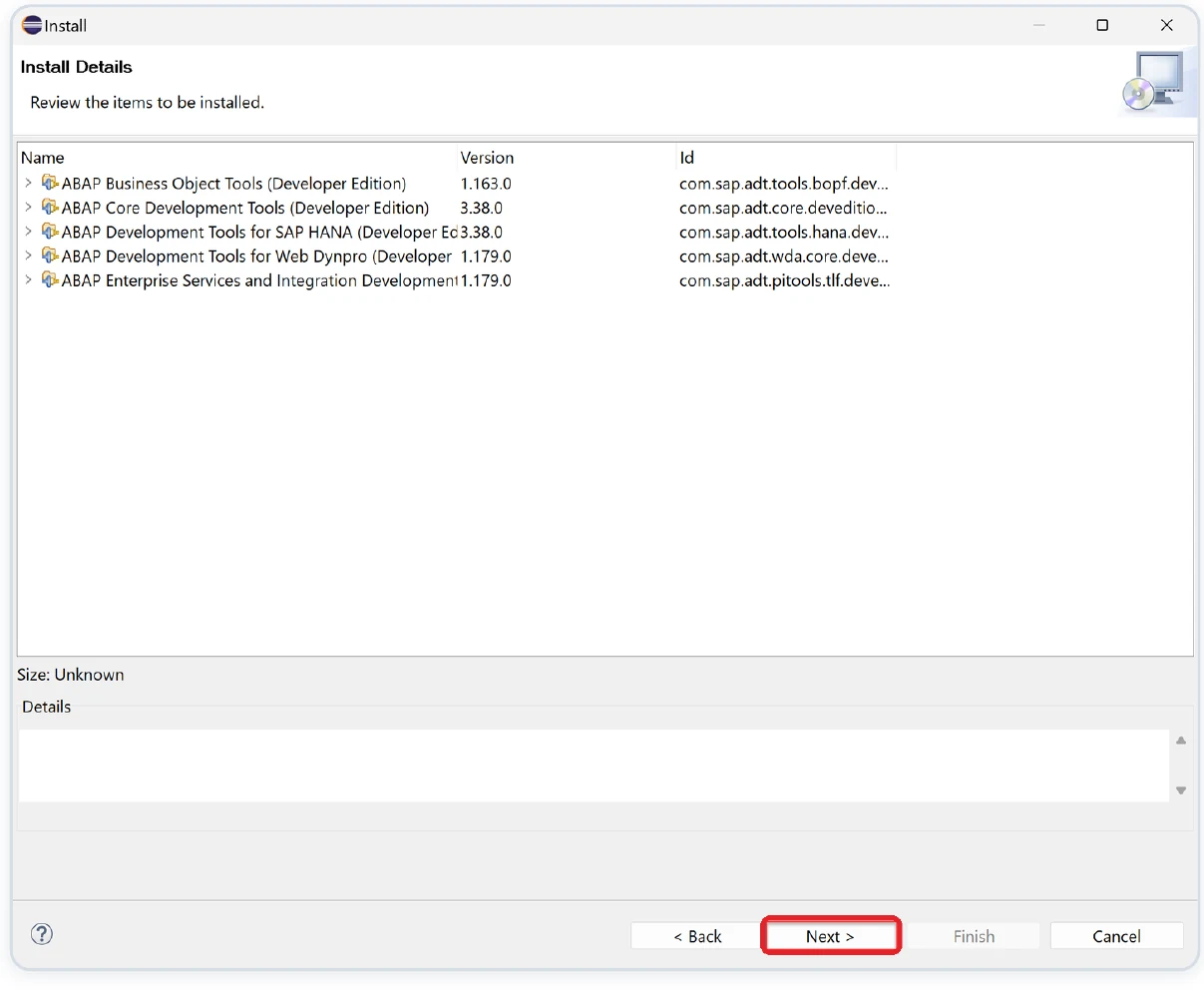
13Check the items
Eclipse shows the ADT parts it will install. You don’t need to change anything. Click Next >.
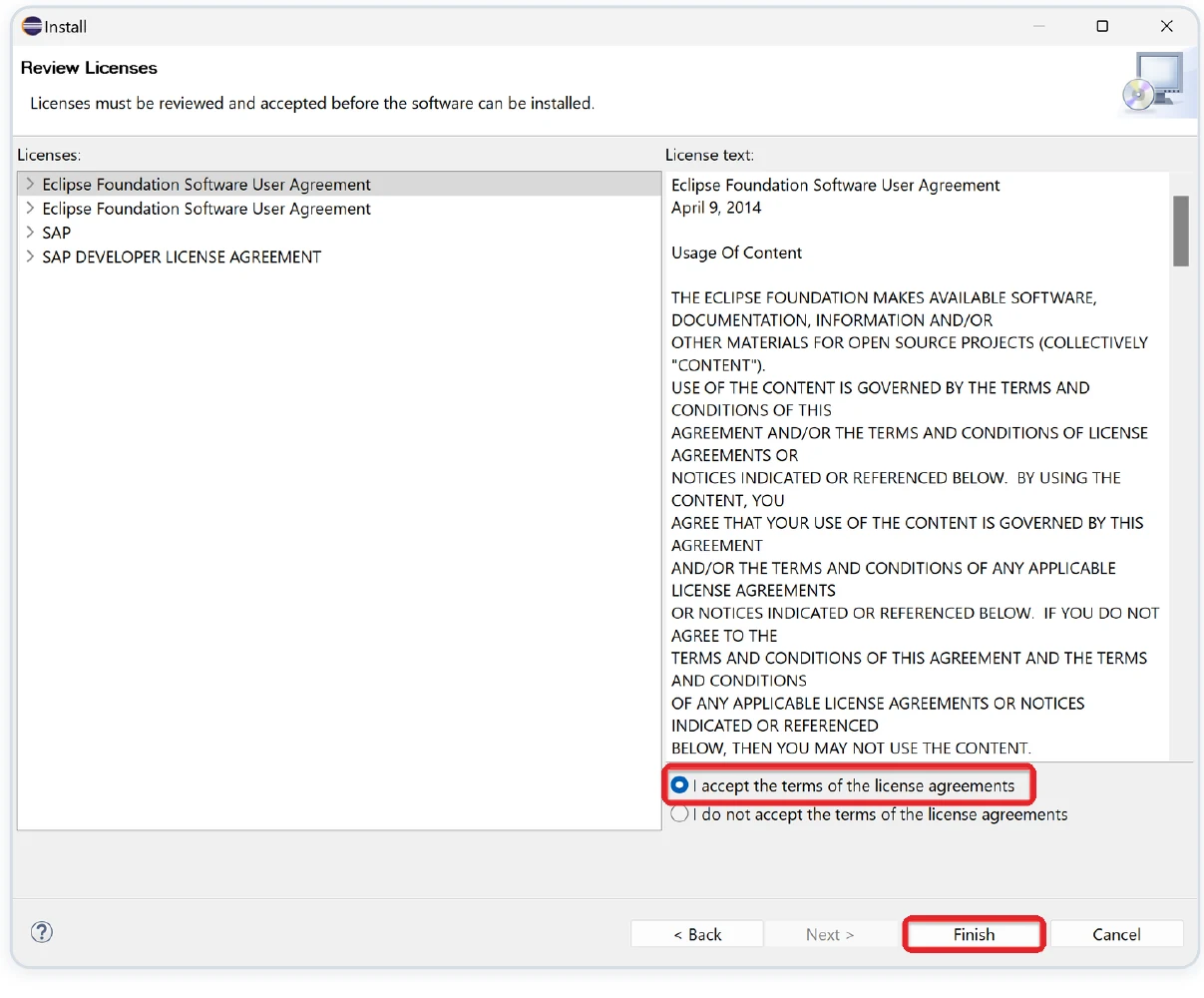
14Accept the license
Select I accept the terms of the license agreements and click Finish. The installation runs in the background – you can see the progress at the bottom-right. Wait until it finishes.
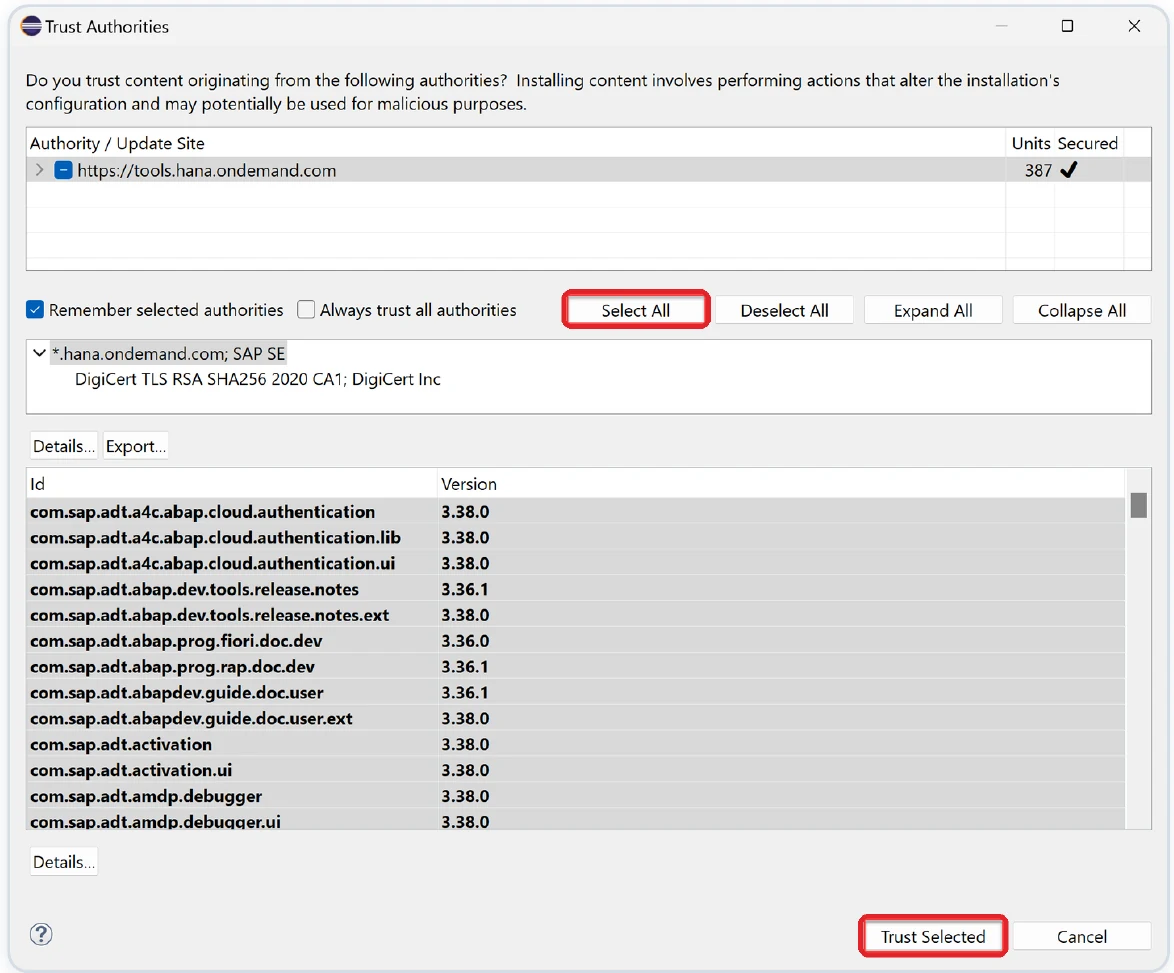
15Trust the SAP certificate
The Trust Authorities window confirms the software comes from SAP. Click Select All, then Trust Selected.
16Restart Eclipse
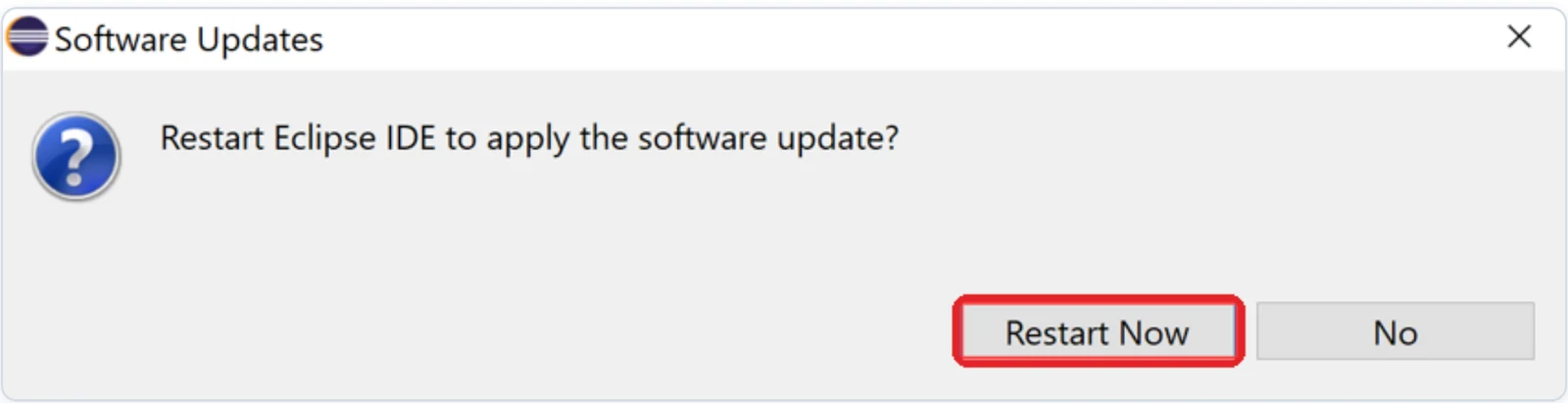
When Eclipse asks to restart, click Restart Now. After the restart, ADT is installed.
Open the ABAP perspective
Switch Eclipse to the ABAP layout you use for development.
17Open another perspective
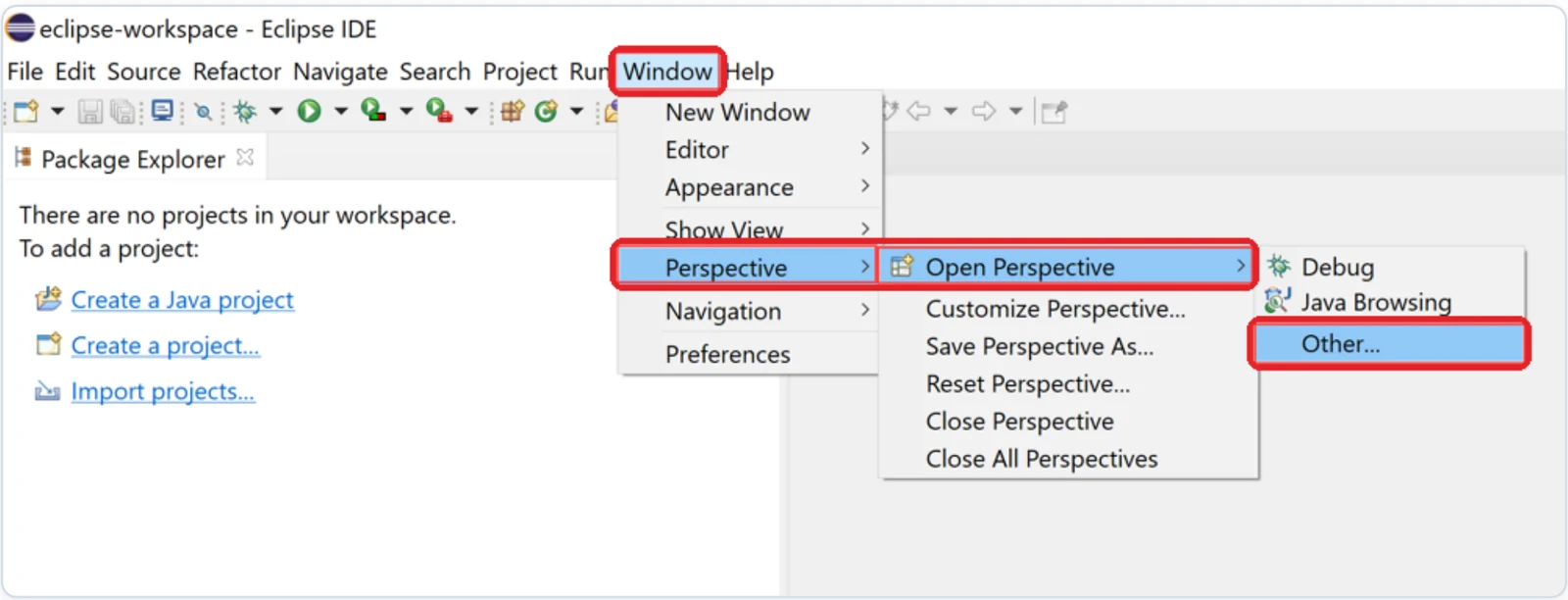
Select Window → Perspective → Open Perspective → Other…
18Choose ABAP
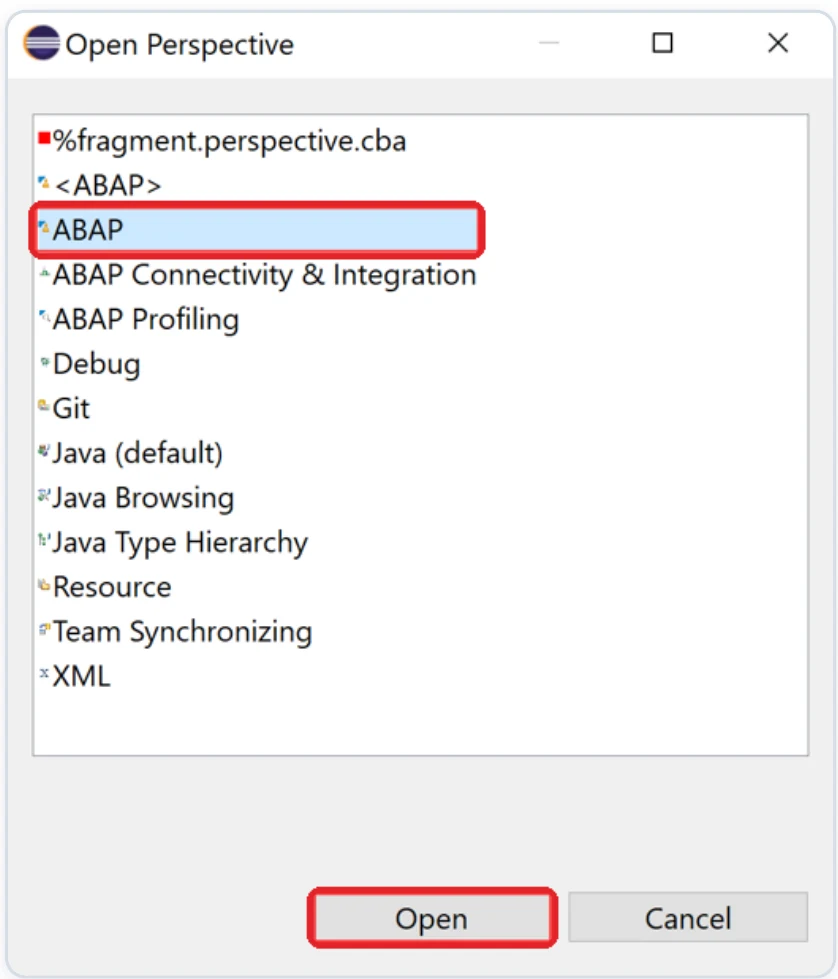
Select ABAP and click Open.
19You are ready
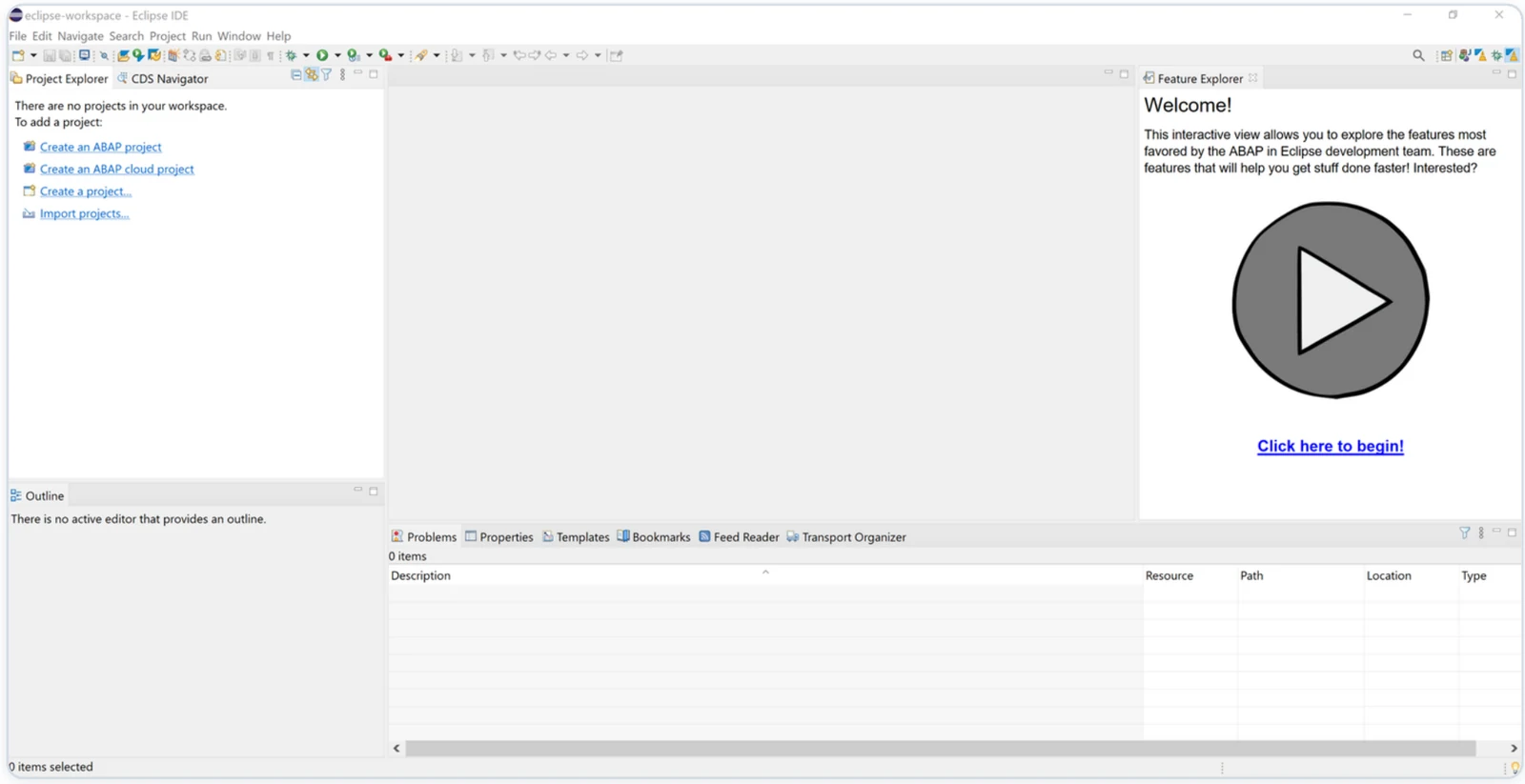
Eclipse now opens in the ABAP perspective. ABAP Development Tools are ready to use. Keep them up to date later with Help → Check for Updates.
Connect to your SAP system
Create an ABAP project with your own system details.
20Start a new ABAP project
In Eclipse select File → New → ABAP Project. If you don’t see it, choose File → New → Project…, open the ABAP folder, select ABAP Project and click Next.
21Choose your system
Eclipse lists the systems from SAP Logon. Select and click Next. Check that the connection settings match the values below, then click Next again.
22Log on with your SAP user
Enter your logon details and click Next:
| Field | Enter |
|---|---|
| Client | |
| User | |
| Password | Your SAP password (case-sensitive) |
| Language | EN |
23Finish
Click Finish. Your project appears in the Project Explorer as . Open it to browse packages and start developing.
Good to know
Quick answers to the most common questions.
Which Eclipse package do I download?
Do I need to install Java?
Eclipse doesn’t start or shows a DLL / runtime error
I can’t find eclipse.exe
“Unable to connect” in Install New Software
ABAP is not in the Open Perspective list
My system is not in the list (step 21)
“Partner not reached” when connecting
How do I update Eclipse and ADT later?
✓ Do
- Download Eclipse only from eclipse.org
- Use the latest Eclipse and ADT versions
- Keep the default workspace folder
- Restart Eclipse after installing ADT
✕ Don’t
- Install plugins from unknown websites
- Run eclipse.exe from inside the ZIP file
- Delete the workspace folder
- Change settings you weren’t told to change
Before you start
Eclipse with ABAP Development Tools (ADT) is the program you use to write and change ABAP code in your SAP system. Installing it on your Mac takes about 25 minutes and you only do it once on each Mac.
Download and install Eclipse
Get the Eclipse disk image, copy it to Applications and start it.
1Open the Eclipse download page
Click the button (or copy the link into Safari or Chrome). Under Eclipse IDE for Java Developers, click the macOS link that matches your Mac: AArch64 for Apple silicon (M1–M4) or x86_64 for Intel. If a newer version is listed, use the newest one.
https://www.eclipse.org/downloads/packages/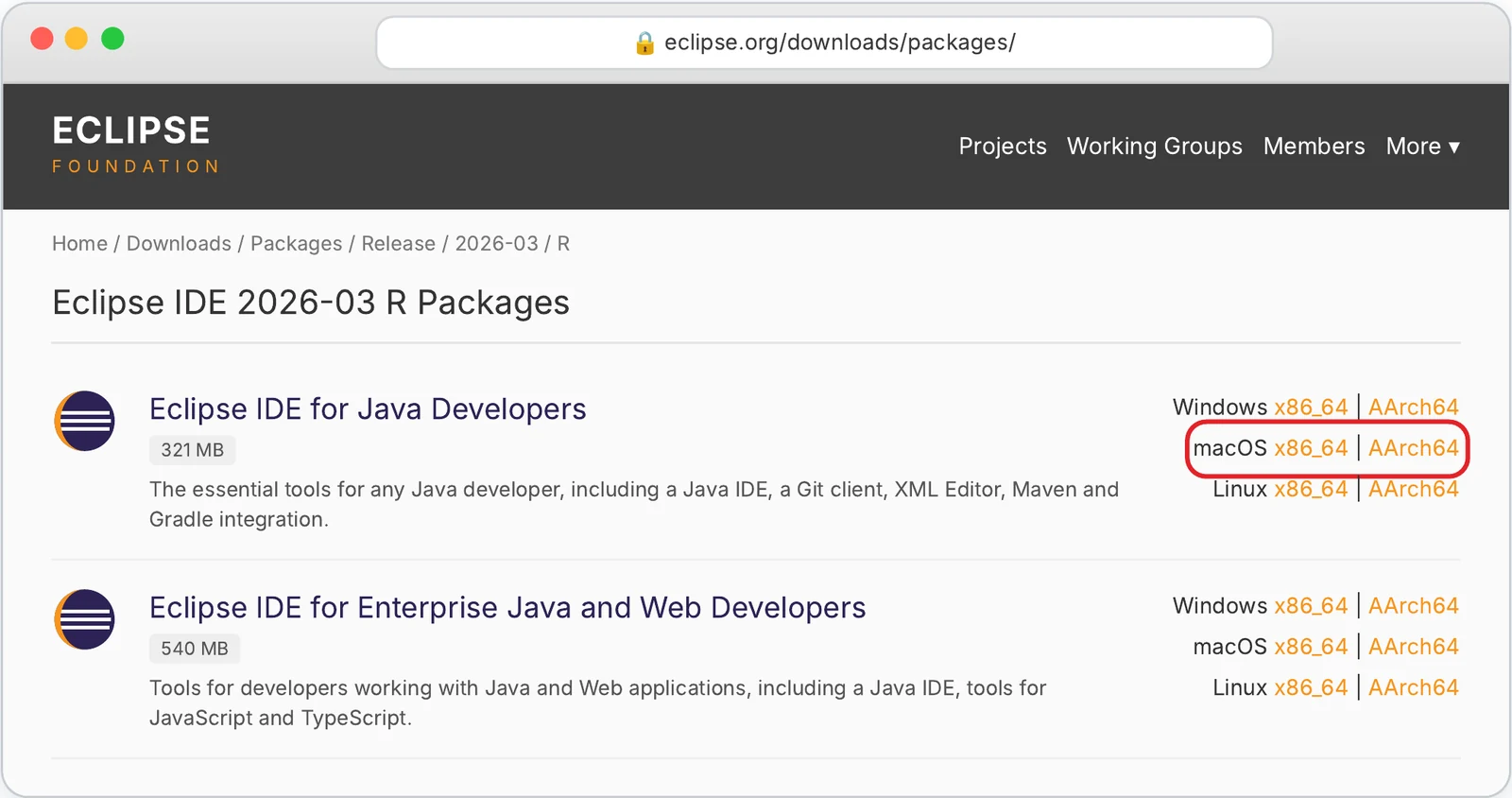
iWhich Mac do I have?
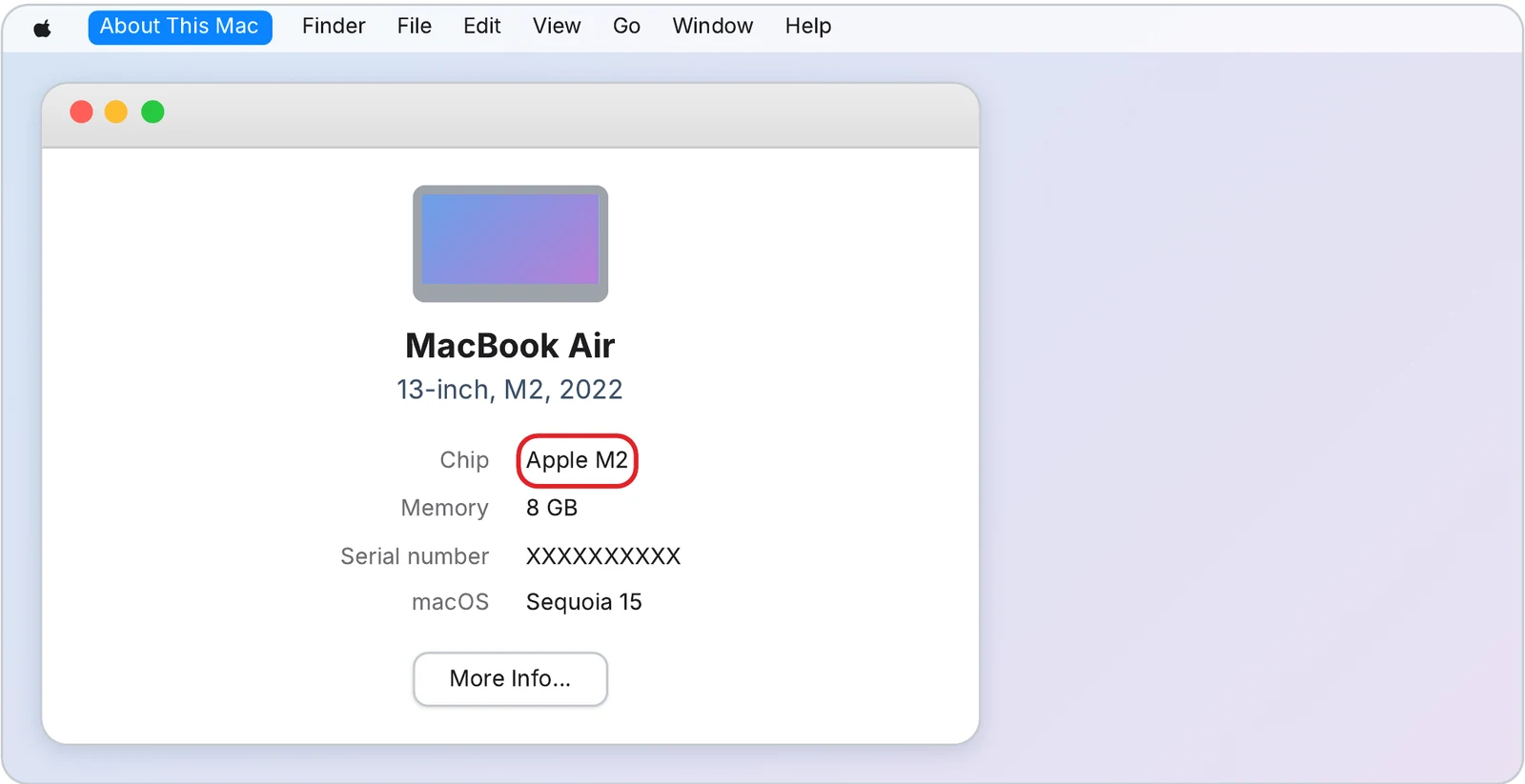
Click the Apple logo at the top-left of the screen and choose About This Mac. Look at Chip:
| If you see | Download |
|---|---|
| Apple M1, M2, M3, M4… | macOS AArch64 |
| Intel (shown under “Processor”) | macOS x86_64 |
2Download the file
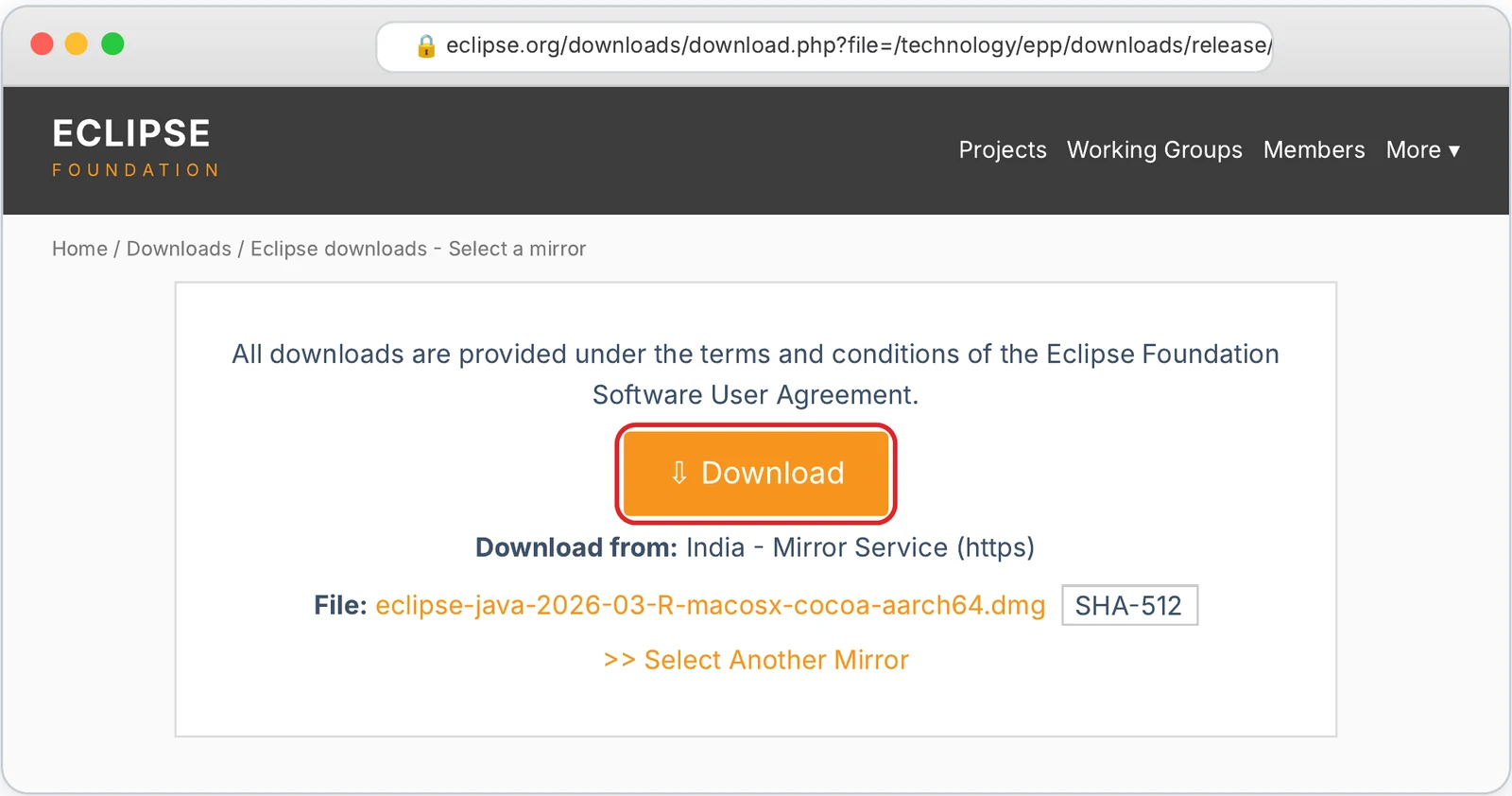
Click Download. The file eclipse-java-…-macosx-cocoa-aarch64.dmg (about 320 MB) is saved in your Downloads folder. Wait until the download has finished.
3Open the downloaded file
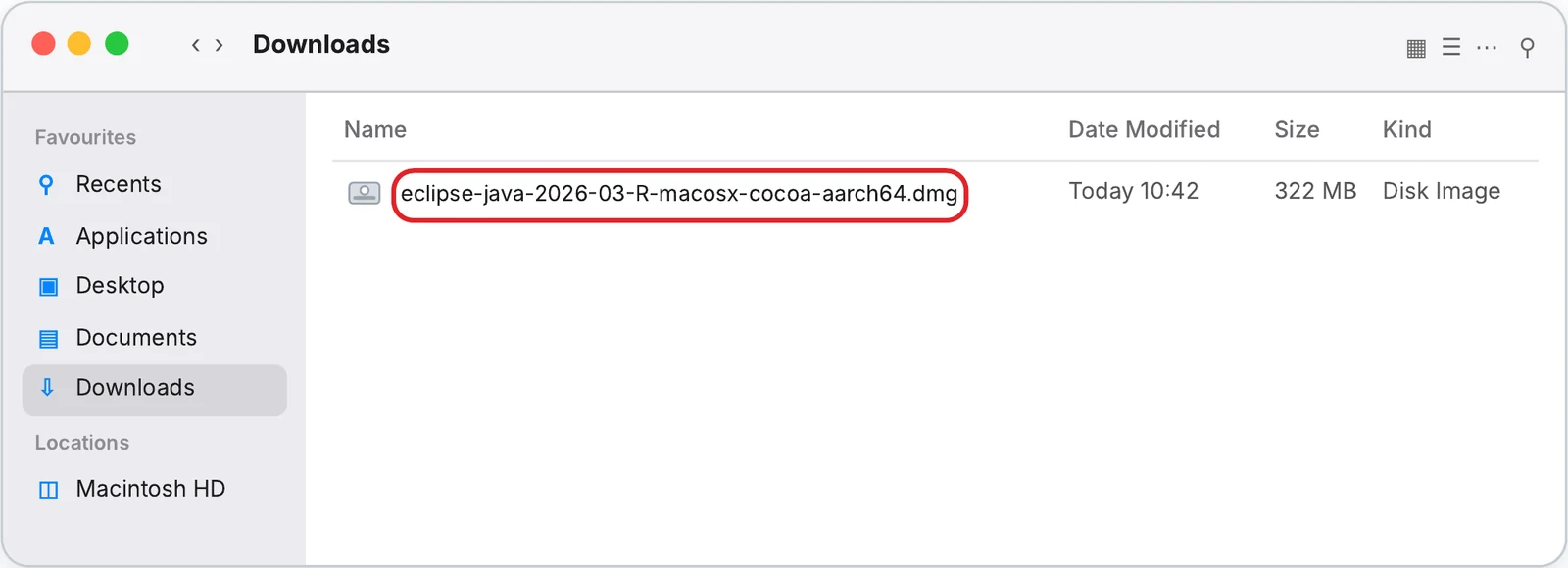
Open Finder, click Downloads in the side bar and double-click the .dmg file. A window named Eclipse opens.
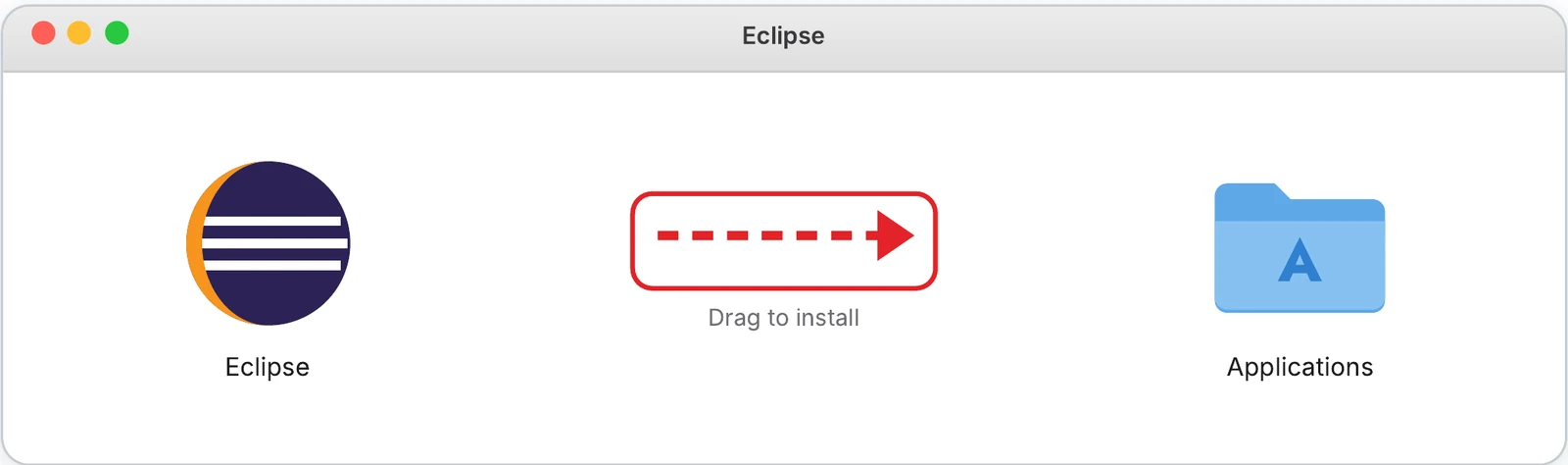
4Drag Eclipse into Applications
Drag the Eclipse icon onto the Applications folder and wait until copying has finished. If your Mac asks, enter your Mac password.
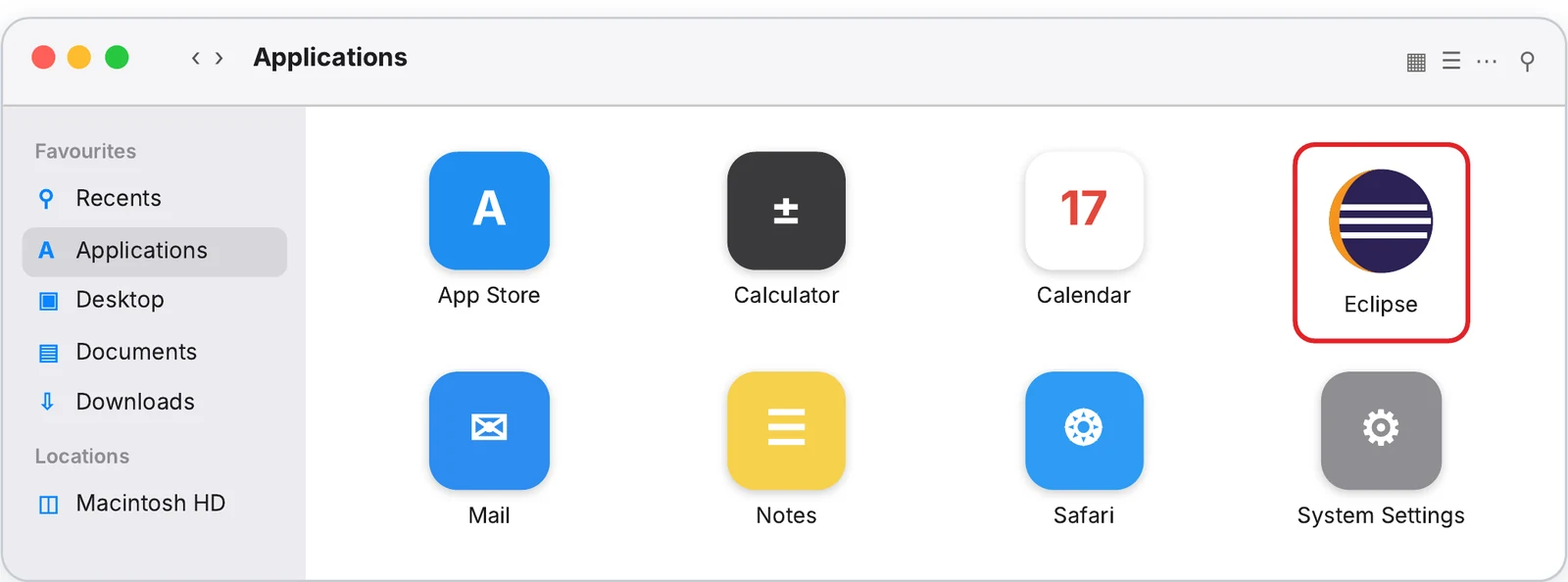
5Start Eclipse
In Finder, click Applications in the side bar and double-click Eclipse. The first start can take up to a minute.
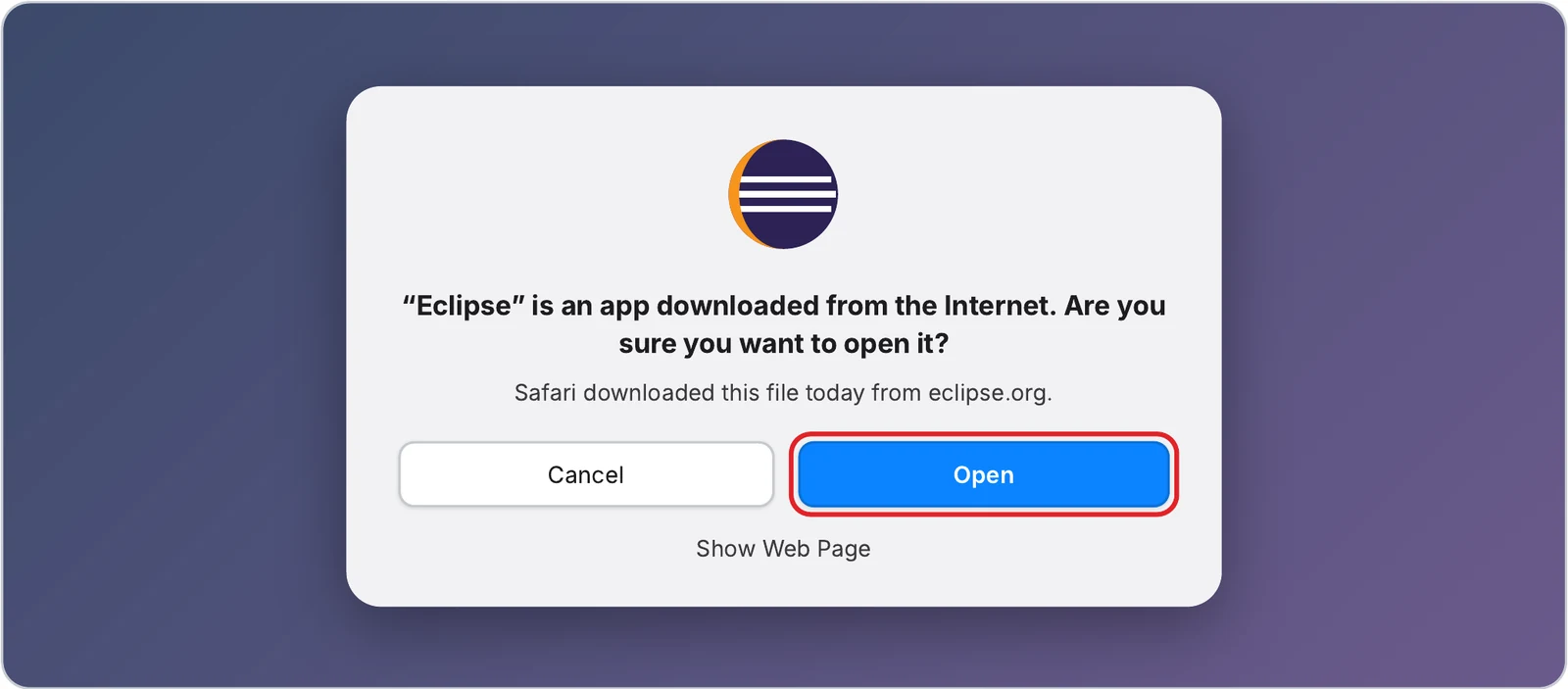
6Allow Eclipse to open
The first time, macOS asks if you are sure you want to open an app downloaded from the Internet. Click Open.
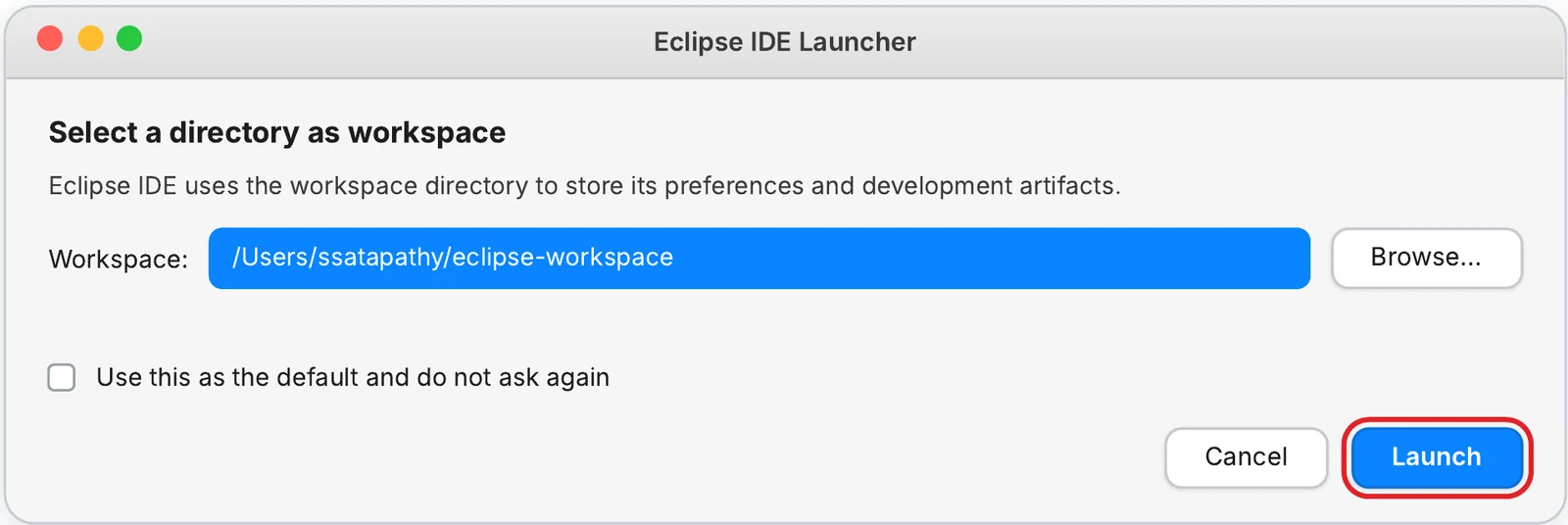
7Launch your workspace
Keep the suggested folder (for example /Users/ssatapathy/eclipse-workspace) and click Launch.
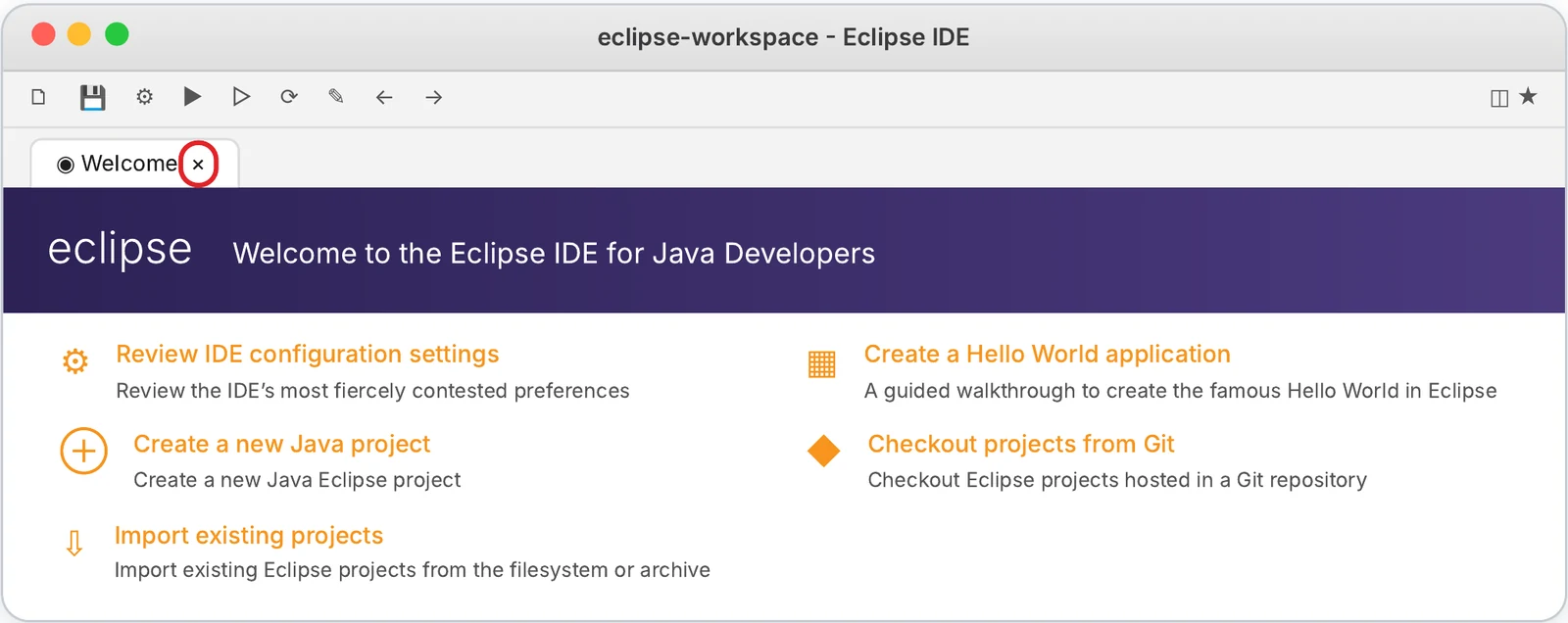
8Close the Welcome page
Click the small × on the Welcome tab. If a Donate page opens, close it the same way. Eclipse is now running.
Add the ADT plugin
Install ABAP Development Tools into Eclipse from the SAP update site.
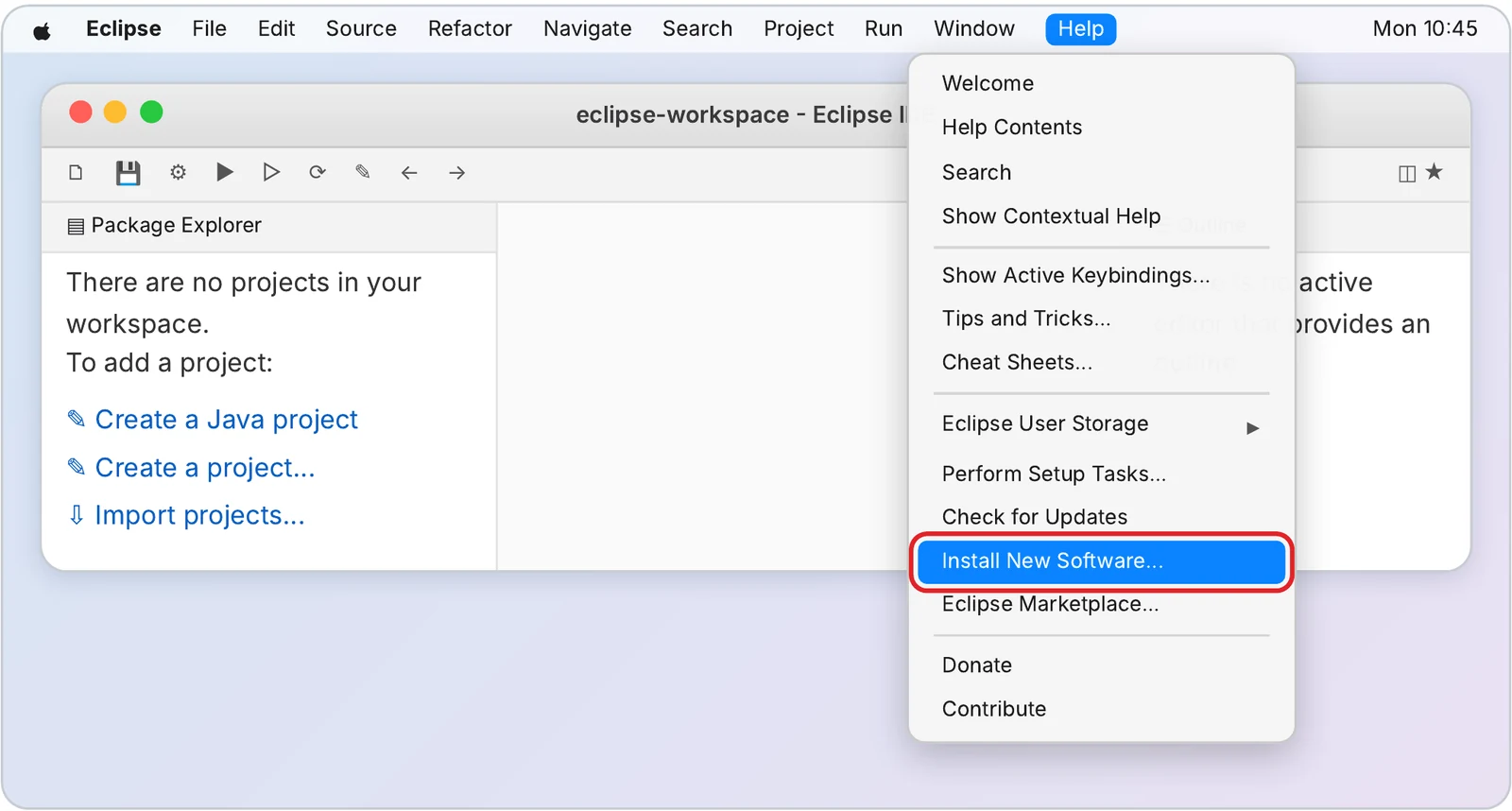
9Open Install New Software
In the menu bar at the very top of the screen, select Help → Install New Software…
10Enter the ADT address
Paste this address in the Work with field and press Return. Tick ABAP Development Tools and click Next >.
https://tools.hana.ondemand.com/latest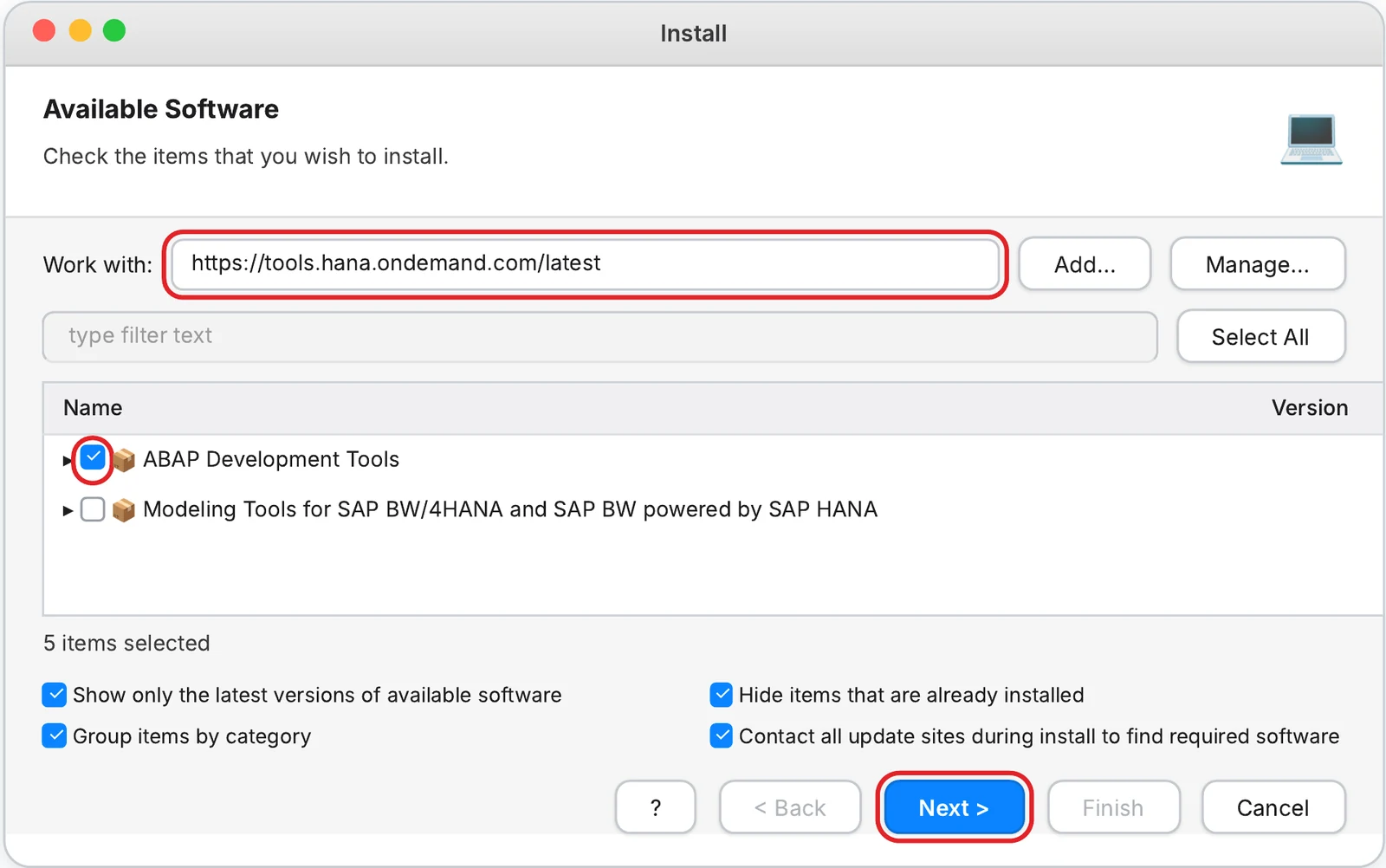
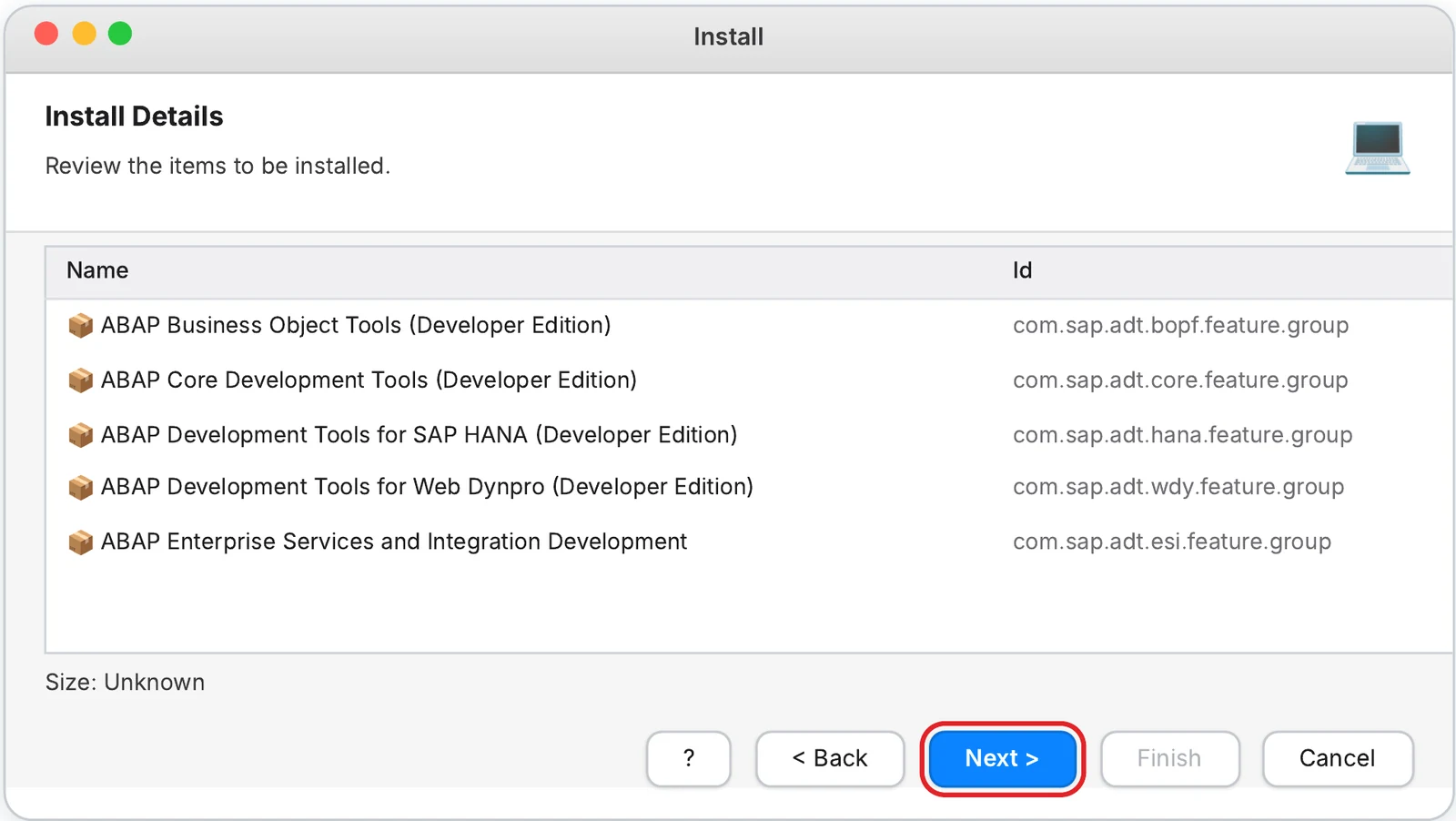
11Check the items
Eclipse shows the ADT parts it will install. You don’t need to change anything. Click Next >.
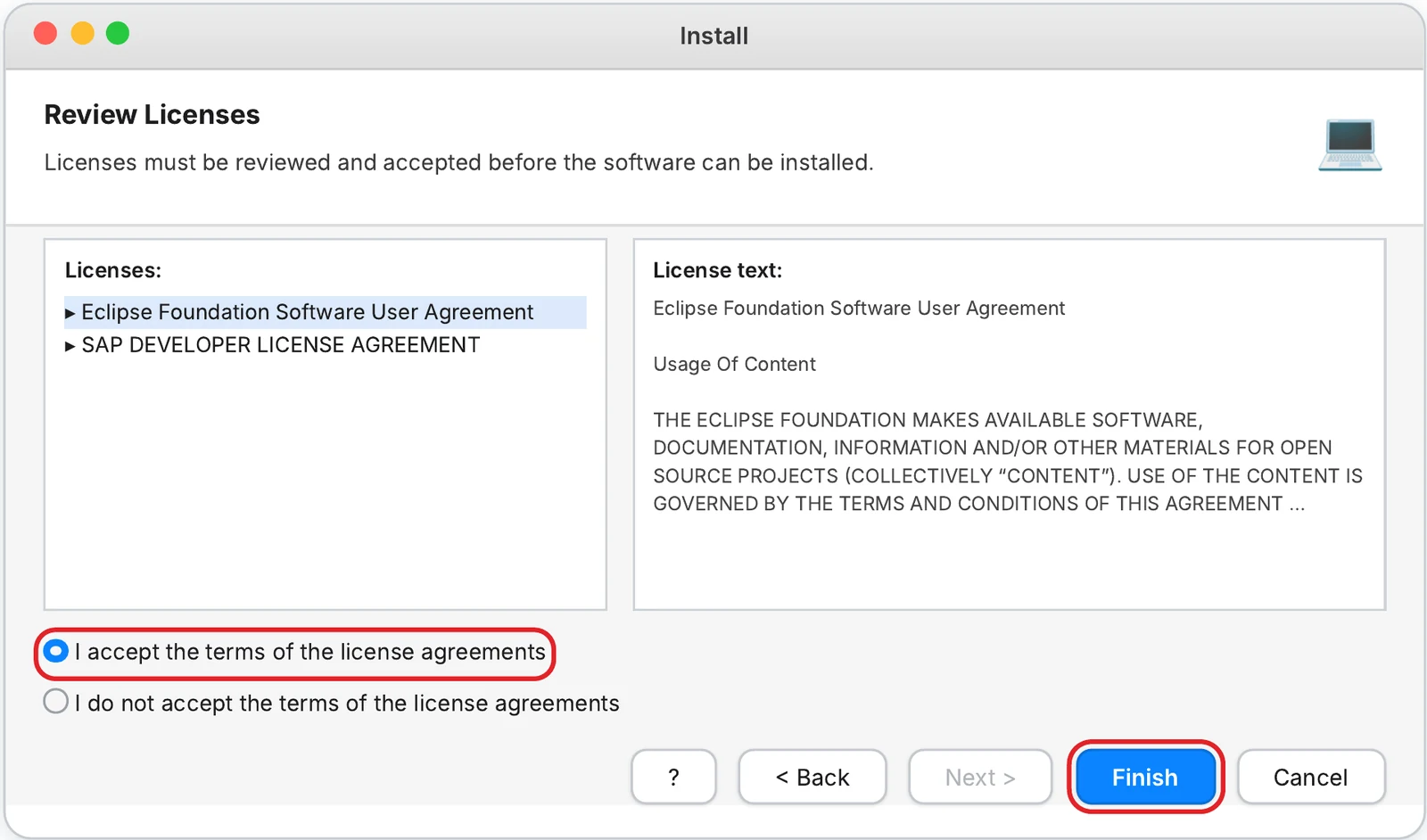
12Accept the license
Select I accept the terms of the license agreements and click Finish. The installation runs in the background – wait until it finishes.
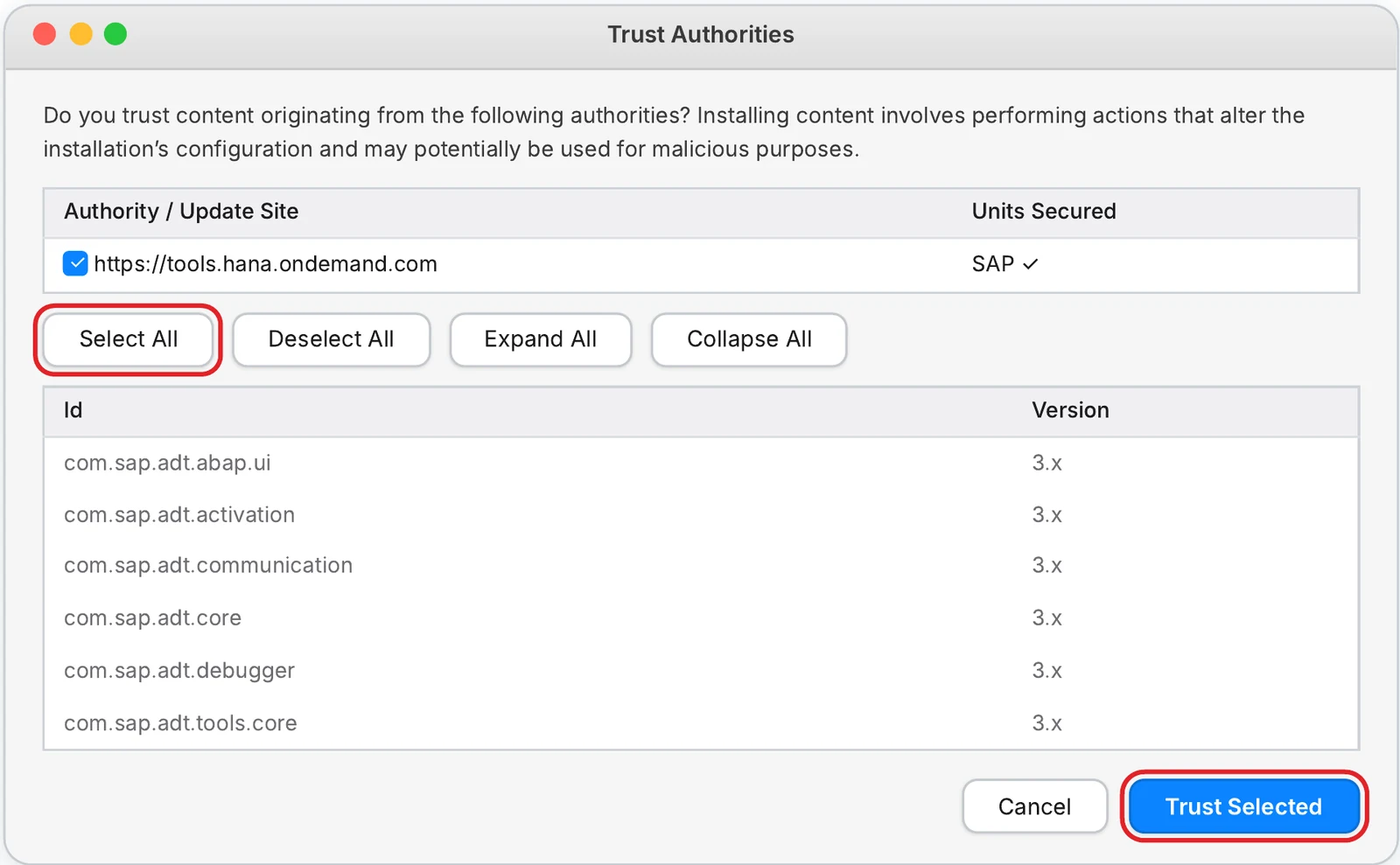
13Trust the SAP certificate
Click Select All, then Trust Selected.
14Restart Eclipse
When Eclipse asks to restart, click Restart Now. After the restart, ADT is installed.

Open the ABAP perspective
Switch Eclipse to the ABAP layout you use for development.
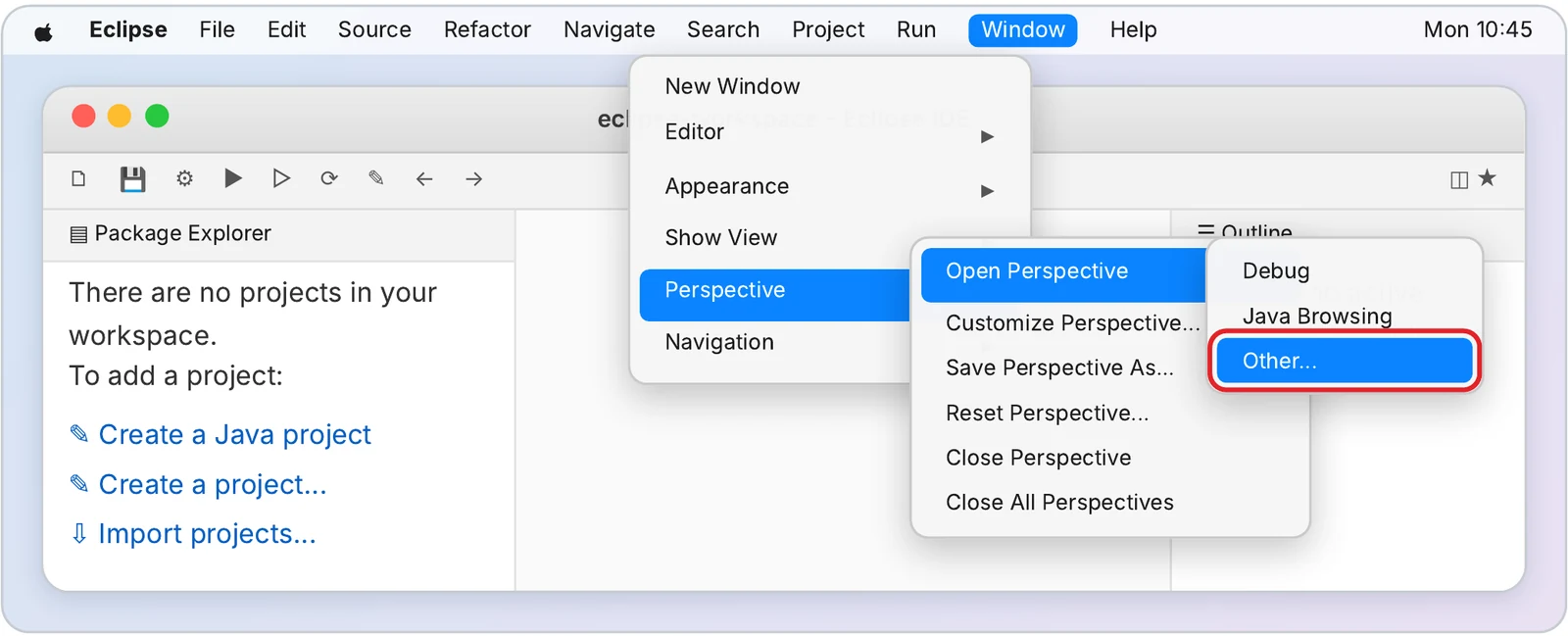
15Open another perspective
In the menu bar select Window → Perspective → Open Perspective → Other…
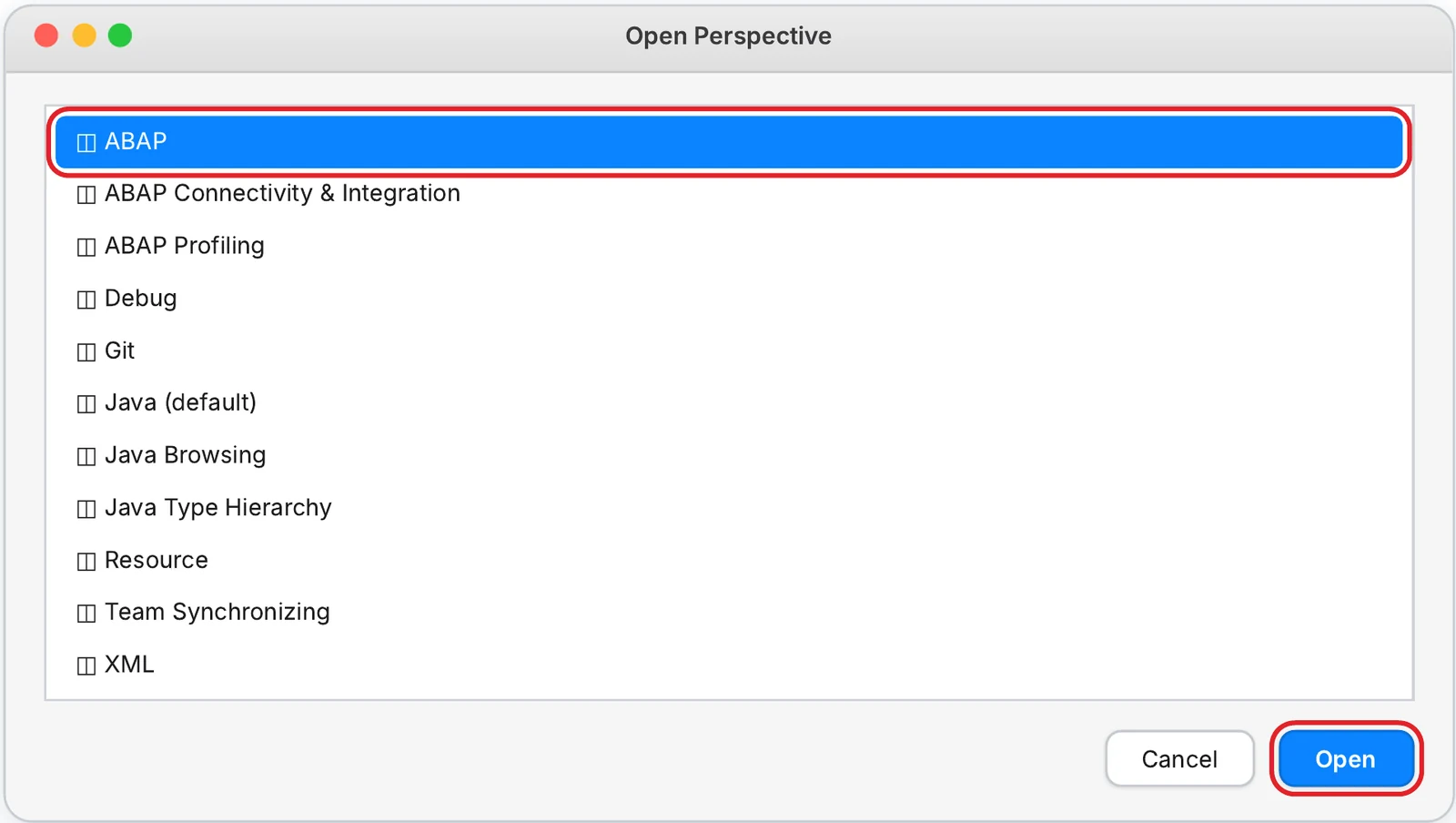
16Choose ABAP
Select ABAP and click Open.
17You are ready
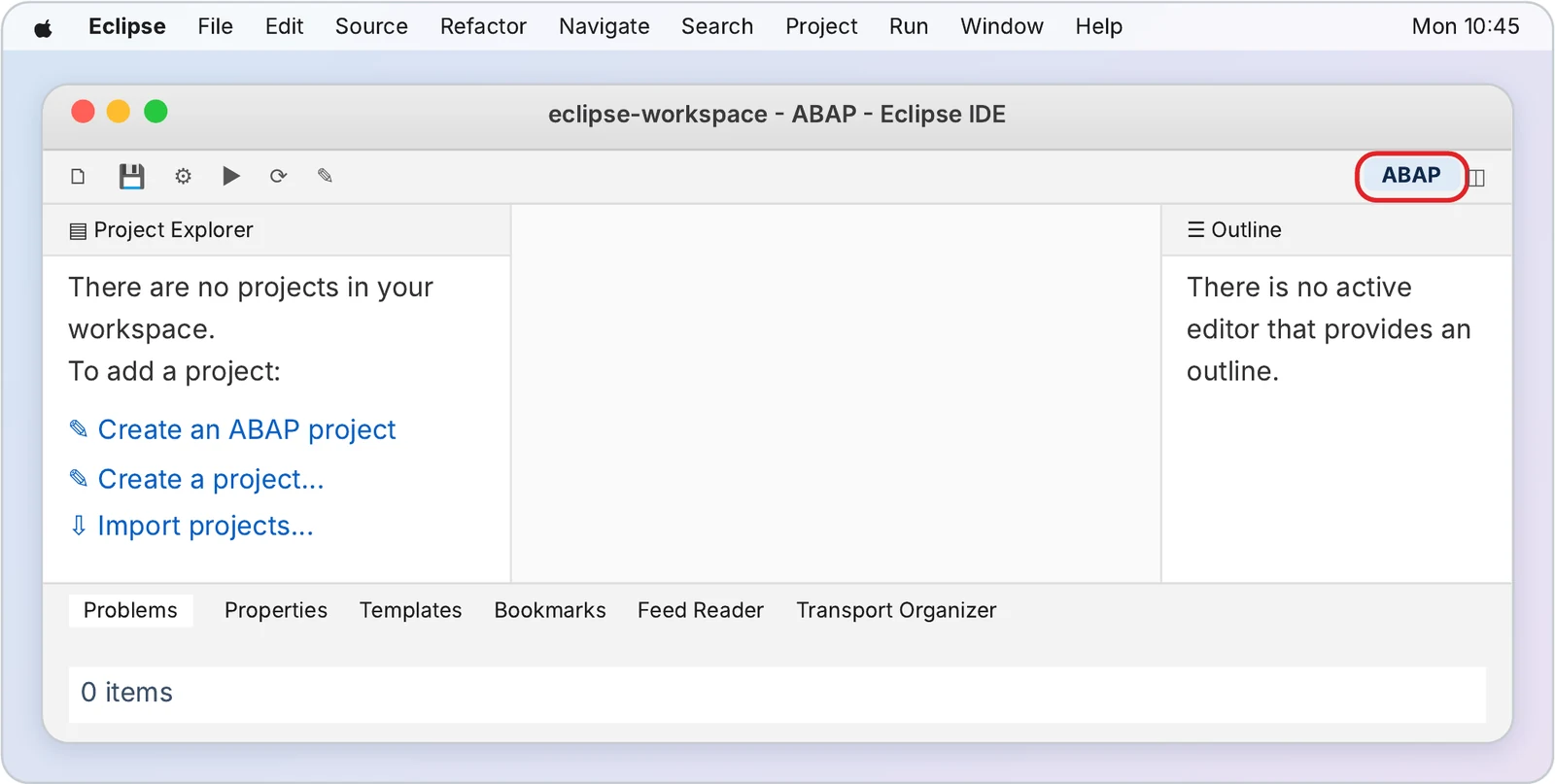
Eclipse now opens in the ABAP perspective (top-right corner). You can now eject the Eclipse disk image and delete the .dmg file from Downloads.
Connect to your SAP system
Create an ABAP project with your own system details.
18Start a new ABAP project
In the menu bar select File → New → ABAP Project. If you don’t see it, choose File → New → Project…, open the ABAP folder, select ABAP Project and click Next.
19Enter the connection yourself
A Mac has no SAP Logon list, so choose the option to define the system connection manually and enter:
20Log on with your SAP user
Enter client , user , your password and language EN, then click Next.
21Finish
Click Finish. Your project appears in the Project Explorer as .
Good to know
Quick answers to the most common Mac questions.
Which file do I download?
Do I need to install Java?
“Eclipse can’t be opened because Apple cannot check it”
Eclipse is very slow or crashes at start
Where are the Eclipse settings?
“Unable to connect” in Install New Software
ABAP is not in the Open Perspective list
“Partner not reached” when connecting
Keyboard shortcuts in other guides use Ctrl
✓ Do
- Download Eclipse only from eclipse.org
- Pick the file that matches your Mac’s chip
- Keep Eclipse in the Applications folder
- Restart Eclipse after installing ADT
✕ Don’t
- Install plugins from unknown websites
- Run Eclipse from inside the .dmg window
- Delete the workspace folder
- Change settings you weren’t told to change
Tell us which step you are on – call or WhatsApp +91 84568 70059 or email info@manbitech.com.