

Install Adobe LiveCycle Designer for SAP on Windows
Download and install Adobe LiveCycle Designer (ALD) 11.0 for SAP Interactive Forms by Adobe, then connect it to your ManbiTech SAP system through SAP GUI and transaction SFP.
Personalise this guide with your own system and user online: www.manbitech.com/en/blog/adobe-livecycle-designer-installation-guide
Before you start
Adobe LiveCycle Designer (ALD) is the tool used to design SAP Interactive Forms by Adobe – the PDF forms you build in transaction SFP. It installs in about 10 minutes.
Download the installer
Get Adobe LiveCycle Designer 11.0 for SAP.
1Download ALD
Click the button to open the ManbiTech file share, then click Download. Wait until the download has finished.
⬇ Download ALD110P_33-80000927.EXE
| File | Details |
|---|---|
| ALD110P_33-80000927.EXE | Adobe LiveCycle Designer 11.0 · Patch level (PL) 33 · EXE · 429,367 KB (about 419 MB) · released 06.10.2026 |
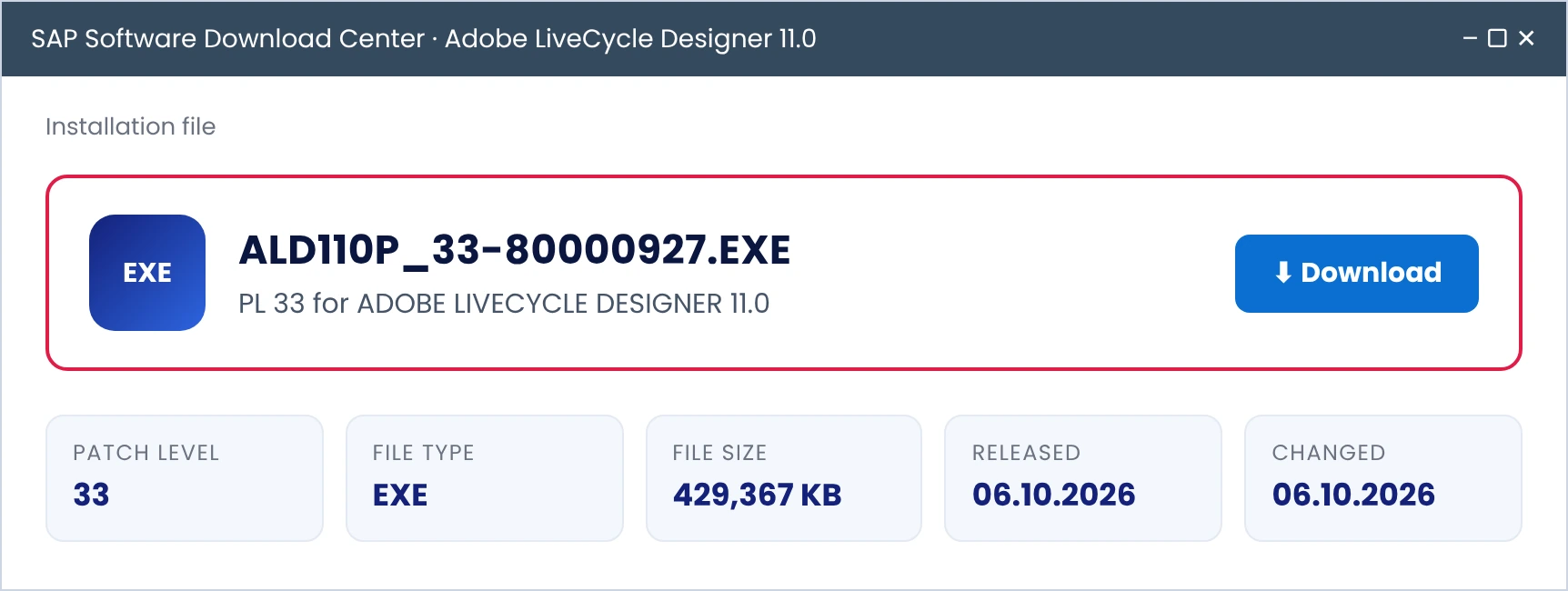
Customers with an SAP S-user can download the same file from the SAP Software Download Center:
2Start the installer
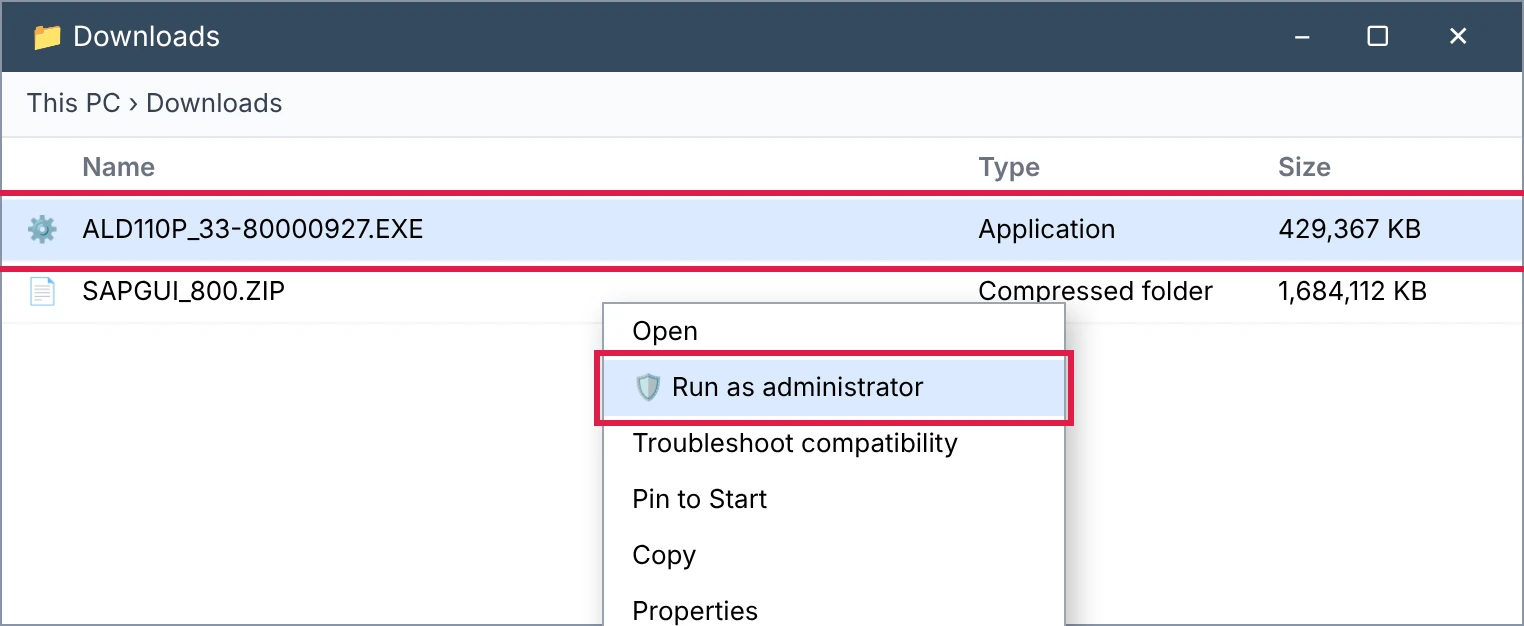
Open your Downloads folder, right-click ALD110P_33-80000927.EXE and choose Run as administrator. Click Yes if Windows asks. There is nothing to unzip.
Install ALD
Run the SAP Front-End Installer and keep the default choices.
3Start the installer
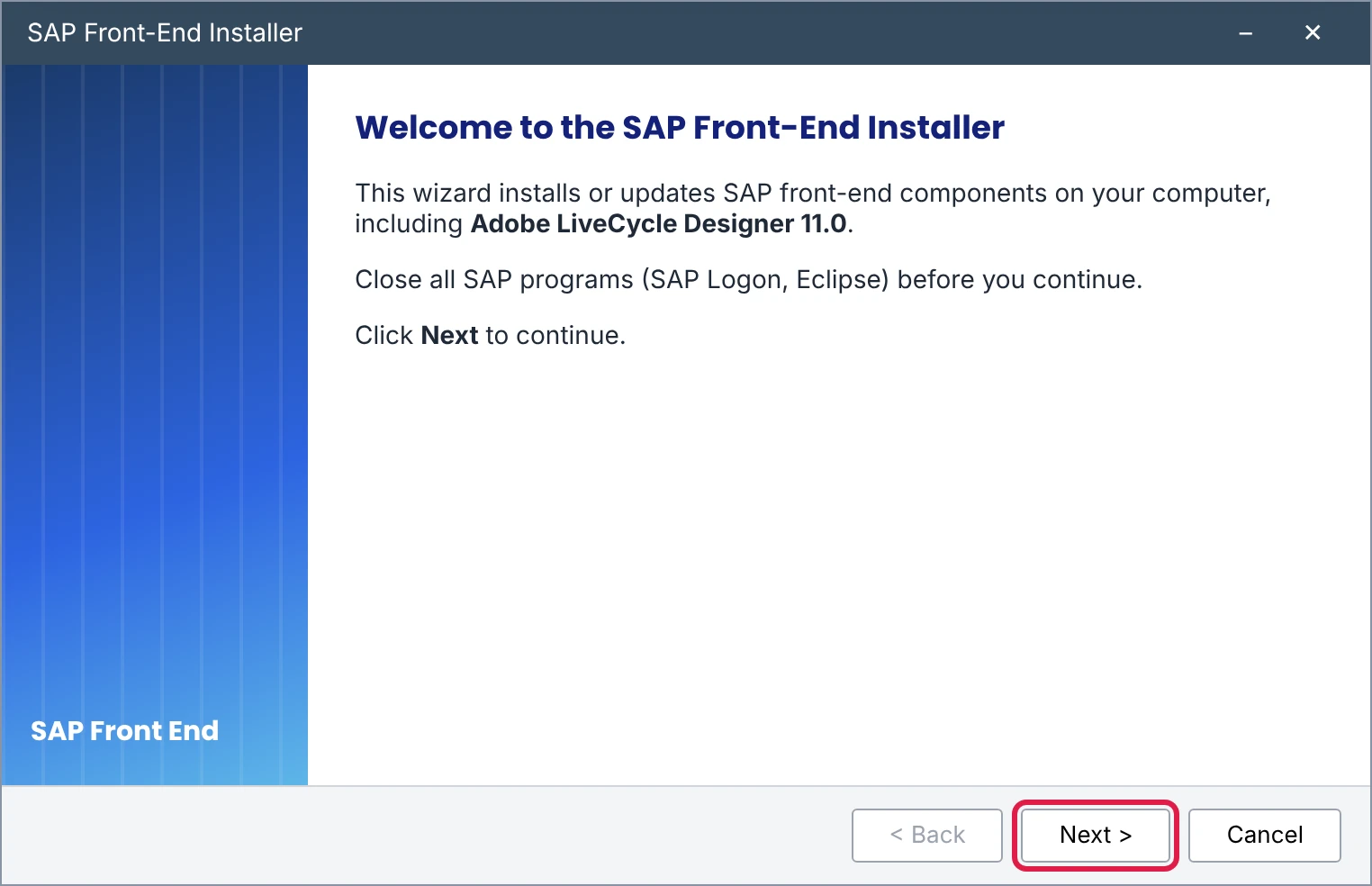
The SAP Front-End Installer opens. Click Next.
4Select Adobe LiveCycle Designer
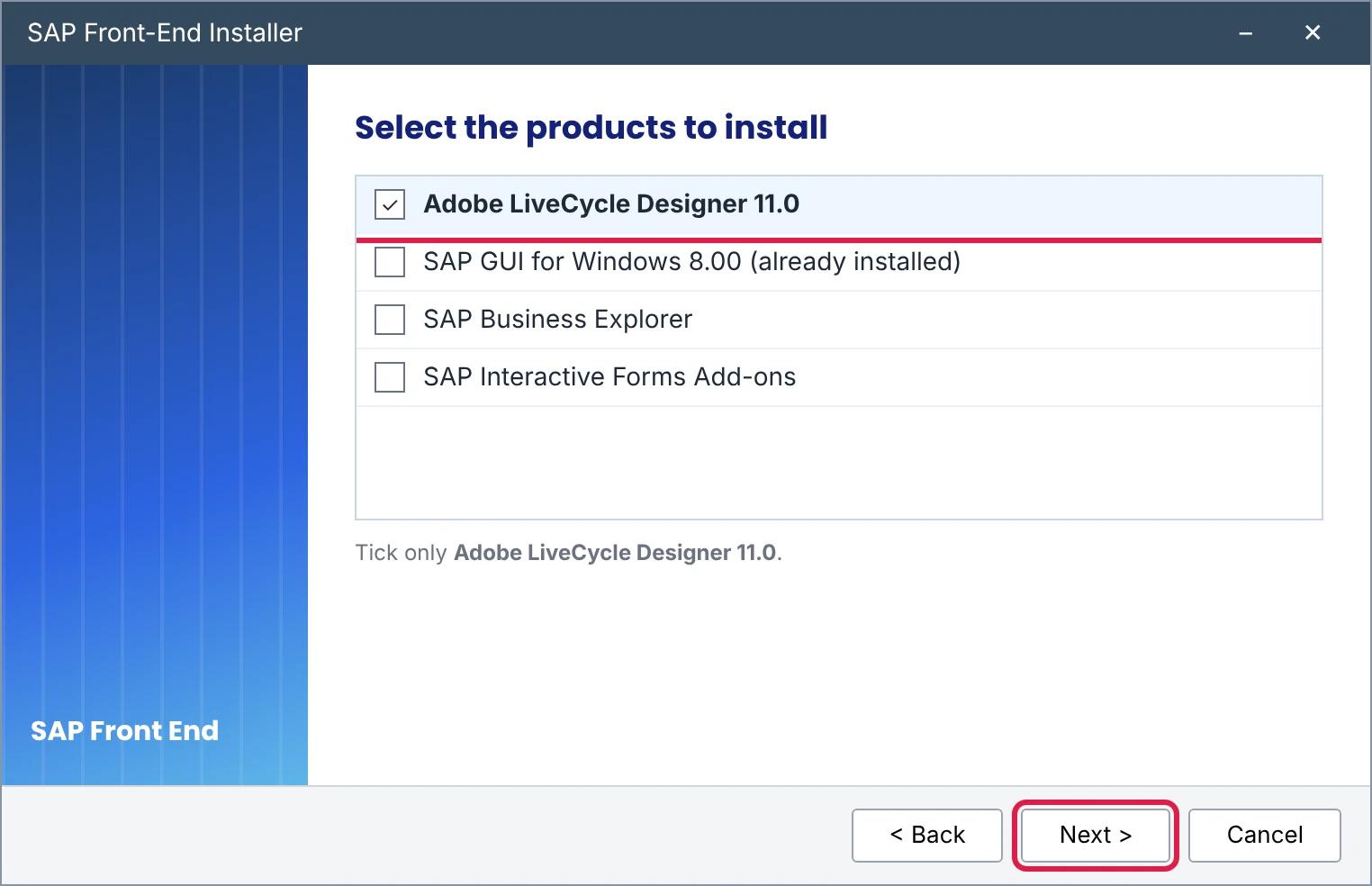
Tick Adobe LiveCycle Designer 11.0 and click Next. You don’t need the other items.
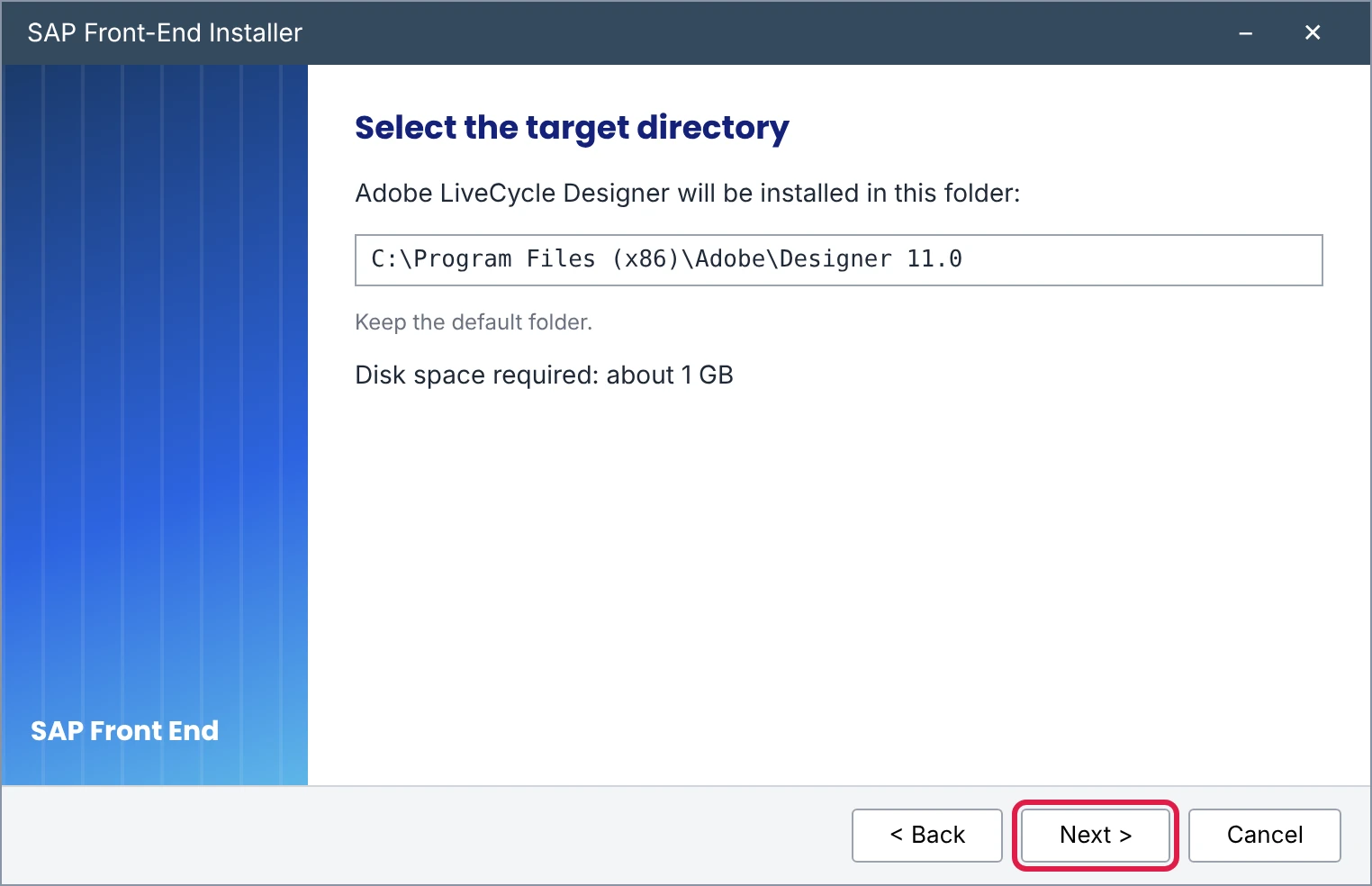
5Keep the install folder
Leave the folder as suggested and click Next.
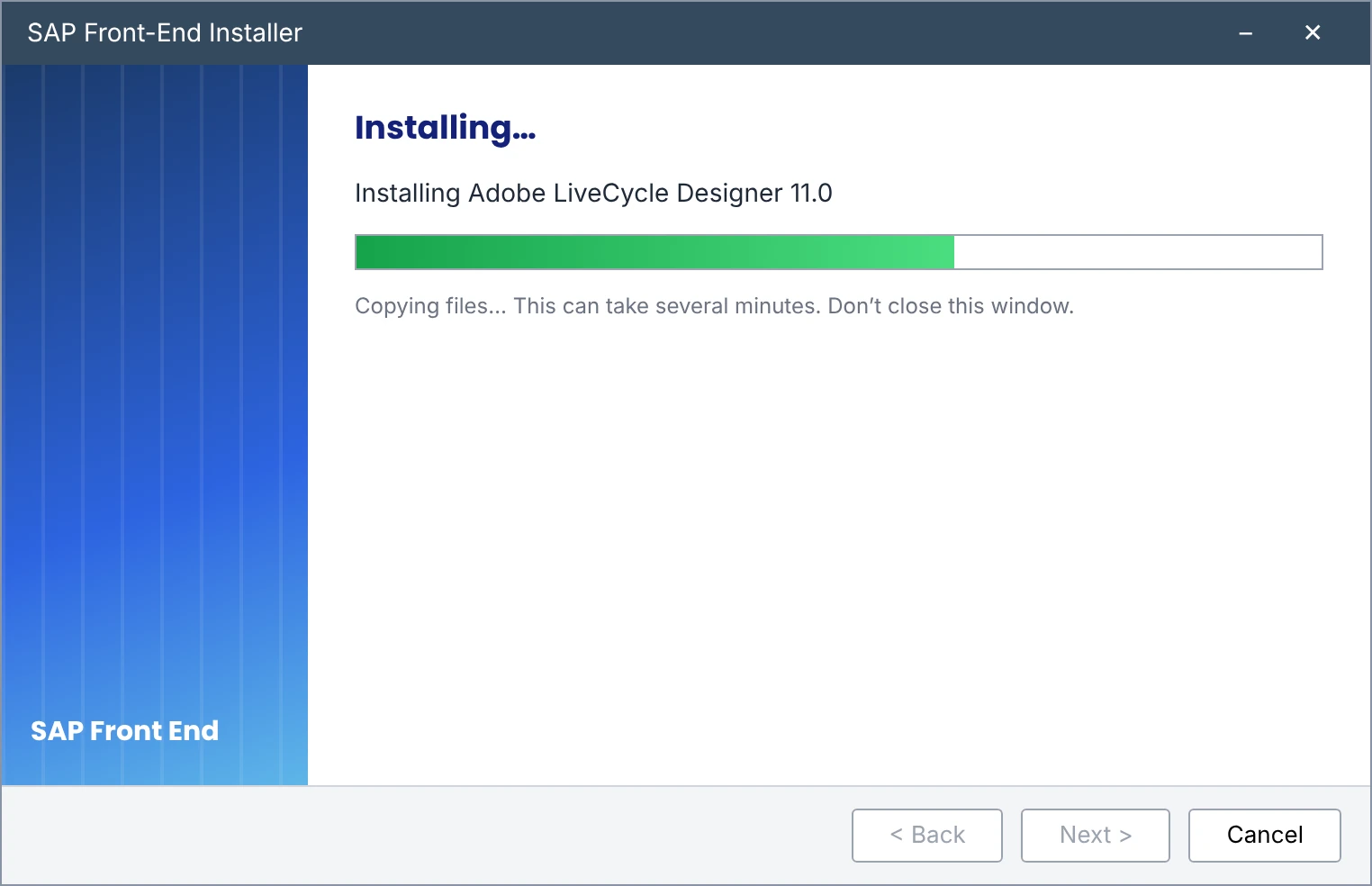
6Wait for the installation
The installation takes a few minutes. Don’t close the window.
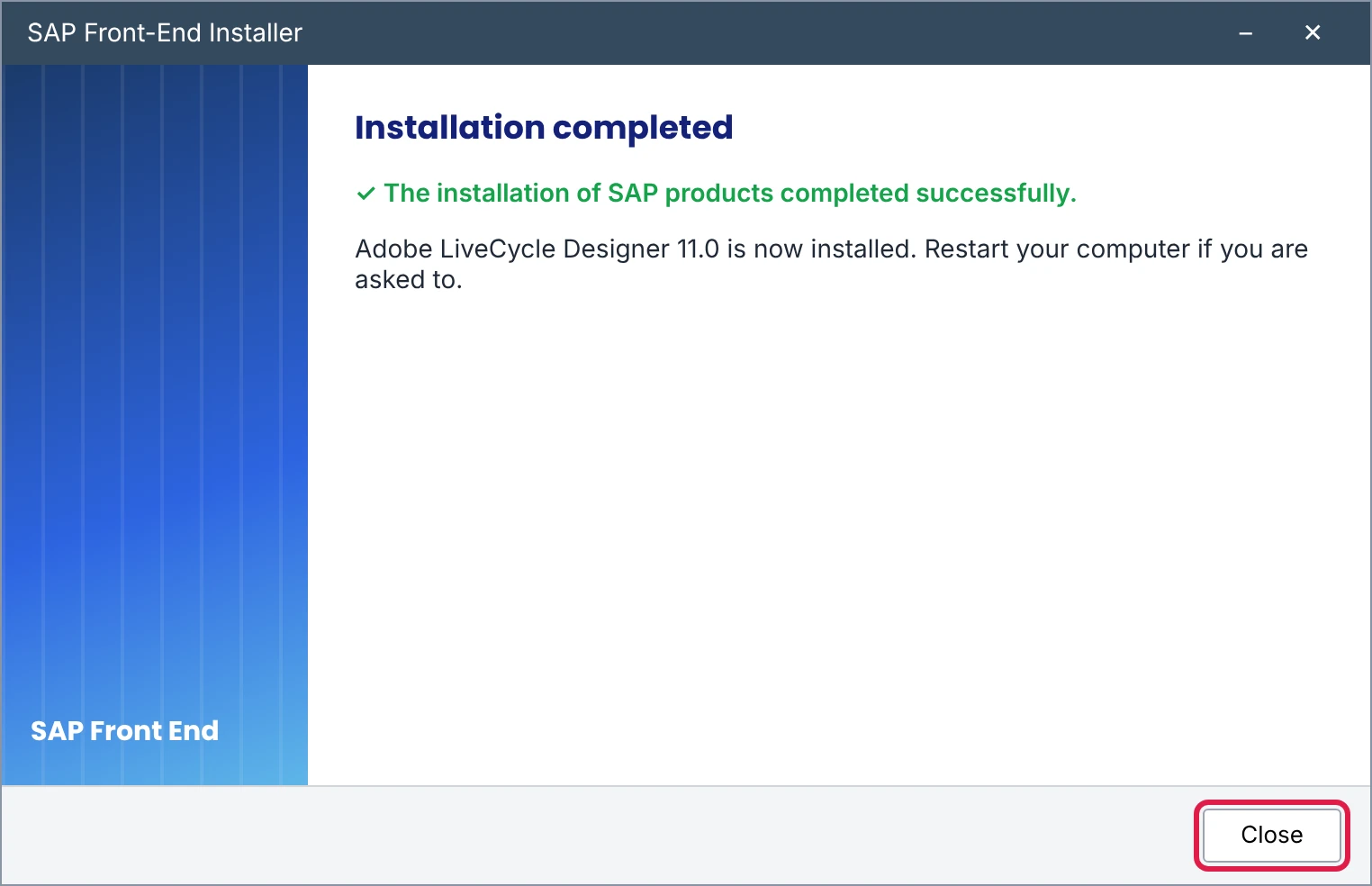
7Finish
When you see The installation of SAP products completed successfully, click Close. Restart your computer if you are asked to.
8Check the installation
Open the Windows Start menu and search for Adobe LiveCycle Designer. You don’t need to open it on its own – you use it from SAP GUI, as shown next.
Connect ALD to your SAP system
Open the Form Builder in SAP GUI and check that the Designer works.
9Log on to your SAP system
Open SAP Logon, double-click and log on with client , user and your password.
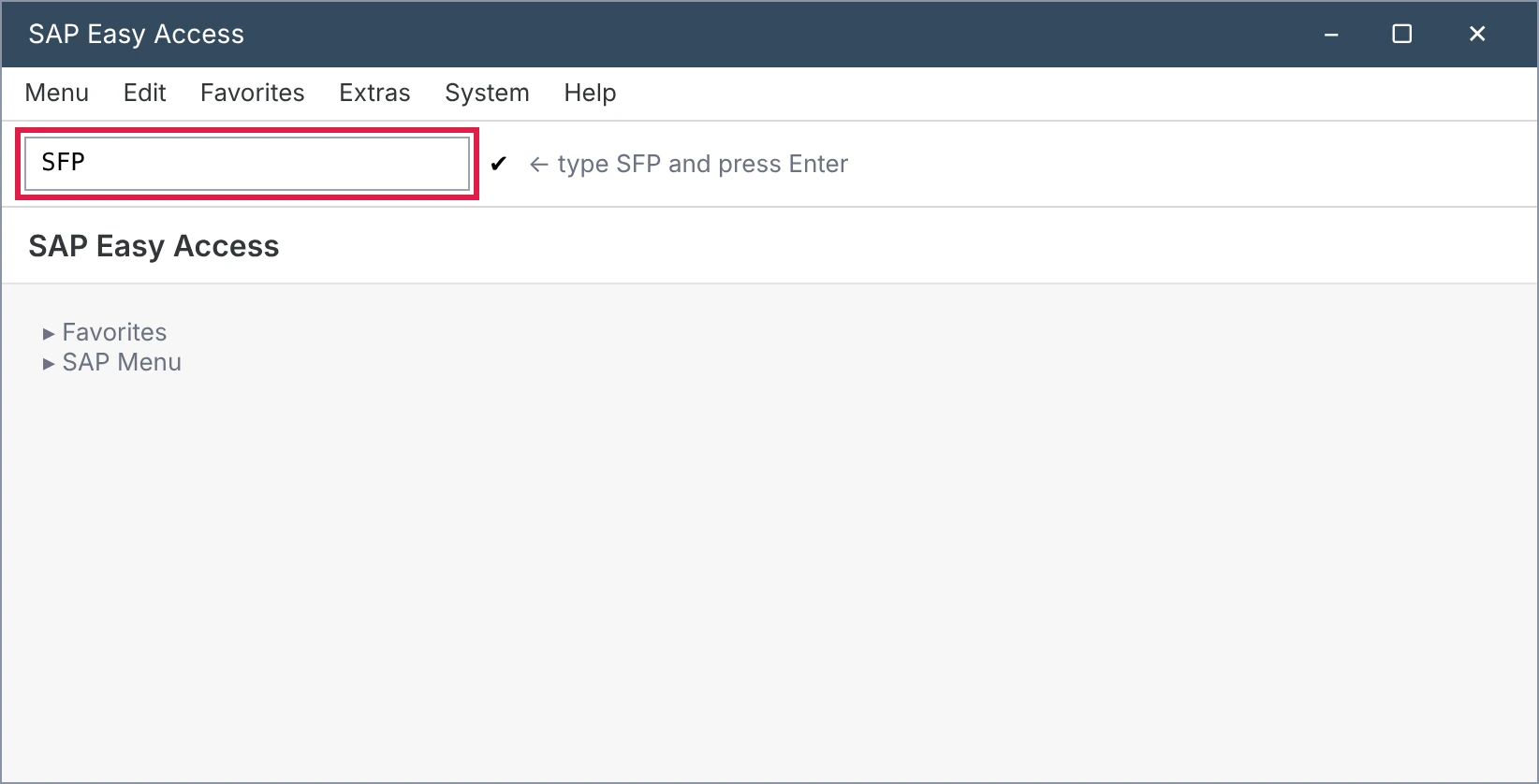
10Open the Form Builder (SFP)
In the command field at the top-left, type SFP and press Enter.
11Display a test form
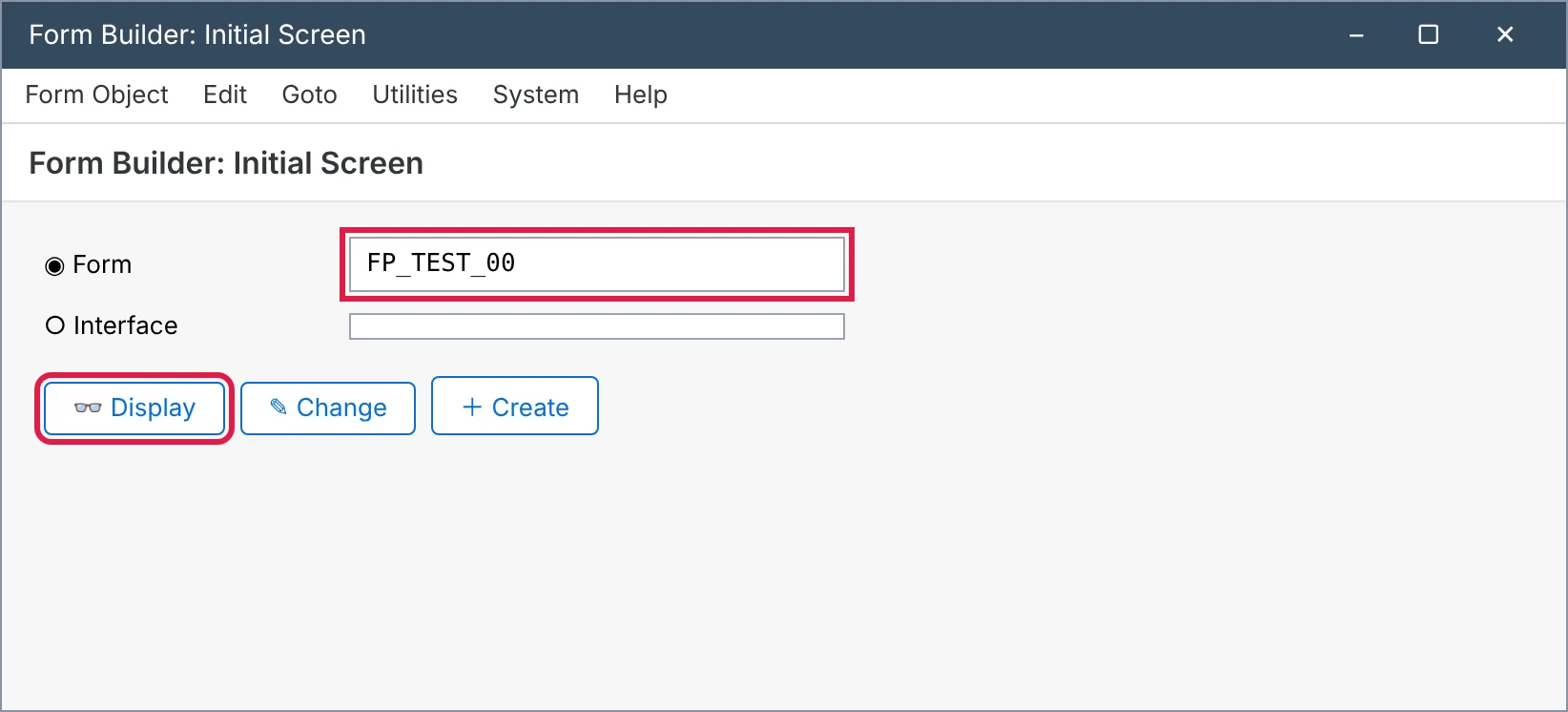
Select Form, type FP_TEST_00 (an SAP sample form available in most systems) and click Display.
12Open the Layout tab
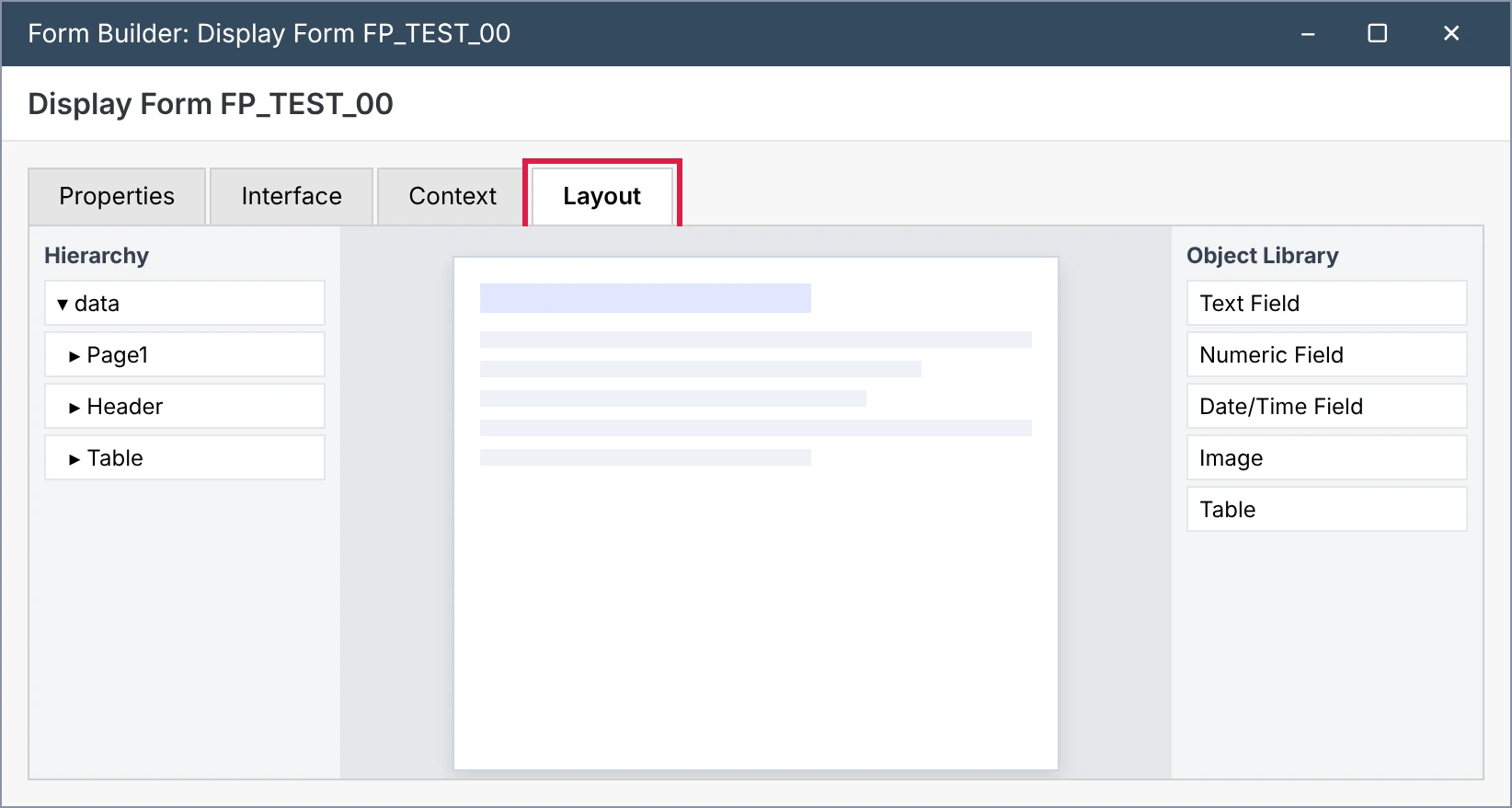
Click the Layout tab. Adobe LiveCycle Designer opens inside SAP GUI with the Hierarchy, the page and the Object Library. If you see this, ALD is connected and ready.
13If the Layout tab stays empty
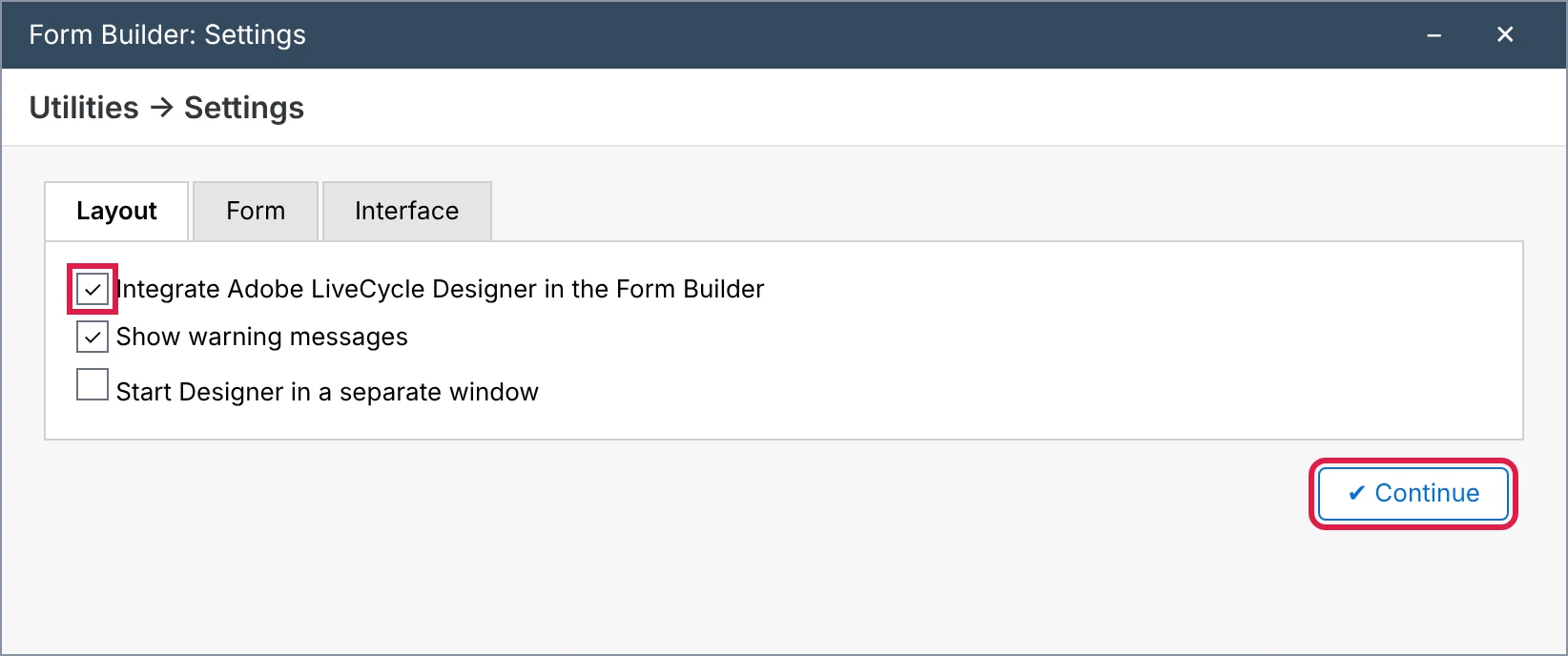
In SFP choose Utilities → Settings, open the Layout tab, tick Integrate Adobe LiveCycle Designer in the Form Builder and click Continue. Then open the Layout tab again.
14Work on your own forms
Create your own forms in SFP with a name starting with Z or Y (for example ZMT_INVOICE_FORM). To preview a form as a PDF, use Test (F8). Previewing needs Adobe Document Services (ADS) on the system, which ManbiTech sets up on its lab systems.
Good to know
Quick answers to common questions.
Which version should I install?
The Layout tab in SFP is empty or shows an error
Do I need SAP GUI?
Preview (F8) shows an ADS error
Installation stops with an error
Adobe LiveCycle Designer on Mac
✓What to do instead
Please use a Windows 10 or 11 computer and follow the Windows tab of this guide. If you only have a Mac, contact ManbiTech support and we will help you find the best option.
Tell us which step you are on – call or WhatsApp +91 84568 70059 or email info@manbitech.com.